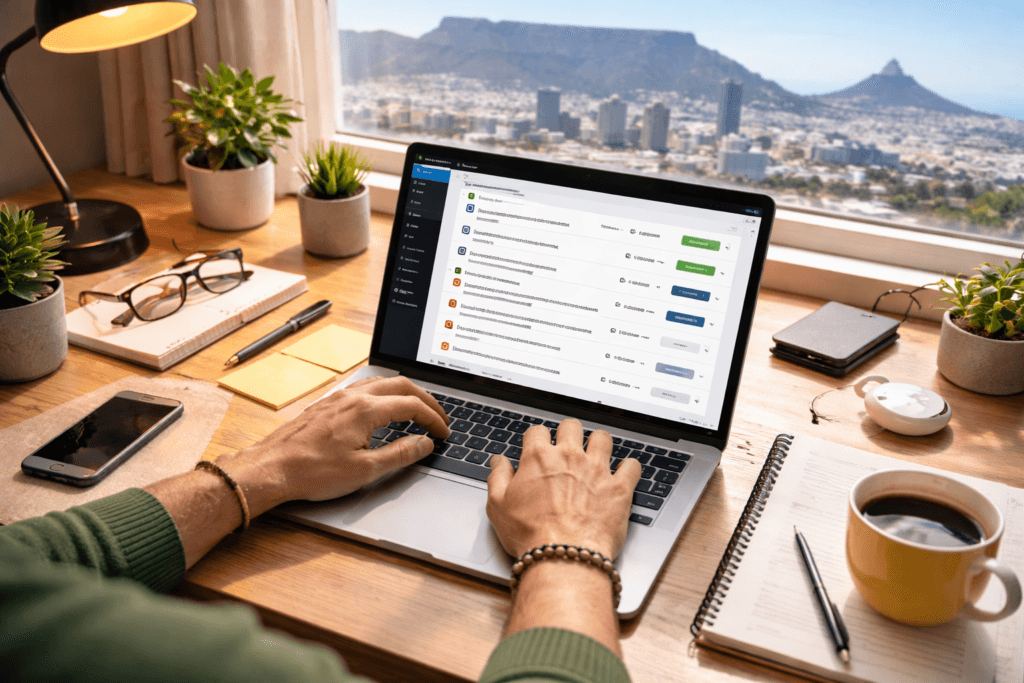
A good WordPress plugin updates checklist removes the two biggest risks small businesses face: security gaps from skipped updates, and downtime from rushed updates. The goal isn’t to update more often, it’s to update safely, with a repeatable process you can trust.
Table of Contents
Why updates feel risky (and why skipping them is worse)
Most breakages from plugin updates happen for predictable reasons:
- A plugin update changes a feature your theme relies on
- A caching/minification setting clashes with new scripts
- WooCommerce updates collide with extensions
- Your hosting/PHP version isn’t compatible with a plugin update
- A plugin is abandoned, and the update path is messy
But skipping updates creates a different problem: known vulnerabilities stay open. For small businesses, this is one of the most common “silent” risks, everything looks fine until it isn’t.
A repeatable WordPress plugin updates checklist is how you get both: security and stability.
The safe-update mindset: treat updates like controlled change
Think of updates like changing a tyre: you don’t do it in the fast lane.
Your checklist should:
- reduce unknowns (staging, backups)
- make changes in a predictable order
- confirm what matters (forms, checkout, key pages)
- make rollbacks easy
If your current hosting setup makes backups and restores painful, that’s a process problem – not a “WordPress problem.” It’s time to consider LiteSpeed WebServer Hosting
WordPress plugin updates checklist: before you update (prep)
This is the part that prevents 90% of avoidable breakages.
1) Pick a safe time window
- Avoid peak traffic hours
- Avoid the day before a campaign, launch, or public holiday
- If you’re in South Africa and your customers are local, early morning (SAST) often works well
2) Take (or confirm) a backup you can restore
Minimum:
- database + files backup
- confirmation of where backups live and how long they’re retained
- a clear restore method
3) Use staging if your site is business-critical
If your site brings leads or sales, you want staging. Update and test there first.
No staging? You can still use this WordPress plugin updates checklist, but be extra strict about backups and rollback.
4) Note your current versions (simple but useful)
Write down:
- WordPress version
- Theme name/version
- Plugins updated today (names + versions)
When something breaks, this makes troubleshooting much faster.
5) Quick “health check” scan (2 minutes)
Before updating, check:
- is the site already slow or erroring?
- are there existing warnings in the dashboard?
- is storage space low (on hosting)?
Don’t update into a mess.
The update order that usually causes the fewest problems
Order matters more than most people think.
Recommended order
- Backup
- Update plugins (small batches)
- Update theme
- Update WordPress core
- Clear caches and re-test
Why this order works:
- Plugins are often the most variable; updating them first exposes conflicts earlier.
- Theme updates can affect front-end layouts.
- Core updates should be last so you’re not changing the foundation while you’re still validating plugins.
For WooCommerce sites, consider updating WooCommerce and its extensions as a controlled set, ideally on staging.
The “small batches” rule (how to update without guessing)
A reliable WordPress plugin updates checklist avoids “Update All” unless you’re in a well-managed environment.
Batch method (simple and safe)
- Update 3–5 plugins at a time
- Check the site after each batch
- If a problem appears, you only need to review the last batch—much easier than hunting through 30 plugins
If you have a lot of plugins and updates constantly feel risky, it’s usually time for a plugin audit and consolidation.
What to test after updating (the part people skip)
After each batch (or after all updates, if the site is small), test what matters.
Post-update test checklist
- □ Homepage loads and looks correct
- □ Top navigation works (desktop + mobile)
- □ One key service page loads (check layout and images)
- □ Contact form submits successfully (and you receive the email)
- □ Any booking/quote request flow works
- □ Login works (if you have a client portal)
- □ If WooCommerce: add to cart → checkout → payment gateway test
- □ Site speed feels normal (no obvious slowdowns)
- □ No new warnings in the dashboard
For a quick performance sanity check, run one page through PageSpeed Insights (don’t obsess over the score, look for sudden regressions).
Compatibility checks that prevent surprise breakages
If you do only one thing beyond “update and hope,” do this.
1) PHP compatibility
Many update-related fatal errors are PHP version issues. Plugins that lag behind PHP changes can break suddenly.
2) Page builder and add-on compatibility
Elementor/Divi/WPBakery + add-ons can be fragile when versions drift out of sync.
3) Caching/minification settings
After updates, caching settings may need adjustments:
- disable minification temporarily if scripts break
- clear all caches (plugin cache + server cache + CDN)
4) WooCommerce extension match-ups
WooCommerce updates can be sensitive, especially when multiple extensions are involved. Staging is strongly recommended.
Security habits that belong in every WordPress plugin updates checklist
Updating is only one part of security. These habits make updates less stressful and your site safer.
Monthly security mini-check
- Remove inactive plugins you no longer need
- Remove unused themes (keep one default theme for fallback)
- Review admin users (least privilege)
- Ensure you’re using strong passwords + 2FA where possible
- Check that backups are running and restorable
Official WordPress security hardening guidance is a useful baseline reference.
Rollback plan: what to do if an update breaks the site
A good WordPress plugin updates checklist includes a rollback plan before anything goes wrong.
If the site breaks right after a plugin update
- Clear caches (plugin + server + CDN)
- Disable the last updated plugin (or last batch)
- If you can’t access wp-admin, disable plugins via file manager/FTP
- Restore from backup if needed
When to restore from backup immediately
- Checkout is broken
- You’re losing leads because forms don’t send
- The site is down (white screen / critical error)
- Admin is inaccessible
Restoring fast is often better than “debugging live” while customers are trying to contact you.
If you keep hitting the same update issues, it’s usually because the plugin stack is overlapping, outdated, or built on brittle customisations. If you are a little unsure, you can always contact VVRapid, even if you just need some free advice.
Common mistakes that make updates scary
- Using “Update All” with no staging
Fix: update in small batches, test between. - No rollback plan
Fix: confirm backups and how to restore before you touch anything. - Ignoring compatibility warnings
Fix: check PHP version and plugin support; replace abandoned plugins. - Stacking multiple tools that do the same job
Fix: one SEO plugin, one caching approach, one security approach. - Leaving unused plugins installed
Fix: remove anything you don’t need—fewer moving parts. - Testing only the homepage
Fix: test forms, checkout, key pages, and mobile navigation.
FAQ: WordPress plugin updates checklist
How often should I update WordPress plugins?
For most small businesses: weekly for routine updates is common, and immediately for security fixes, but only with a safe process (backup, staging where possible, testing).
Should I update plugins before WordPress core?
Often yes, update plugins in controlled batches first, then theme, then core. If you’re doing major version jumps, staging is best.
Is it okay to leave a plugin un-updated if it might break things?
Only temporarily. If a plugin can’t be updated safely, it’s a sign you may need to replace it or rebuild that functionality more cleanly.
Do updates affect SEO?
They can indirectly. Broken pages, slow performance, and downtime can affect rankings and conversions. That’s why your WordPress plugin updates checklist should include basic performance checks.
When is custom development a better option than another plugin?
When you need one specific feature and plugins add a lot of extra code, conflicts, or recurring maintenance headaches. Learn more about Custom Plugin Development
How VVRapid can help
If you want updates to stop feeling risky, VVRapid can help you set up a safer workflow: staging, backups, plugin audits, and performance-focused hosting. If a plugin is causing repeated conflicts, we can replace it with a lean custom plugin built specifically for your site.