If you’re trying to host multiple websites on cPanel, the goal isn’t just “get another domain online.” The goal is doing it in a way that stays secure, doesn’t turn into a folder mess, and won’t collapse the moment one site gets more traffic than expected. This guide gives you a clean, non-chaotic plan you can use whether you’re an agency running client sites or a business owner managing multiple brands.
Table of Contents
Host multiple websites on cPanel: what this actually means

When people say they want to host multiple websites on cPanel, they usually mean one of these:
- Multiple domains in one hosting account (e.g.,
brandA.com,brandB.com,brandC.com) - Subdomains for projects (e.g.,
staging.brandA.com,client.brandA.com) - Add-on sites that each have their own document root (separate website folders)
Modern cPanel makes this easier through the Domains interface, which is specifically designed to “create and manage multiple domains from a single cPanel account.”
The catch: you can absolutely host multiple websites on cPanel – but you need a structure, or you’ll eventually break SSL, email routing, or permissions (usually at the worst time).
When it doesn’t make sense to host multiple websites on one cPanel account
Before the plan, here’s the honest filter.
Avoid trying to host multiple websites on cPanel in one account if:
- One site is ecommerce (checkout + customer data) and the others are low-stakes brochures
- One site is high-traffic and would hog resources
- You have clients that require stronger isolation (compliance, security policies)
- You need different server-level configurations that can’t be separated cleanly
In those cases, splitting sites across separate hosting accounts (or separate containers) can reduce blast radius: one site fails, the rest keep running.
The simple setup plan: how to host multiple websites on cPanel without chaos
Step 1: Plan your “site map” before you add anything
This is the boring step that saves you later.
For each site, write down:
- Domain name
- Where DNS is managed (registrar, Cloudflare, etc.)
- Whether email is hosted with the same provider or elsewhere
- CMS type (WordPress, static, custom)
- Any “special” needs (forms via SMTP, ecommerce, multilingual, heavy media)
If you’re an agency, add:
- Who owns the domain (client vs you)
- Who will manage renewals and DNS changes
- Who needs admin access
Step 2: Add the new domain in cPanel the modern way
cPanel’s Create a New Domain documentation walks through adding a domain and notes you can create DNS records via the Zone Editor (depending on what your host allows).
Practical approach:
- Add the domain inside cPanel → Domains
- Confirm the document root is unique per site (more on that below)
- Don’t “reuse” the same folder for multiple sites
Why this matters: document roots are the foundation for separating sites. If you muddle roots, you muddle security and deployments.
Step 3: Use a document root structure that stays readable
If you want to host multiple websites on cPanel long-term, your folder structure should pass the “six months later” test.
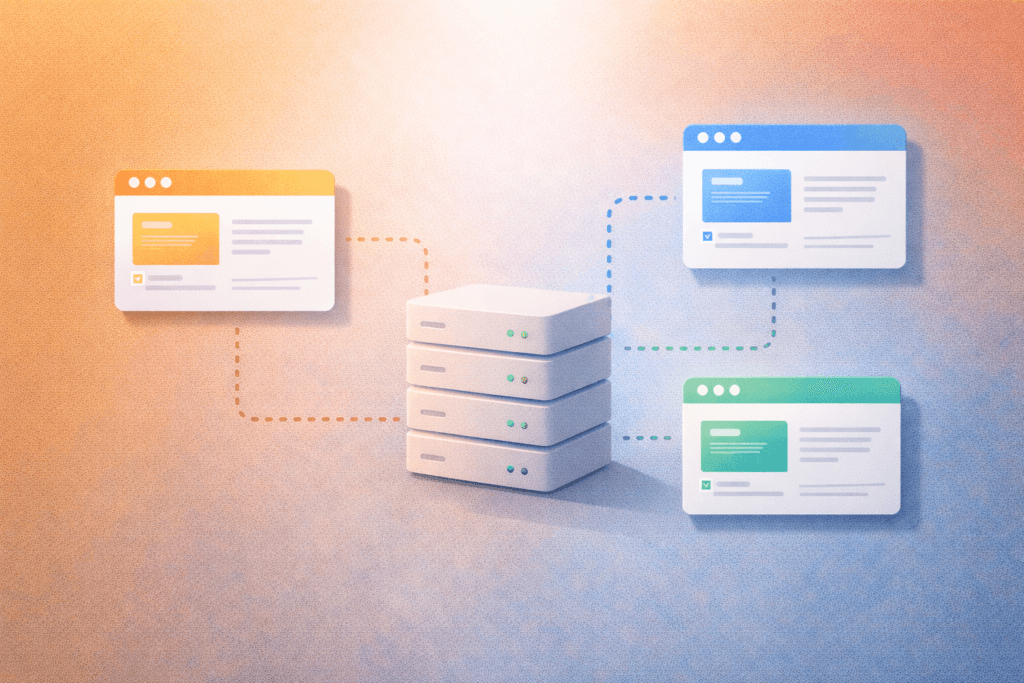
A clean pattern looks like:
/public_html/(keep for your primary domain only)/brandA.com//brandB.com//client-site-name/
If your host forces everything under public_html, you can still nest clearly:
/public_html/brandA//public_html/brandB/
Just be consistent. Consistency beats cleverness.
Step 4: Point DNS correctly (and don’t break email)
For each domain you add, DNS will need to point to the right server/IP (or the correct target if you’re using a reverse proxy/CDN).
Two common traps when you host multiple websites on cPanel:
- You update DNS for the website but accidentally break email (MX records)
- You move a domain and forget there are third-party services relying on DNS (verification records, SPF/DKIM, etc.)
A quick safety move: before changing anything, export/record current DNS values and decide:
- Is email hosted here or elsewhere?
- If elsewhere, keep MX + email auth records intact.
(You already have an email DNS guide from the previous article—this is where those habits pay off.)
Step 5: SSL per domain (no shortcuts)
Every domain should have its own SSL certificate. If you’re hosting WordPress sites, SSL isn’t optional.
After adding each site:
- Issue SSL
- Force HTTPS on that site (carefully per site, not globally in a way that breaks others)
- Confirm each site has its own certificate attached to its domain
Step 6: Resource planning (so one site doesn’t ruin the others)
When you host multiple websites on cPanel, the hidden risk is shared resources:
- one heavy plugin update spikes CPU,
- one site gets bot traffic,
- one client uploads uncompressed media,
and suddenly everything slows down.
cPanel includes a CPU and Concurrent Connection Usage interface on servers that run CloudLinux, which lets you view and monitor account resource usage (and points to CloudLinux docs for deeper detail).
What to do in practice:
- Monitor resource usage after adding new sites
- Watch for patterns: spikes during backups, traffic bursts, cron jobs
- If you hit limits regularly, split the heavy site out or upgrade hosting
Step 7: Security boundaries (the “blast radius” mindset)
If you host multiple websites on cPanel, assume one site will eventually be the weak link.
Minimum habits:
- Separate admin logins per site (no shared “admin/admin” culture)
- Keep plugins/themes updated
- Use unique strong passwords and 2FA where available
- Don’t reuse the same database user across multiple WordPress installs unless you truly know why
Agency tip: give clients “Editor” access unless they explicitly need Administrator.
Step 8: Backups and restore testing (for multi-site reality)
Backups matter more when you host multiple websites on cPanel, because restoring one site shouldn’t destroy the others.
Your backup plan should answer:
- Can you restore one site only?
- Can you restore just a database?
- How long does a restore take during business hours?
If your host does daily backups, great – but still test a restore process once per quarter. The first time shouldn’t be during a crisis.
Step 9: Performance basics (caching + image discipline)
Hosting multiple sites doesn’t mean they all need to be heavy.
What helps immediately:
- Use caching (server-level or plugin-level, but don’t stack competing caches)
- Compress images before upload
- Limit “page builder bloat” where possible
- Reduce third-party scripts (chat widgets, trackers, etc.)
If you want speed headroom while you host multiple websites on cPanel, LiteSpeed-based hosting with caching enabled is one of the simplest foundations to keep multiple sites responsive.
Two recommended “multi-site” setups (choose one)
Setup A: Multi-brand owner (all your brands under one roof)
Use this when:
- you own all sites,
- risk tolerance is similar across sites,
- traffic is moderate and predictable.
How to structure:
- Primary brand in
/public_html/ - Each other brand gets its own document root folder
- Central tracking: one place to monitor SSL, uptime, backups, and updates
Setup B: Agency / client sites (controlled, consistent, scalable)
Use this when:
- you want repeatable deployments,
- you need clearer client boundaries,
- you want to avoid “random client site breaks everything.”
How to structure:
- Group by client name or project code
- Standardise WordPress stack (theme baseline, plugin list, caching approach)
- Keep staging separate when possible (or use subdomains carefully)
If you’re doing active SEO and content for multiple client sites, having clean hosting structure makes technical SEO troubleshooting far easier.
Checklist: host multiple websites on cPanel without breaking things
Use this checklist every time you add a new site:
- ☐ Decide where email is hosted (here vs external)
- ☐ Add the domain in cPanel → Domains
- ☐ Set a unique document root for the site
- ☐ Update DNS carefully (don’t break MX/email auth records)
- ☐ Issue SSL and confirm HTTPS works per domain
- ☐ Install the site (WordPress or files) into the correct root
- ☐ Set unique admin credentials + least-privilege access
- ☐ Confirm backups include this site and that single-site restore is possible
- ☐ Check resource usage after launch
- ☐ Run a quick performance pass (caching + image compression)
Common mistakes when you host multiple websites on cPanel
1) Reusing document roots “just to get it live”
This creates cross-site contamination: one update breaks another site, or files get overwritten.
2) Breaking email while moving a website
If you move DNS without checking MX, your “website project” becomes an “email emergency.”
3) Stacking caching tools
One site uses host cache, another uses plugin cache, and the rules conflict. Keep caching simple and intentional.
4) Letting one site become the resource hog
If you’re going to host multiple websites on cPanel, you must monitor usage. cPanel’s resource usage interface exists for a reason on supported servers.
5) Treating client access like internal access
Agencies: do not give every client full admin rights by default. Security incidents often start with “someone installed one plugin.”
FAQ
Can I really host multiple websites on cPanel on one plan?
Often yes, if your plan allows multiple domains and your server resources are sufficient. cPanel’s Domains interface is designed for managing multiple domains in one account.
What’s the difference between a domain and a subdomain in cPanel?
A domain is a separate website address (e.g., brandB.com). A subdomain is part of an existing domain (e.g., staging.brandB.com). Both can point to different folders, but domains are cleaner for fully separate brands.
Will hosting multiple sites hurt performance?
It can if one site becomes heavy or gets traffic spikes. Monitor usage and split high-impact sites out when needed.
Should I put client sites and my own sites together?
Only if you’re comfortable with shared risk. If a client site is likely to be neglected or heavily customised, separate hosting is usually safer.
What’s the safest way to update multiple WordPress sites?
Use a staging workflow where possible, keep plugins controlled, and schedule updates. Pair hosting with maintenance if you want fewer surprises.
How VVRapid can help
If you want to host multiple websites on cPanel without the usual mess (confusing folders, broken SSL, email surprises, slowdowns), VVRapid can set up a clean multi-site structure on LiteSpeed hosting, handle migrations, and help you keep performance and stability consistent across every site. If you also want ongoing updates and monitoring, you can pair hosting with a maintenance plan, so issues get caught before your clients (or customers) do.
Alternatively, if you’re not sure whether your current plan can comfortably handle your next site, send VVRapid your domain list and a rough idea of traffic per site and we’ll tell you whether consolidating is sensible or if you should split. Contact VVRapid
Helpful external references (for deeper reading)
- cPanel Docs — Domains (manage multiple domains) ↗
- cPanel Docs — Create a New Domain ↗
- cPanel Docs — CPU & Concurrent Connection Usage ↗