WordPress security maintenance is the small, repeatable routine that keeps your website harder to hack, easier to recover, and less likely to break after updates. If you run a small business, you do not need “military grade” anything. You need consistency, safe defaults, and a plan for when something goes wrong.
Table of Contents
Why WordPress security maintenance matters (even if your site is “small”)
Attackers do not hand-pick targets the way people imagine. Most compromises are automated scans looking for known weaknesses, outdated plugins, weak passwords, or sloppy permissions.
For a small business, the cost is usually not just technical:
- Lost leads while the site is down
- Damage to trust if customers see warnings
- Cleanup work you did not plan for
- Time spent explaining things instead of running the business
If your website supports sales, enquiries, bookings, or paid campaigns, WordPress security maintenance is not optional. It is basic risk management.
For ongoing care that includes updates, monitoring, backups, and small fixes, see VVRapid’s Website Maintenance & Care.
WordPress security maintenance in plain English
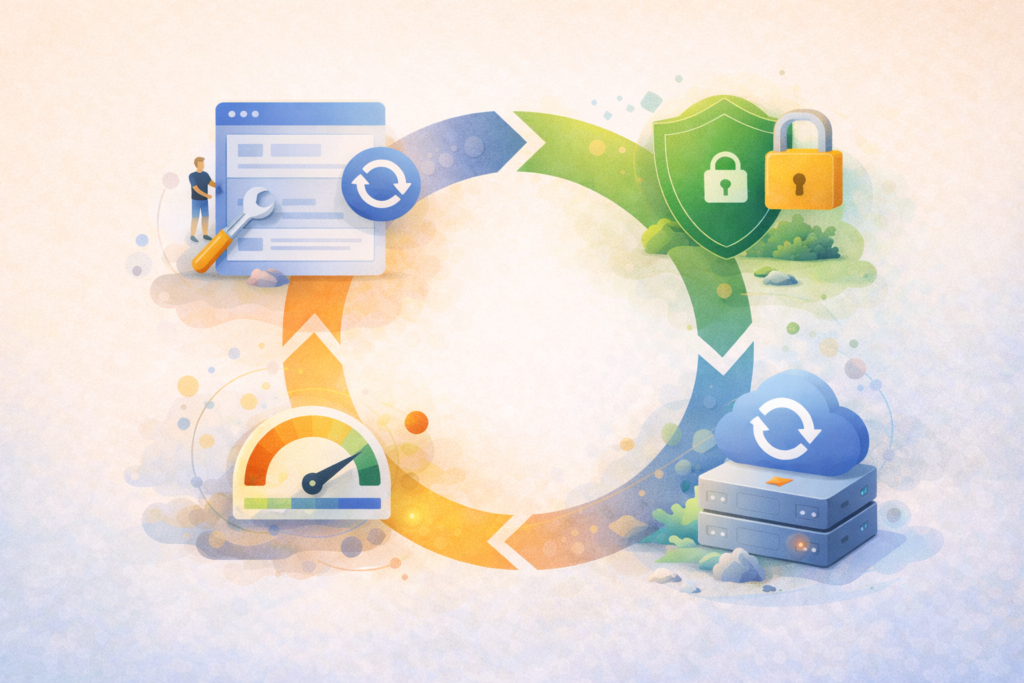
Think of WordPress security maintenance as four buckets:
- Reduce your attack surface
Remove what you do not need, and lock down what you do. - Keep software current, safely
Core, themes, and plugins stay updated with checks so you catch breakage early. - Monitor for problems
Uptime and security alerts should lead to action, not noise. - Recover fast
Backups and clean restore points turn a crisis into an inconvenience.
WordPress itself is built with security in mind, but the real-world risk often comes from the plugin ecosystem, weak admin habits, or sites that go long periods without updates. (Helpful reference: WordPress hardening guidance)
WordPress security maintenance routine (30 to 60 minutes, then light weekly checks)
This routine is designed for busy owners. It focuses on what moves the needle most.
Step 1: Confirm your backups are real (10 minutes)
Backups are only useful if you can restore them.
Do this:
- Confirm you have backups on a schedule (daily is ideal for active sites).
- Ensure backups are stored off-server (not only on the same hosting account).
- Make sure you have at least one recent clean restore point.
- Know who can restore and how long it takes.
If you are not sure, start by documenting:
- Backup frequency
- Backup location
- Restore process
- Last successful restore test date
A good WordPress security maintenance habit is to test restores periodically. Not weekly. Just often enough that you trust the process.
Step 2: Update safely (15 minutes)
Updating is a security task, but doing it recklessly can cause downtime.
Do this:
- Update WordPress core, themes, and plugins on a schedule.
- Update fewer things at a time so you can identify the cause if something breaks.
- After updates, check key pages and actions:
- Contact form
- Checkout or bookings
- Header and footer layout
- Mobile navigation
- Any key landing pages
WordPress itself recommends keeping core, themes, and plugins updated. (Reference: WordPress Security)
If your site is business critical, a staging environment helps you test changes safely before pushing them live.
Step 3: Lock down admin access (10 minutes)
Most owners underestimate how often compromises start with access.
Do this:
- Use unique, long passwords (a password manager helps).
- Enable two-factor authentication for admin accounts where possible.
- Limit the number of admin users.
- Remove old accounts for staff or vendors who no longer need access.
- Ensure every user has the minimum role they need (Editor is not Admin).
This is core WordPress security maintenance because it reduces easy wins for attackers.
Step 4: Run a quick “surface area” audit (10 minutes)
The more moving parts you have, the more you have to maintain.
Do this:
- Remove unused plugins and themes (do not just deactivate).
- Replace overlapping plugins that do the same job.
- Check whether your theme and critical plugins are actively maintained.
- Avoid “nulled” or pirated plugins and themes. They are a common source of malware.
If you need custom functionality, it is often safer to build it properly rather than stacking plugins. VVRapid does Custom Plugin Development
Step 5: Basic file and configuration hardening (optional, 10 to 20 minutes)
Some hardening steps are simple and high impact, but they should be done carefully, especially on shared hosting.
Examples that often come up in WordPress security maintenance:
- Strict file permissions and correct ownership
- Disabling file editing in the WordPress dashboard
- Protecting sensitive files like wp-config.php
- Ensuring PHP and server software are current
WordPress provides a solid overview of hardening practices here: Hardening WordPress
If you are not comfortable touching server settings, outsource this part. Misconfigured hardening can cause site errors.
The “Minimum Viable Hardening” checklist (copy this)
Use this as your baseline WordPress security maintenance checklist.
Access
- ☐ Unique admin passwords stored in a password manager
- ☐ Two-factor authentication enabled for admin users
- ☐ Admin users limited to only who truly needs it
- ☐ Old users removed, roles set correctly
Updates and plugins
- ☐ WordPress core updates applied on schedule
- ☐ Plugin and theme updates applied on schedule
- ☐ Only actively maintained plugins/themes kept
- ☐ Unused plugins and themes removed
Backups and recovery
- ☐ Backups run on a schedule suited to change frequency
- ☐ Backups stored off-server
- ☐ Restore process documented
- ☐ Restore tested periodically
Monitoring
- ☐ Uptime monitoring enabled
- ☐ Security monitoring or malware scanning enabled
- ☐ Alerts go to someone who will act, not just notify
Performance (security’s quieter cousin)
- ☐ HTTPS enabled sitewide
- ☐ Core site pages load reliably on mobile
- ☐ Hosting is stable and updated
If you are rebuilding stability from the ground up, hosting quality matters. LiteSpeed WebServer Hosting is a strong option for performance-focused WordPress sites.
What you should automate vs what you should review manually
Good WordPress security maintenance is a mix of automation and human checks.
Automate
- Scheduled backups
- Uptime monitoring
- Malware scanning (where available)
- Update notifications and reporting
Review manually (quick checks that prevent embarrassment)
- Contact forms and booking flows after updates
- Checkout and payment confirmation pages
- Key pages on mobile
- Any integrations (CRM, email, payment gateways)
In South Africa, one practical note: power or connectivity interruptions can delay your response to alerts. That is another reason a plan with monitoring and proactive action beats “someone will notice eventually.”
What to do if you suspect your site has been hacked
This is the calm, practical sequence.
- Take a breath and stop making random changes
Chaos creates more damage. - Put the site in maintenance mode if visitors are at risk
Especially if you see redirects, spam popups, or warnings. - Change passwords immediately
Hosting, WordPress admin, database, FTP, and email accounts connected to the site. - Scan and identify the entry point
Outdated plugin, weak credential, compromised hosting, or injected code. - Restore from a clean backup if appropriate
Then update everything and close the gap that caused the issue. - Document what happened
This helps avoid repeat incidents.
Small businesses can also use CISA’s small business cyber guidance as a broader hygiene reference: Cyber Guidance for Small Businesses
Common mistakes in WordPress security maintenance
Mistake 1: “I will update later”
Delayed updates are one of the most common causes of avoidable compromises. WordPress explicitly emphasises keeping core, plugins, and themes up to date. (Reference: WordPress security)
Mistake 2: Too many plugins for the same job
Every plugin is more code to maintain. Consolidate where possible.
Mistake 3: One shared admin login
It feels convenient until it is a mess. Give each user their own account and role.
Mistake 4: Backups that are never tested
A backup you cannot restore is not a backup. WordPress security maintenance includes recovery, not just storage.
Mistake 5: Ignoring hosting and server updates
Security is not only WordPress. The server environment matters too.
Mistake 6: Installing random “security” tools without a plan
More tools can create more alerts and more confusion. Start with basics, then add layers only when they are clearly needed.
How to choose a maintenance level (without overbuying)
If you are deciding whether you need a “basic” setup or something more proactive, use these questions:
- Does your site directly generate leads or revenue?
- Do you run paid traffic or campaigns that would be painful to interrupt?
- How often do you update content, products, or pages?
- If your site went down today, how quickly would you notice and respond?
As the risk and activity increase, your WordPress security maintenance needs to become more frequent and more monitored.
FAQ: WordPress security maintenance
How often should I do WordPress security maintenance?
Light weekly checks plus a monthly deeper review is a good baseline for many small business sites. If you update frequently or rely heavily on the site, you may need more frequent updates and monitoring.
Do I need a security plugin?
Sometimes, but a plugin is not a substitute for updates, backups, good passwords, and sensible access control. Start with fundamentals, then add tools where they clearly help.
Is HTTPS part of security maintenance?
Yes. HTTPS protects data in transit and is part of good security hygiene. Google has also stated HTTPS is a ranking signal, even if lightweight. (Reference: HTTPS as a ranking signal)
What is “hardening” in WordPress?
Hardening is reducing common weaknesses through configuration and best practices, like file permissions, limiting access, and protecting key files. WordPress documents hardening steps here: Hardening WordPress
What should I do first if I only have 15 minutes?
Confirm backups, update critical plugins, and check that admin access is locked down (unique passwords, remove old users). That is high-impact WordPress security maintenance.
How VVRapid can help
If you want WordPress security maintenance handled consistently, VVRapid’s Website Maintenance & Care covers updates, security checks, backups, uptime monitoring, performance monitoring, and small fixes so you are not guessing what is being done. We can plug in whether we built your site or you are bringing an existing one, and we can help reduce plugin risk, tighten access, and keep recoverability simple. Start here to view the care service: Essential Website Maintenance & Care
Next step: If you are not sure where your biggest risk is, begin with a maintenance plan that matches your site’s importance, then tighten the basics month by month.