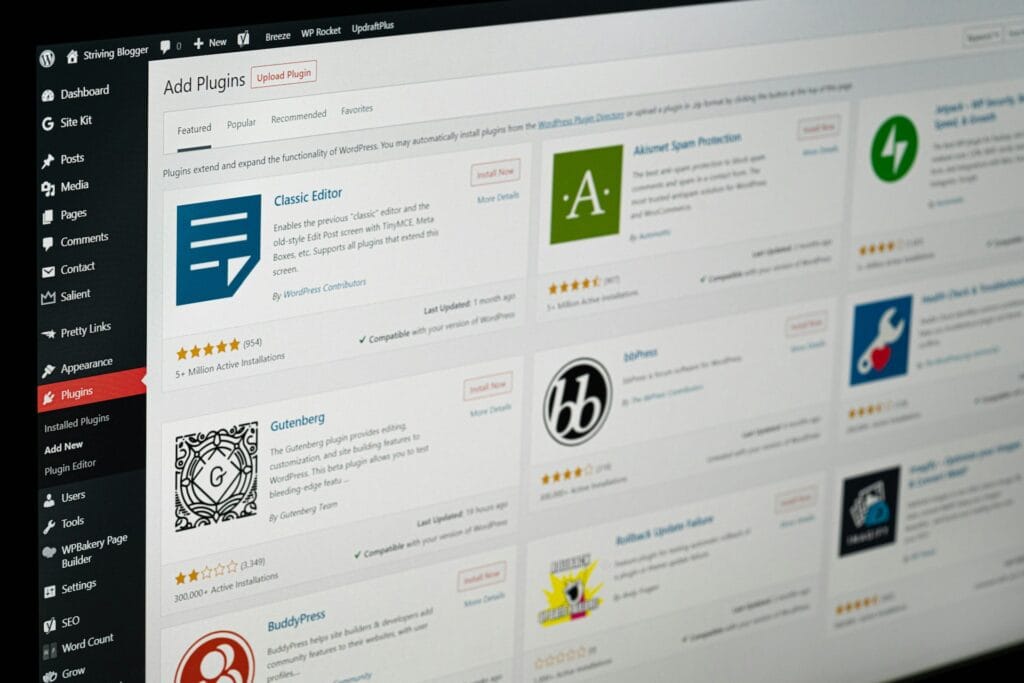
A WordPress maintenance monitoring checklist helps you catch problems that do not show up the moment you hit “Update”. Many WordPress issues appear hours later: a scheduled task fails, emails stop sending, caching behaves oddly, or checkout events do not fire. This WordPress maintenance monitoring checklist is a practical 24-hour routine to confirm your site stayed stable after updates.
Table of Contents
Why the first 24 hours matter after updates
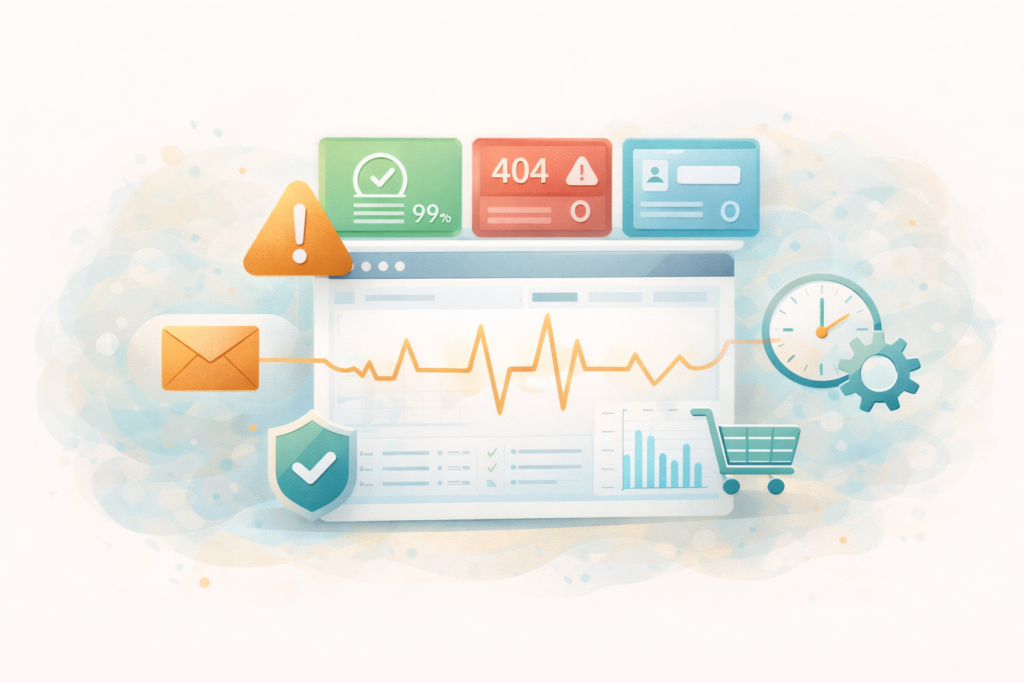
Updates are not just code changes. They can affect:
- Caching and minification, which can break scripts or layout on certain pages
- Background jobs, like WP-Cron tasks, that only run later
- Integrations, like forms, SMTP, CRMs, payment gateways, and shipping services
- Database and performance, where small changes cause slow queries
- Security rules, like firewall settings, that can note false positives
If your site is business-critical, the “update completed” message is only the start. The goal of a WordPress maintenance monitoring checklist is simple: confirm nothing important quietly degraded.
If you your require expert help, please take a look at Website Maintenance & Care.
Your 24-hour WordPress maintenance monitoring checklist
This is structured as a timeline. You can do the first pass in 15 to 25 minutes, then smaller checks later.
0 to 30 minutes after updates: do the quick “red flag” sweep
1) Confirm the site is actually reachable
- Open the homepage in an incognito window
- Open one key landing page
- Open one key conversion page (contact, quote, checkout, booking)
If anything throws a 500 error, white screen, or endless loading, stop and fix before doing anything else.
2) Check WordPress for obvious warnings
In wp-admin:
- Look for update notices that did not complete
- Check for critical admin notices from plugins
- Review Site Health for new warnings
External reference:
3) Run a fast performance sniff test
You do not need deep auditing yet. Just check:
- Does the site feel slower than usual?
- Are images and scripts loading?
- Does the page jump or flash oddly on load?
If it feels off, note it for the 2 to 6 hour checks.
30 minutes to 2 hours: test the money paths
This is where most “silent failures” hurt.
4) Transactional email and form delivery
Do not just submit a form and see a success message. Confirm delivery.
- Submit the main contact form and confirm you receive the email
- If you use SMTP, confirm it is still connected
- If you use a form plugin, check its submission logs
If email fails after updates, it often impacts lead flow immediately.
External reference:
5) Ecommerce checkout and payment flow (if applicable)
For WooCommerce sites:
- Add a product to cart
- Proceed to checkout
- Test payment in sandbox mode if available, or use a low-risk test product
- Confirm order confirmation page loads
- Confirm order email sends
Common post-update issue: payment scripts blocked by caching or JS optimisation.
6) Booking or membership flows (if applicable)
- Create a test booking
- Log in and out as a member
- Check password reset email
- Confirm restricted pages behave correctly
If your business depends on a portal or booking calendar, this check is non-negotiable.
2 to 6 hours: check background jobs and integrations
7) WP-Cron and scheduled tasks
Some plugin tasks only run on schedule: abandoned cart emails, sync jobs, backups, security scans.
Look for signs of failure:
- Scheduled emails not sending
- Feeds not updating
- CRM sync not updating
- Backup jobs not running
If you have access to a cron management tool, confirm recent runs succeeded.
External reference:
8) Third-party integrations
Spot-check the systems your business relies on:
- CRM: did new leads appear with correct fields?
- Analytics: are pageviews and conversions still tracking?
- Shipping: do rates still calculate?
- Search: does site search return results?
A good WordPress maintenance monitoring checklist focuses on reality, not dashboards. Check one real record in the CRM, one real conversion event, one real shipping quote.
9) Caching, minification, and asset delivery
After updates, caching plugins sometimes need a purge and re-warm.
Do this:
- Purge caches
- Rebuild critical CSS if your setup uses it
- Confirm key pages display correctly on mobile
If you host on a WordPress-optimised stack, you will usually have fewer “mystery” cache issues.: LiteSpeed WebServer Hosting
6 to 24 hours: monitor errors and regressions
10) Error logs and plugin logs
If you can access server logs:
- Scan for spikes in PHP errors
- Look for fatal errors and warnings tied to updated plugins
- Check security logs for new blocks
If you cannot access server logs, many plugins provide their own logs.
The point is not perfection. It is to catch patterns before customers report them.
11) Uptime and alerting
If you use uptime monitoring:
- Confirm no downtime incidents occurred after updates
- Confirm SSL checks passed
If you do not use uptime monitoring, consider adding it. It is one of the simplest ways to catch real outages.
External reference:
12) SEO and indexing sanity checks
You do not need a full SEO audit, but you should confirm:
- Your site is still indexable (no accidental “noindex”)
- Key pages still return 200 OK
- No sudden crawl errors
Quick checks:
- Search Console coverage and page indexing reports
- A spot check of robots.txt if you changed caching or security settings
The “if something looks wrong” response plan
A WordPress maintenance monitoring checklist is only useful if you know what to do next.
Step 1: Identify whether it is site-wide or page-specific
- Site-wide issues often point to caching, theme conflicts, or a critical plugin
- Page-specific issues often point to shortcodes, blocks, or a specific integration
Step 2: Disable the most likely culprit first
If the issue appeared after updates, start with the most recently updated plugin that touches that area.
Step 3: Roll back safely if needed
If the problem is revenue-impacting and you cannot fix quickly:
- Restore the last known good backup, or
- Roll back the plugin version (only if you trust the source)
External reference:
Step 4: Document what happened
Write down:
- What changed
- What failed
- How you fixed it
- What you will monitor next time
This makes future updates faster and calmer.
Common mistakes in post-update monitoring
Mistake 1: Only checking the homepage
Most failures happen in conversion paths assume forms, checkout, and booking.
Mistake 2: Trusting “success” messages
Form success messages do not confirm delivery. Confirm the email or CRM record.
Mistake 3: Ignoring background jobs
If scheduled tasks fail, you might lose leads or orders hours later.
Mistake 4: Forgetting mobile checks
Caching and script issues often show up on mobile first.
Mistake 5: No alerts, no visibility
If you only learn about issues from customers, you are always behind.
Copy and paste checklist

Use this condensed WordPress maintenance monitoring checklist as a reusable task list:
- 0 to 30 min: key pages load, wp-admin notices, Site Health, quick speed sniff
- 30 min to 2 hrs: forms and emails confirmed delivered, checkout tested, booking or login tested
- 2 to 6 hrs: WP-Cron jobs running, CRM sync checked, analytics conversions checked, caches purged and pages rechecked
- 6 to 24 hrs: scan error logs, confirm uptime stable, check Search Console for crawl or indexing issues
- If issues: isolate scope, disable culprit plugin, roll back if revenue-impacting, document everything
FAQ
Do I need a WordPress maintenance monitoring checklist if I used staging?
Yes. Staging reduces risk, but production has real traffic, real caching behaviour, and real integrations. Monitoring confirms the real environment stayed healthy.
What is the most common “silent failure” after updates?
Transactional email and background jobs. Leads can stop arriving even when the form looks fine.
How long should post-update monitoring take?
The first pass can be 15 to 25 minutes, then shorter checks later. The goal is consistency, not perfection.
Should I monitor every update?
Monitor after any meaningful change: core updates, WooCommerce updates, caching changes, form plugin updates, or anything tied to revenue.
What if I do not have access to logs?
You can still monitor outcomes: form delivery, order emails, CRM records, uptime alerts, and Search Console.
How VVRapid can help
If you want post-update checks handled consistently, VVRapid can maintain your site with staging updates, backups, monitoring, and quick rollback support. If recurring conflicts keep happening, we can also reduce plugin overlap or build a focused custom solution where it makes sense.
Next step: share the 3 to 5 site actions you cannot afford to have break, and your current update frequency. Contact VVRapid