Website maintenance updates are where most website “emergencies” begin: one click, one conflict, and suddenly a page layout breaks, a form stops sending, or the site goes blank.
Table of Contents
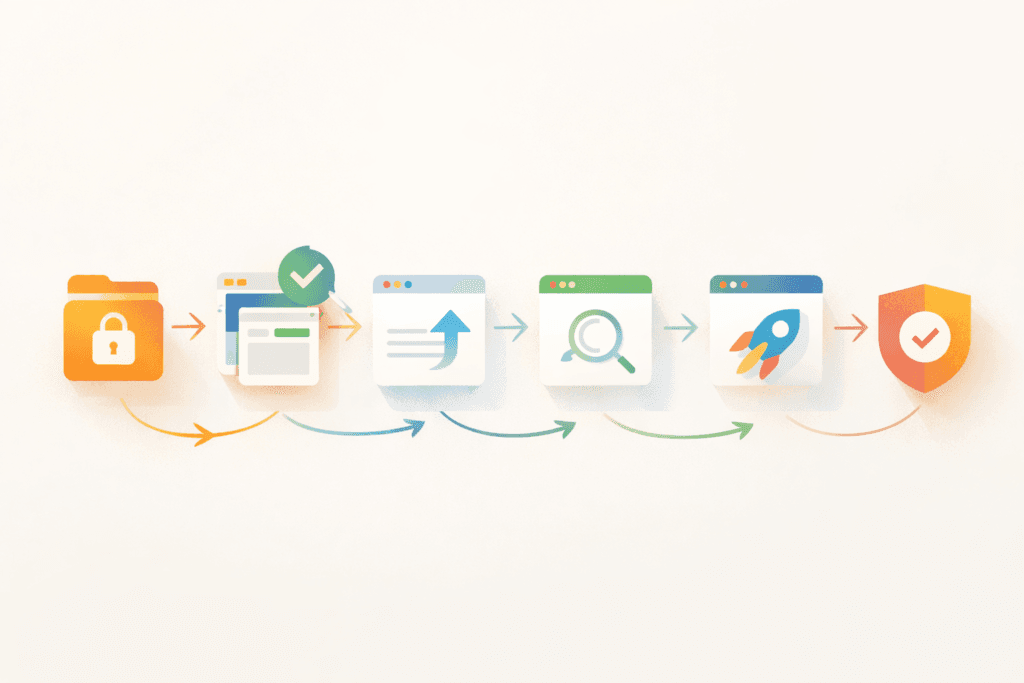
The good news: most of these problems are avoidable with a simple, repeatable workflow. You don’t need to be a developer. You need a safe process: stage → backup → update → test → deploy → verify → rollback if needed.
This guide is written for busy business owners and teams who want website maintenance updates handled safely, especially on WordPress sites with plugins, themes, and (sometimes) e-commerce.
Why website maintenance updates break sites in the first place
Most website maintenance updates fail for boring reasons:
- Plugin conflicts: Two plugins rely on different versions of the same library, or they overlap features.
- Theme compatibility issues: Your theme hasn’t been updated to match newer WordPress changes.
- Server environment mismatch: PHP version, caching layers, or server limits don’t match what the update expects.
- Database changes: Some updates modify database structure or settings.
- “Update everything at once” habits: When you change 12 things, it’s hard to know what caused the problem.
WordPress updates themselves are normal and expected (there are one-click and manual methods). The risk isn’t “updating”, it’s updating without guardrails.
The safe website maintenance updates workflow (the one to repeat every time)
If you only copy one thing from this article, make it this workflow. It scales from small brochure sites to busy WooCommerce stores.
Step 1: Decide where the update should happen (live vs staging)
Use staging when:
- You’re updating WooCommerce, payment plugins, booking plugins, or anything revenue-critical
- You’re updating the theme (or a page builder)
- There are many updates queued (and the site hasn’t been updated in a while)
- You’ve recently changed hosting, caching, or security layers
Live updates can be OK when:
- It’s a small, low-risk plugin update
- You have recent backups and you know how to restore
- You can test quickly after updating (forms, checkout, key pages)
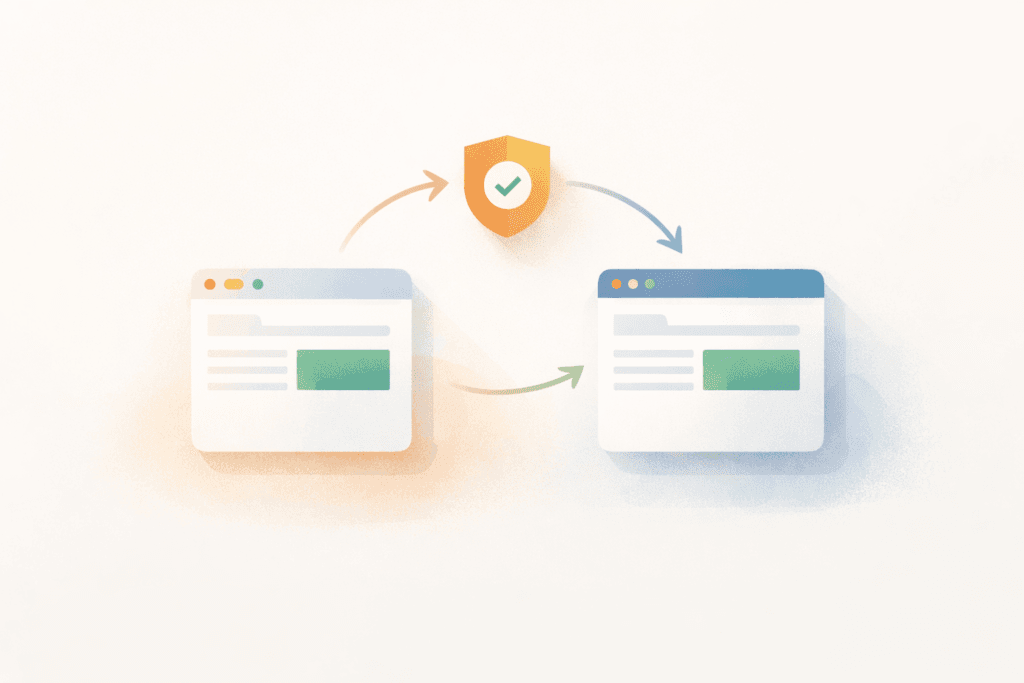
For WordPress.com users, “staging site” is a standard concept: a cloned environment where you can test updates and changes before applying them to production.
For WooCommerce, their documentation also recommends testing updates on a staging environment (often created through your host) to avoid breaking a live store.
Rule of thumb: if downtime or broken checkout would hurt, staging isn’t optional.
Step 2: Take a “known good” backup (and label it)
Before website maintenance updates, make sure you have:
- A recent backup
- A restore point you trust
- Clarity on what’s included (files + database)
Backups aren’t just “a copy.” They’re your fastest escape hatch when something breaks.
If your current setup only has “monthly backups,” consider whether that’s realistic for a site that changes weekly (or daily). Backup frequency should match how much you can afford to lose.
Step 3: Update in a controlled order (not chaos mode)
A practical order for website maintenance updates:
- Update WordPress core (if needed)
- Update the theme (if needed)
- Update plugins one-by-one, starting with the most trusted/critical
- Leave the “unknowns” (rare plugins, abandoned plugins, niche add-ons) for last
Also:
- Don’t update 20 plugins at once.
- After each update, do a quick check (even a 30-second scan is helpful).
This is slower than one-click “Update All”… and much faster than emergency recovery.
Step 4: Run a fast post-update test (your “smoke test”)
After website maintenance updates, test what matters to the business. Not every corner of the site.
5-minute smoke test:
- Homepage loads (desktop + mobile)
- Navigation works
- Contact/lead form submits and email is received
- Key landing page(s) render correctly
- If ecommerce: add to cart → checkout loads → payment gateway page opens (test mode if possible)
If any of those fail, stop and move into rollback decisions.
Step 5: Deploy safely (staging → production)
If you updated on staging, your deployment method matters:
- For content-only sites, a full push can be fine.
- For stores and membership sites, avoid overwriting the live database unless you’re very sure, because orders/users may have changed on production.
This is why many teams use staging to validate updates, then apply the same updates carefully on production, rather than “pushing everything” and overwriting live data.
WooCommerce’s docs explicitly discuss staging as the safer place to test updates.
Step 6: Verify + monitor after deployment
The most common “false success” is: “It looks okay right now.”
After website maintenance updates:
- Watch uptime and error alerts for a few hours
- Check server error logs if you have access
- Re-test forms and checkout after caching has settled
This is also where performance issues show up (slowdown after a new plugin version, script bloat, cache conflicts).
Rollback decisions: when to restore vs when to troubleshoot
Here’s the honest truth: restoring a clean backup is often the fastest business decision.
When to restore immediately
Restore is usually the right call when:
- The site is down (white screen / critical error)
- Checkout is broken
- Forms stop sending
- Multiple pages are broken and you’re unsure why
- You’re losing leads or revenue by the hour
Restoring gets you back online first. Then you can troubleshoot in staging without panic.
When to troubleshoot first
Troubleshoot (without restoring) when:
- One non-critical feature broke
- You can quickly identify the cause (a single plugin update)
- The site is mostly working, and you have time to isolate the issue
A note on WordPress “auto rollback”
WordPress has been moving toward safer automatic plugin updates. There’s a “Rollback Auto-Update” feature plugin intended to detect certain PHP fatal errors during automatic plugin updates and revert to the previous version.
That’s helpful—but it’s not a full safety net for every update scenario. Most businesses still need a real rollback plan as part of website maintenance updates.
Change control for small business: keep it simple (but consistent)
“Change control” sounds corporate. In practice, it just means:
- Don’t change everything at once
- Document what changed
- Know how to undo it
A lightweight change log for website maintenance updates can be as simple as:
- Date
- What was updated (plugin/theme/core version)
- Where it was tested (staging/live)
- Result (OK / issue found)
- Action taken (deployed / rolled back / pending dev fix)
When something breaks weeks later, this log saves hours.
Website maintenance updates checklist
Use this as your team’s standard operating procedure:
Before
- ☐ Confirm staging access (if needed)
- ☐ Take a fresh backup and label it “Pre-update”
- ☐ Note current versions (core/theme/plugins)
- ☐ Confirm you can login to WP admin + hosting panel
During
- ☐ Update core (if required)
- ☐ Update theme (if required)
- ☐ Update plugins one-by-one (not “Update All”)
- ☐ After each update, quick spot-check key pages
After
- ☐ Run 5-minute smoke test (forms/checkout/key pages)
- ☐ Check for console errors or broken layouts
- ☐ Monitor uptime/errors for a few hours
- ☐ Log changes (what you updated and when)
That’s the operational heart of safe website maintenance updates.
Common mistakes with website maintenance updates (that cause most breakages)
1) Updating on live with no staging (for high-risk sites)
If your site is business-critical, staging reduces stress and prevents avoidable downtime. WordPress.com and WooCommerce both treat staging as a standard “test first” approach.
2) Hitting “Update All” with 20 plugins queued
It’s fast… until it isn’t. If something breaks, you don’t know what caused it.
3) No rollback decision rule
In a stressful moment, people start “trying things.” That’s how problems compound. Decide upfront: “If checkout breaks, we restore.”
4) Ignoring plugin quality signals
Old plugins, abandoned plugins, overlapping plugins, and “mystery” add-ons multiply update risk.
Here is a related article worth reading: WordPress plugins for small business
5) Treating updates as a once-a-year event
Long gaps create big jumps—bigger jumps mean higher risk. Regular cadence makes website maintenance updates safer.
Which plan features matter most for update safety?
If you’re comparing care plans or providers, update safety comes down to a few practical capabilities:
Staging (big one)
Staging reduces risk dramatically for:
- Theme updates
- WooCommerce updates
- Page builder updates
- Major plugin updates
Backup frequency + restore readiness
Daily backups are meaningful if your site changes frequently. But just as important: do you have clean restore points and a clear restore process?
Monitoring + support responsiveness
If something breaks after website maintenance updates, how quickly will you know and how quickly can someone help?
If you want a plan that includes staging and more frequent updates, your Standard and Premium maintenance options are typically the safer fit for business-critical sites.
When website maintenance updates need a developer (not just a maintainer)
Sometimes the right answer isn’t “try again.” It’s “fix the underlying issue.”
Bring in development help when:
- A plugin conflict requires custom code changes
- Your theme overrides core/plugin templates (common with WooCommerce)
- You need to replace multiple plugins with a single cleaner solution
- Performance issues are structural (not “just caching”)
If you’re repeatedly afraid to update because things break, that’s a signal the site needs technical cleanup. Not just more careful clicking.
This may also be a time to start considering Custom WordPress Plugin Development
FAQ: website maintenance updates
How often should website maintenance updates be done?
Most business sites are safer with a weekly rhythm (especially plugins), while smaller sites may be okay monthly. The more revenue-critical and plugin-heavy the site, the more important consistent cadence becomes.
Do I always need staging?
Not always. But for e-commerce, bookings, membership sites, and major theme/page builder updates, staging is strongly recommended.
What’s the fastest way to recover if an update breaks the site?
Restore a known-good backup first (get back online), then troubleshoot the update issue in staging where you can work safely.
Can WordPress roll back updates automatically?
WordPress has work underway to detect certain fatal-error failures during automatic plugin updates and roll back to the prior version, but it doesn’t cover every scenario. A real backup + staging workflow is still essential. – Make WordPress
What should I test after updates?
At minimum: homepage, navigation, key landing pages, contact form, and checkout (if applicable). Keep it focused on what makes the business money.
How VVRapid can help
If you want website maintenance updates done safely and consistently, VVRapid’s Website Maintenance & Care plans are built around the practical safeguards that reduce breakages: regular updates, backup discipline, monitoring, and (on higher tiers) staging so major updates can be tested before going live. We can also step in when updates reveal deeper issues. Like plugin conflicts or performance debt, so the site becomes easier to maintain long-term.
For a customised proposal: Request a Website Maintenance & Care Quote
Next step: If you’re not sure whether your site needs staging-based updates or a simpler cadence, request a quote and tell us what platform you’re on, whether you run e-commerce, and how often the site changes. Contact VVRapid