WordPress plugin troubleshooting is one of those skills you only appreciate when your site suddenly breaks, right before a busy day. The good news: most plugin issues follow the same patterns, and you can fix them safely without guessing.
Table of Contents
What this guide helps you fix (fast)
This WordPress plugin troubleshooting workflow is designed for common small business problems, including:
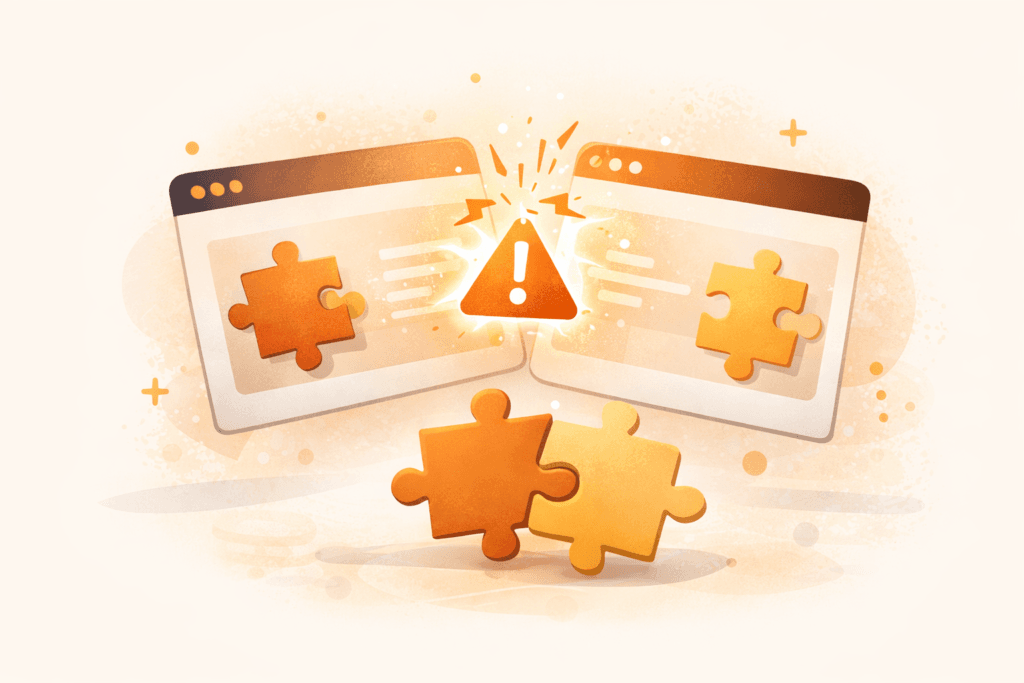
- White Screen of Death (blank page)
- “There has been a critical error on this website”
- Admin works, but the front-end is broken (or vice versa)
- Site suddenly slow after installing/updating a plugin
- Contact forms not sending
- Checkout or cart issues (especially with WooCommerce)
- Plugin update failures and “stuck” updates
- Conflicts between caching/security/SEO plugins
If your site is down and you need stability first, treat this like first aid: restore access, identify the cause, then prevent a repeat.
WordPress plugin troubleshooting first-aid checklist (do this before anything else)
Before you start switching things off, lock in a few safety steps:
- Confirm what changed: new plugin, plugin update, theme update, hosting/PHP change?
- Take a backup now (or confirm you have one from today).
- Open your site in an incognito window and on mobile (rule out caching/login oddities).
- Check if it’s only one page or the whole site.
- If it’s eCommerce: stop and consider switching to staging first.
If you’re not sure your hosting setup supports quick restores and staging, that’s often the hidden cause of stressful WordPress plugin troubleshooting.
Step 1: Identify the symptoms (this narrows the cause)
The fastest WordPress plugin troubleshooting starts with pattern recognition.
Symptom A: White screen / critical error
Usually caused by:
- a fatal PHP error from a plugin
- a compatibility issue (plugin vs PHP version)
- memory exhaustion
- a broken autoload/require path after an update
Symptom B: Admin works, but the site front-end is broken
Often caused by:
- caching/minification conflicts
- plugin loading scripts/styles incorrectly
- conflicts between page builder add-ons
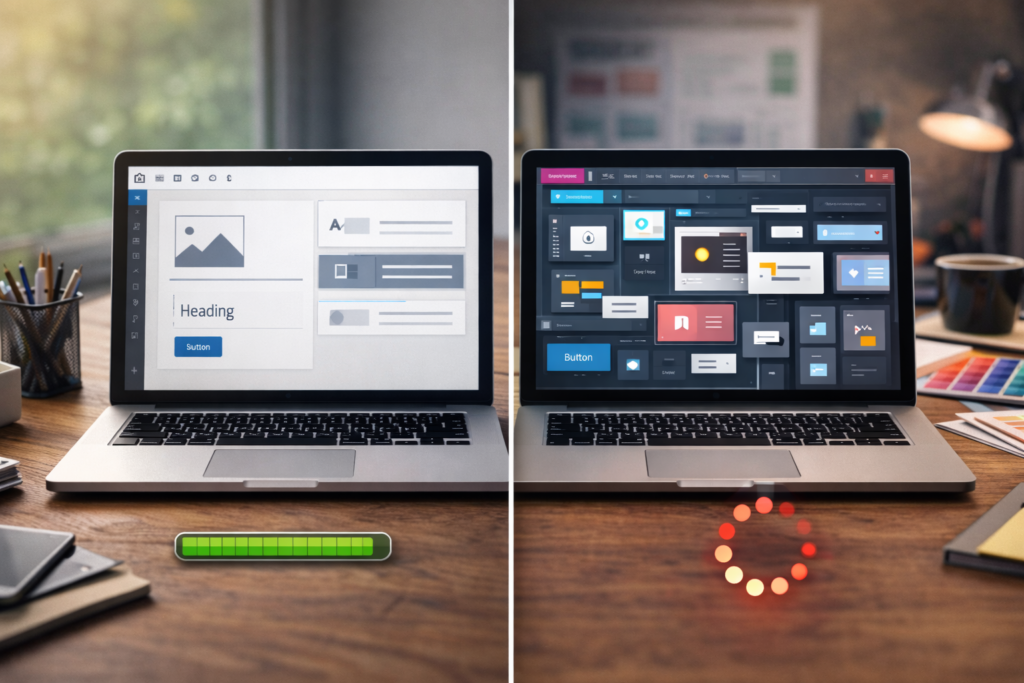
Symptom C: Site is slow after a plugin change
Often caused by:
- heavy database queries
- external API calls
- background tasks (scans, stats, cron jobs)
- image optimisation running aggressively
Symptom D: Specific feature breaks (forms, bookings, checkout)
Often caused by:
- plugin conflicts
- email delivery issues (SMTP)
- script conflicts
- blocked requests (security/firewall rules)
Tip: Write down the exact symptom(s). In WordPress plugin troubleshooting, your notes become your map.
Step 2: Try WordPress Recovery Mode (if you got an email)
If WordPress detects a fatal error, it may email the admin address with a “recovery mode” link (sometimes called a recovery login). Use it if available, it often lets you log in and disable the plugin without touching files.
If you can get into wp-admin, jump to Step 4 (disable plugins safely).
Step 3: Turn on debugging (without exposing errors to visitors)
If the site is blank or showing a critical error, you need an error message to appear privately.
The safe approach
- Enable logging so errors go to a file, not the public screen.
- Reproduce the issue once.
- Read the log and look for the plugin name.
WordPress also provides official guidance for debugging. → WordPress Debugging in wp-config.php
What you’re looking for: the plugin folder name in the error line. That’s usually your prime suspect for WordPress plugin troubleshooting.
Step 4: Disable plugins safely (the clean isolation method)
This is the core of WordPress plugin troubleshooting: isolate the plugin causing the issue.
Option 1: Disable the most recent plugin first (wp-admin)
If you can access wp-admin:
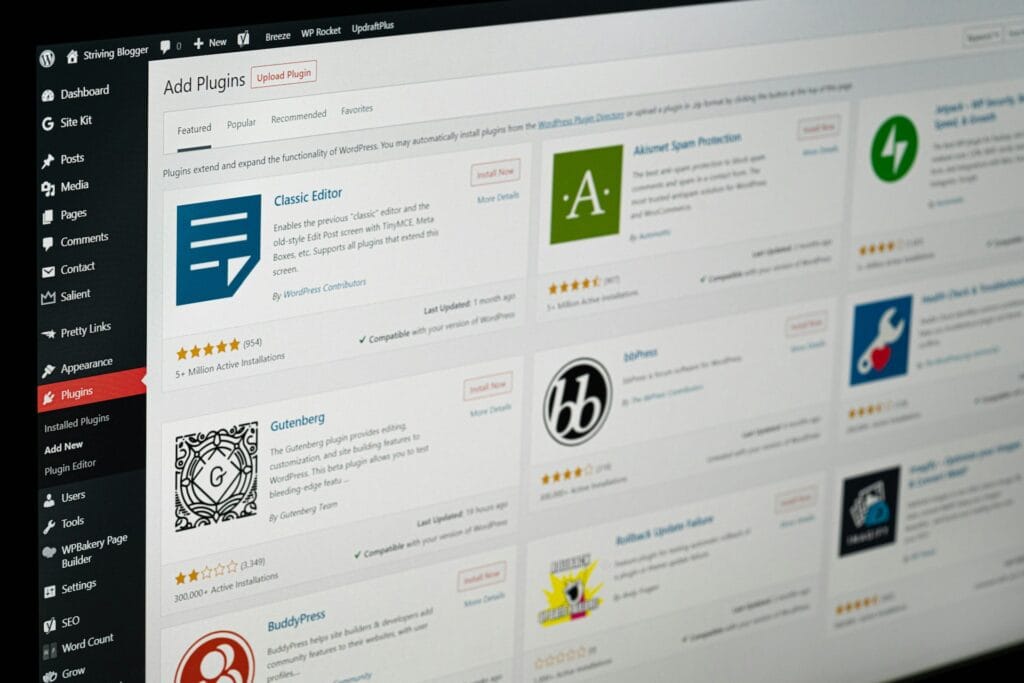
- Go to Plugins
- Sort mentally by “what changed”
- Deactivate the newest plugin or the one you updated
- Check the site
If the site comes back, you’ve found the trigger.
Option 2: Bulk disable all plugins (wp-admin)
If you’re not sure which plugin did it:
- Plugins → select all
- Bulk actions → Deactivate
- Check the site
- Reactivate plugins one by one, checking after each
This sounds slow, but it’s the most reliable WordPress plugin troubleshooting method.
Option 3: Disable plugins via FTP/File Manager (when wp-admin is unusable)
If you can’t access wp-admin:
- Connect via FTP or hosting file manager
- Go to
wp-content/ - Rename the
pluginsfolder to something likeplugins-off - Reload the site
Renaming disables all plugins instantly. If the site loads again, you’ve proven it’s a plugin problem – now you can narrow down which one.
Step 5: Find the conflict (plugin vs plugin, plugin vs theme, plugin vs caching)
Now that the site is accessible again, isolate the conflict.
The “half-split” method (faster than one-by-one)
For WordPress plugin troubleshooting when there are many plugins:
- Enable half your plugins
- Test
- If the issue returns, the bad plugin is in that half
- Disable half again and repeat
You’ll find the culprit quickly without 30+ tests.
Don’t forget the theme
Sometimes a plugin is fine, but your theme (or a theme add-on) triggers the conflict.
Test:
- Switch temporarily to a default theme (on staging if possible)
- Check if the issue disappears
If you’re unsure how safe your theme setup is (or it’s been heavily customised), that’s a good moment to bring in a developer rather than “poke and hope.” maybe contact VVRapid
Step 6: Fix the “white screen” and fatal errors (most common causes)
When people search WordPress plugin troubleshooting, they usually mean “my site is blank.” Here are the top fixes.
Cause 1: Plugin is incompatible with your PHP version
If your host upgraded PHP (or you changed hosting), older plugins can fail.
Fix:
- Update the plugin (if possible)
- Replace it with a maintained alternative
- If you must restore functionality temporarily, revert PHP version only if your host supports it safely and you understand the security trade-offs
Cause 2: Memory limit is too low
Some plugins (builders, WooCommerce, backup tools) can push memory limits.
Fix:
- Increase PHP memory limit (host settings or wp-config, depending on environment)
- Reduce heavy plugins and background tasks
Cause 3: Caching/minification broke scripts
Caching plugins can combine/minify scripts in a way that breaks layouts or key features.
Fix:
- Disable minification temporarily
- Exclude problem scripts from optimisation
- Clear all caches (plugin + server cache + CDN if you use one)
Cause 4: A plugin update partially failed
You might see missing files or repeated update prompts.
Fix:
- Re-run the update
- Delete and reinstall the plugin (only if you have settings backed up / it’s safe)
- Restore from backup if needed
Step 7: Check the usual “silent failures” (forms, email, admin weirdness)
Not all plugin failures create dramatic errors. Many just… stop working.
Contact forms not sending?
This is often email delivery, not the form itself.
Check:
- Does the form submit successfully but no email arrives?
- Is the email going to spam?
- Is the sender address set to a domain email?
Fix:
- Use SMTP (or an email delivery service) to improve reliability
- Confirm DNS email records if needed
Admin is slow after installing a plugin?
Check:
- Does the slowdown happen on all admin pages or only one?
- Does it improve after disabling a stats/scan plugin?
- Are background tasks running repeatedly?
This is where performance-focused hosting and caching alignment makes a big difference, especially on busy sites.
You can confirm speed issues with a simple before/after test. Visit Google PageSpeed Insights
Step 8: Clean up after you fix it (so it doesn’t happen again)
This is the part many people skip and why WordPress plugin troubleshooting becomes a recurring monthly stress.
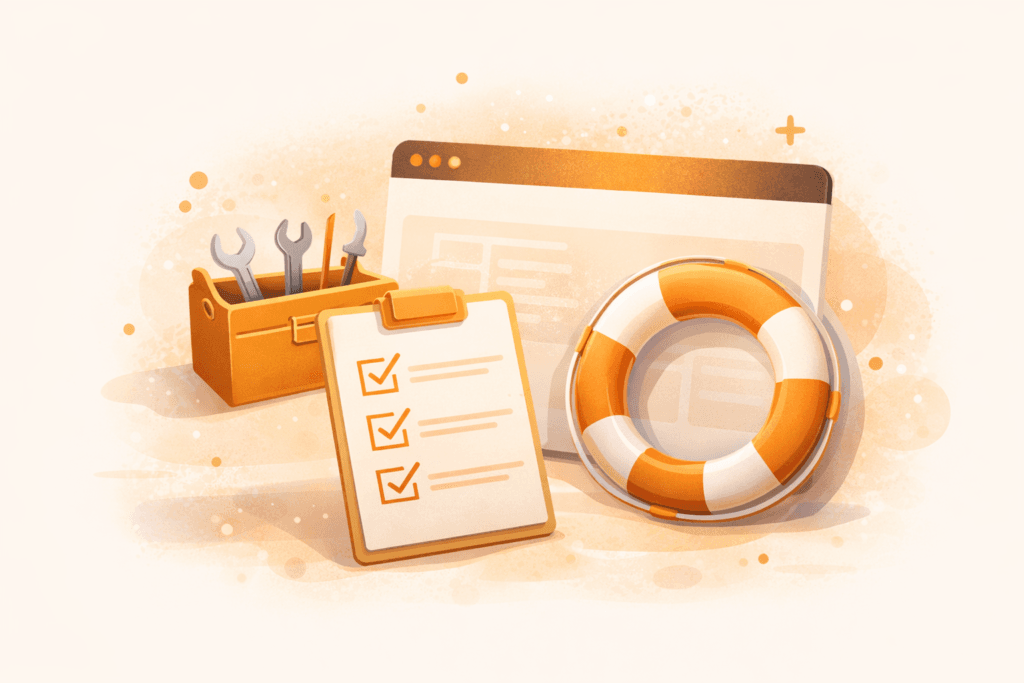
Post-fix checklist
- Remove the plugin you don’t need (don’t leave it “inactive forever”)
- Replace overlapping plugins (one tool per job)
- Update everything else (core/theme/plugins) carefully
- Document what happened (plugin name + version + symptom + fix)
- Set a maintenance routine (monthly at minimum)
If you’d rather have someone handle updates, plugin audits, and stability checks, this is exactly what a maintenance plan is for.
Common mistakes during WordPress plugin troubleshooting
- Changing five things at once
Fix: change one variable, test, then move on. - Debugging on the live site during peak hours
Fix: use staging whenever possible. - Assuming the newest plugin is always guilty
Fix: it’s often an interaction between two plugins (or a theme + plugin combo). - Stacking multiple optimisation/security plugins
Fix: consolidate, too many “helpers” cause conflicts. - Leaving the site in “debug display” mode
Fix: log errors privately; don’t show them to visitors. - Keeping abandoned plugins installed “just in case”
Fix: remove them. Less surface area, fewer emergencies.
FAQ: WordPress plugin troubleshooting
How do I know if it’s a plugin issue or hosting issue?
If disabling plugins restores the site, it’s plugin-related. If the site is down even with plugins disabled, it may be hosting, PHP, database, or theme-level.
What’s the quickest way to fix a white screen?
Use recovery mode if available. If not, disable plugins via FTP by renaming the plugins folder. That resolves most “site is blank” plugin incidents.
Will disabling plugins delete my data?
Usually no, but some plugins store settings and data in the database. Always backup before major changes.
How can I prevent plugin conflicts?
Keep a lean plugin stack, update regularly, test changes in staging, and avoid overlapping plugins (especially caching/SEO/security).
When should I stop and get help?
If the issue affects checkout/revenue, involves file edits you’re not comfortable with, or keeps returning after “fixes,” it’s time for a proper audit and cleanup.
How VVRapid can help
If WordPress plugin troubleshooting keeps interrupting your business, VVRapid can audit your plugin stack, clean up conflicts, and stabilise updates with a safer workflow. If a plugin is doing “too much” for one feature, we can build a lean custom plugin instead. We also support performance-focused hosting setups and ongoing maintenance so updates don’t become a guessing game. Contact VVRapid