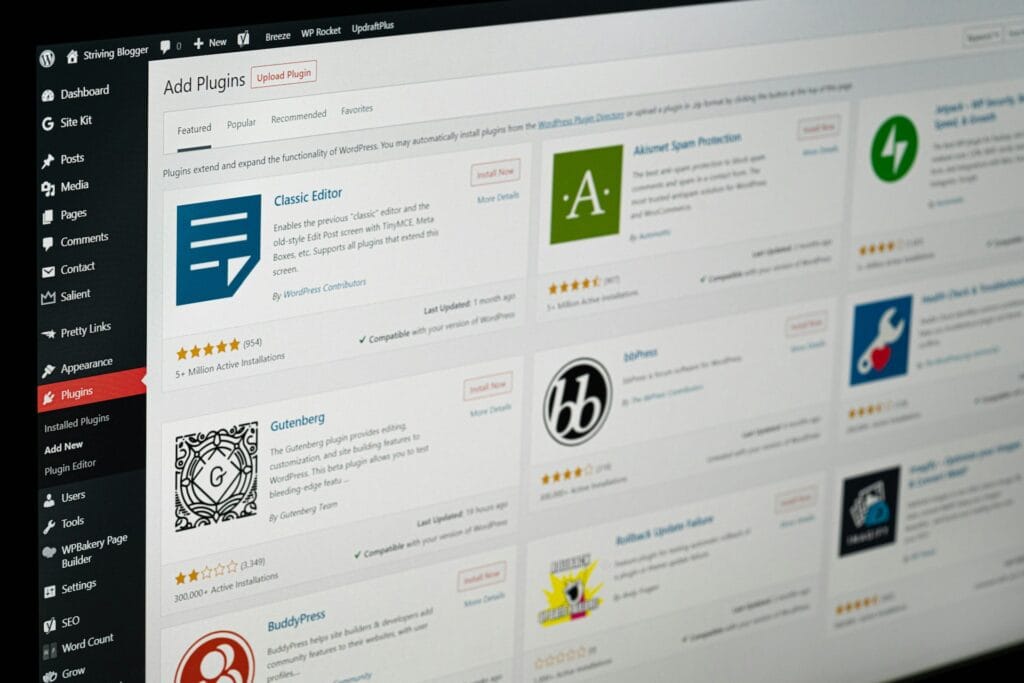
Choosing WordPress plugins for small business can feel like walking through a hardware store with no list: everything looks useful, and somehow you still leave with things you don’t need. The problem isn’t plugins, it’s unplanned plugins.
Table of Contents
Why plugin choice matters more than most small businesses think
Most small business websites don’t fail because WordPress can’t handle the job. They struggle because the site becomes harder to maintain over time:
- The admin gets slower.
- Updates start breaking things.
- Support requests become “something’s weird” instead of “here’s the exact issue.”
- Performance slips… and enquiries slip with it.
Think: every plugin adds “surface area” for performance, compatibility, and security.
If you want WordPress plugins for small business that stay reliable, the goal isn’t “install the best tools.” It’s “install the fewest tools that do the job well.”
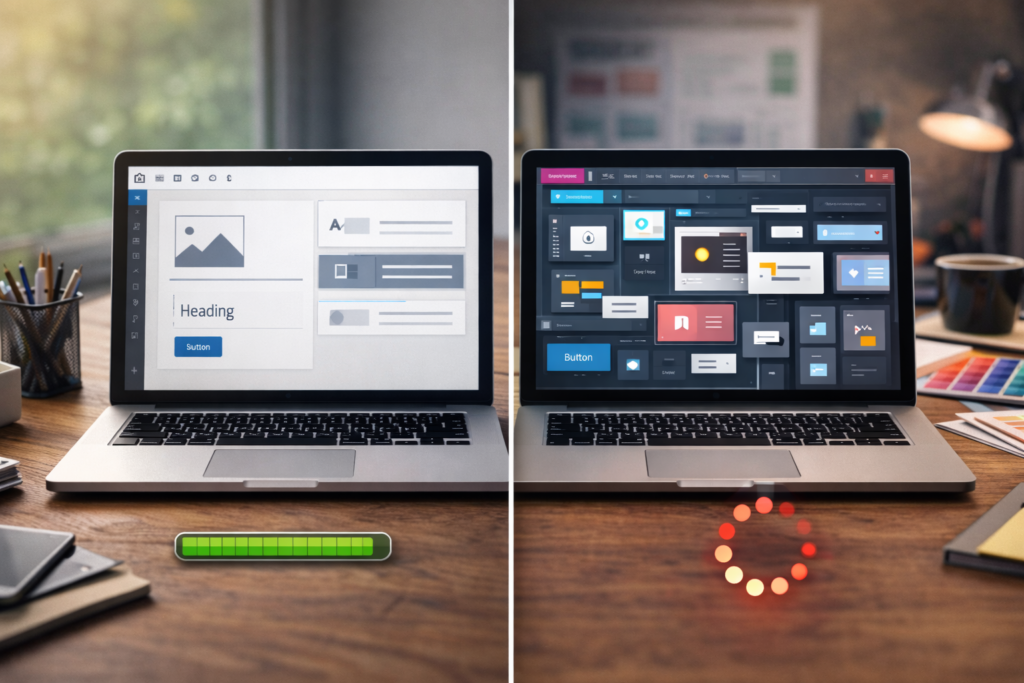
What “plugin bloat” actually looks like (in real life)
Plugin bloat isn’t just “lots of plugins.” It usually shows up as:
- Overlapping features (three plugins doing variations of the same thing)
- Heavy front-end assets loading everywhere, even on pages that don’t use them
- Too many dashboard processes (cron jobs, scans, analytics, feeds)
- Plugin chains (a plugin that needs add-ons that need add-ons)
- Abandoned plugins that haven’t been updated and are now risky to keep
A site with 35 plugins can be fine. A site with 12 can be a mess. The difference is how you choose and manage WordPress plugins for small business.
WordPress plugins for small business: a simple scoring system before you install anything
Before you click “Install,” score the plugin quickly. It takes 2 minutes and saves hours later.
The 10-point plugin score (quick and practical)
Give each item 0–2 points:
- Fits a real need (not a “nice to have”)
- Good update history (regular releases, not one update years ago)
- Support quality (clear docs, responsive support forums or tickets)
- Compatibility (works with your theme/page builder/WooCommerce if relevant)
- Performance awareness (doesn’t load everything everywhere)
8–10 points: strong candidate
6–7 points: install only if you must, test carefully
0–5 points: keep looking
This is the mindset shift that makes WordPress plugins for small business sustainable: install fewer, choose better, test properly.
The “must-have” plugin categories (and how to avoid doubling up)
Most small business sites need the same core categories. The trick is choosing tools that don’t overlap.
1) Backups (non-negotiable)
You want automated backups and an easy restore process. Bonus points if your hosting handles backups reliably.
If your hosting already does daily backups, you may not need a heavy backup plugin, just confirm:
- how often backups run,
- how long they’re kept,
- and how restores work.
If you’re upgrading hosting for speed and stability, it’s worth reading about LiteSpeed-based setups.
2) Security (baseline, not paranoia)
Security isn’t “install one plugin and forget it.” It’s a set of habits:
- strong logins and access control,
- keeping WordPress and plugins updated,
- removing anything unused,
- reducing admin exposure.
A single well-maintained security plugin is usually enough for WordPress plugins for small business, especially when paired with good hosting and update discipline.
3) Performance (caching + image handling + good hosting)
Performance is where bloat hurts first. Avoid stacking:
- multiple caching plugins,
- multiple image optimisers,
- multiple “all-in-one speed boosters.”
If you’re on LiteSpeed hosting, you generally want a LiteSpeed-friendly caching approach rather than mixing systems. If you are not, visit VVRapid’s Super LiteSpeed WebServer Hosting
4) Forms (simple + reliable)
Most small business sites need forms for enquiries, bookings, or lead capture. Choose a form plugin that:
- supports spam protection,
- sends reliable email (or integrates with an SMTP tool),
- doesn’t break with theme updates.
5) SEO (keep it clean)
One SEO plugin is enough. Don’t combine two “SEO suites” (they’ll fight over metadata and schema).
Pairing your plugin setup with an actual SEO plan matters more than toggling settings. This is often missed nut Search Engine Optimisation is a critical step.
A lean plugin stack (example setups for common small business sites)
Below are categories, not brand prescriptions – because the “best” tool depends on your theme, hosting, and workflows.
Setup A: brochure site (services + contact form)
Typical needs:
- caching/performance (hosting-aligned)
- form plugin
- SEO plugin
- security basics
- backups (or hosting backups)
This is often 6–10 total WordPress plugins for small business when done cleanly.
Setup B: lead-gen site (landing pages + tracking)
Add:
- lightweight analytics integration (avoid heavy trackers in the dashboard)
- conversion tools (only if needed)
- cookie/consent tools (region-dependent)
Still aim to keep WordPress plugins for small business under control by consolidating features.
Setup C: WooCommerce site (products + payments)
Add:
- WooCommerce extensions you actually use
- payment gateway integration
- shipping/tax extensions if needed
- careful caching configuration (eCommerce is more sensitive)
For eCommerce, it’s especially important to test updates in staging.
The plugin selection checklist (copy/paste before you install)
Use this checklist every time you evaluate WordPress plugins for small business:
- ✅ I can explain exactly what business problem this plugin solves
- ✅ There isn’t already a plugin (or theme feature) doing the same job
- ✅ The plugin is actively maintained (recent updates)
- ✅ The plugin has documentation I can follow
- ✅ It’s compatible with my WordPress version + PHP version
- ✅ It’s compatible with my theme/page builder/WooCommerce (if relevant)
- ✅ I have a backup (or staging site) before installing
- ✅ I have a rollback plan (how I’ll disable/revert if it breaks)
- ✅ I’ve checked performance impact after enabling
- ✅ I’ve removed any plugin this new one replaces
Think: If you can’t explain it, don’t install it.
How to test plugins safely (without taking your site down)
If your business relies on enquiries or sales, don’t test on your live site.
The safe workflow
- Backup first (always)
- Use staging (a clone of your live site)
- Install the plugin on staging
- Test the pages/features it touches
- Check speed and admin responsiveness
- Push changes to live once you’re confident
If you don’t have staging, at least test during low-traffic hours and keep a rollback plan ready.
For basic plugin management steps (install/activate/update), WordPress has official documentation. → WordPress “Manage Plugins” Documentation. ↗
Performance checks: how to know if a plugin is slowing you down
You don’t need to guess. Check.
What to measure after installing WordPress plugins for small business

- Homepage load time (mobile and desktop)
- A key service page
- Your contact/checkout page (if relevant)
- Admin dashboard speed (especially Plugins page)
Use a consistent tool like PageSpeed Insights so you can compare before/after.
Red flags
- Big drops in performance right after activation
- Lots of CSS/JS added site-wide for a feature used on one page
- New errors in the console
- Unusual spikes in server load
If a plugin causes a noticeable hit, look for alternatives or consider custom development if the feature is important and specific.
When a custom plugin beats “yet another plugin”
Sometimes there isn’t a clean plugin for what you need. Or the available options come with too much baggage.
Custom development is often smarter when:
- you only need one narrow feature
- plugins do it “plus 20 things you don’t use”
- you need a clean integration (CRM, quoting, internal workflow)
- you want full control over performance and security
This is where WordPress plugins for small business can become too general, and your site benefits from something purpose-built like Custom Plugin Development
Common mistakes small businesses make with WordPress plugins
Here’s what causes most plugin problems (and how to avoid them):
- Installing plugins in a rush
Fix: use the scoring system and checklist every time. - Stacking “all-in-one” tools
Fix: pick one tool per category (SEO, caching, forms), not two. - Keeping plugins “just in case”
Fix: remove unused plugins and themes. Less risk, less clutter. - Updating live with no backup
Fix: staging + backups. Even for “small” updates. - Using plugins to patch bigger issues
Fix: sometimes the real problem is the theme, hosting, or site build quality. - Ignoring maintenance until something breaks
Fix: schedule monthly checks, updates, and a quick plugin audit.
FAQ: WordPress plugins for small business
How many plugins is “too many”?
There’s no magic number. For WordPress plugins for small business, the better question is: Are they maintained, non-overlapping, and tested? A lean 10 can beat a messy 5.
Should I only install plugins from WordPress.org?
It’s a solid default because it’s transparent and easy to update. Premium plugins can also be great, just vet the developer, update history, and support quality.
Do plugins hurt SEO?
Not directly. But slow pages, broken markup, and instability can hurt results. That’s why WordPress plugins for small business should be performance-aware and tested.
What’s the safest way to update plugins?
Backup → staging → test → deploy. If you can’t do staging, update during low-traffic hours and test key pages immediately after.
When should I hire help?
If updates regularly break things, the admin is slow, or you’re unsure what’s safe to remove, getting a professional plugin audit and cleanup usually pays for itself in time saved.
How VVRapid can help
If you want WordPress plugins for small business that stay fast and stable, VVRapid can help you audit your plugin stack, remove bloat, and tighten compatibility. If your site needs something specific, we can build a clean custom plugin instead of forcing a heavy multi-purpose tool. We also help with performance-focused hosting and longer-term maintenance so updates don’t become a monthly stress. Contact VVRapid
If you suspect plugin bloat (or you’re planning a redesign), start with a quick plugin audit and performance check. If you’d rather not DIY it, explore VVRapid’s WordPress build and support options here: Website Design & Development