WordPress maintenance is not just “click update and hope”. It is a repeatable workflow that protects your site from security issues while reducing the chance of updates breaking layouts, forms, or checkout.
Table of Contents
WordPress maintenance: what it includes (and what it does not)
WordPress maintenance is the ongoing care of your WordPress site so it stays secure, reliable, and easy to improve over time. Most maintenance work falls into five buckets:
- Updates (core, theme, plugins) done safely
- Backups and restore readiness
- Security checks and basic hardening
- Monitoring and quick fixes (uptime, errors, broken features)
- Housekeeping (plugin cleanup, database hygiene, content accuracy checks)
What it is not:
- A redesign or replatforming
- A one-time speed tune only
- A substitute for strategy, SEO, or content updates (though it supports them)
If your site brings in leads, bookings, or sales, WordPress maintenance is part of keeping revenue predictable.: Website Maintenance & Care
Why WordPress updates break sites (so you can prevent it)
Updates break sites for a few common reasons:
Plugin conflicts
Two plugins may try to change the same scripts, styles, or database tables. When one updates, the other may not be compatible.
Theme and page builder quirks
Page builders and heavily customised themes can be sensitive to changes in WordPress core or PHP versions. A minor update can surface a hidden mismatch.
Outdated custom code
Custom snippets, child themes, or custom plugins might rely on older functions. When the ecosystem moves, that code needs adjustments.
Caching and optimisation layers
Caching plugins, server caching, minification, and CDN settings can hide issues or create new ones after an update. The update may be fine, but the cached output is not.
Skipped updates create a bigger jump
If you wait six months, you are no longer doing maintenance. You are doing a risky migration in place.
Think: safe maintenance is about shrinking the size of each change and making rollbacks easy.
The safe WordPress maintenance workflow (the one that prevents panic)
This is the core process. Whether you DIY or outsource, this is what “safe” looks like.
Step 1: Start with visibility (know what you are updating)
Before touching anything:
- Note the current WordPress version
- Note active theme and key plugins
- Check if any plugins show “untested with your version” warnings
- Identify business critical features: forms, checkout, bookings, logins, search
If your site has WooCommerce or bookings, treat it as high risk.
Step 2: Take a full backup (files plus database)
A proper backup includes:
- Database backup
- wp-content folder (themes, plugins, uploads)
- Config files where relevant
Better still: ensure at least one backup is stored off-site, not only on the same server.
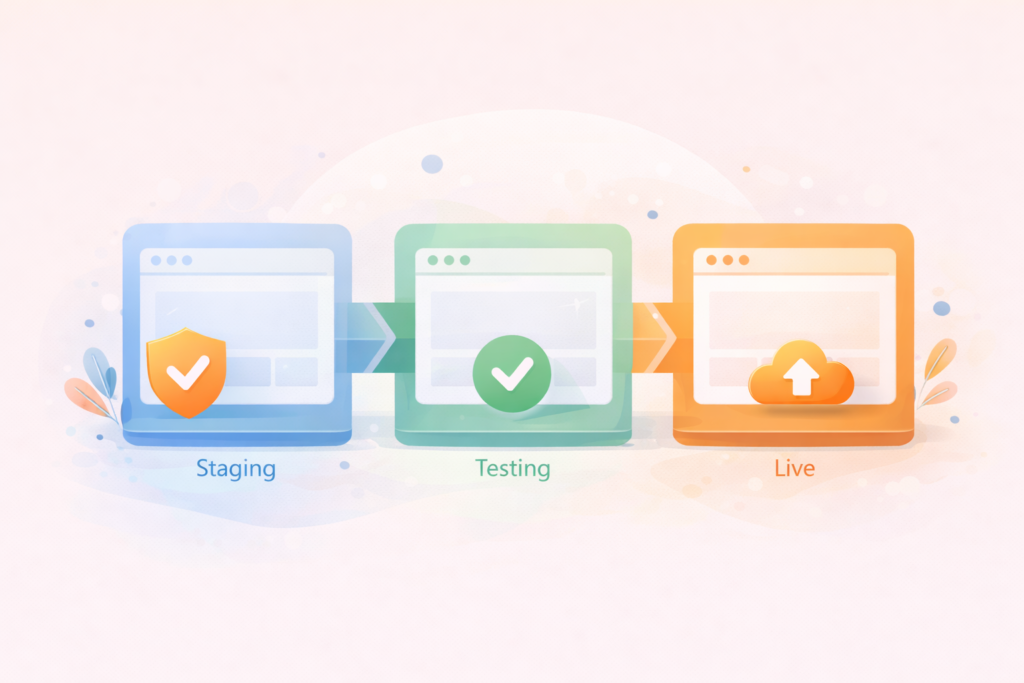
Step 3: Use staging whenever possible
A staging site is a copy of your live site where you test changes safely.
On staging you can:
- Update everything and check for breakage
- Test purchases without affecting customers
- Review layout changes without pressure
- Fix issues before pushing to live
If you do not have staging, your maintenance should be more conservative, with smaller update batches and stronger rollback readiness.: Website Design & Development
Step 4: Update in the right order
A practical order for most sites:
- Update plugins (in batches, not all at once on complex sites)
- Update the theme (and child theme if applicable)
- Update WordPress core
- Update WooCommerce last if used, then re-check key flows
After each batch, do quick tests (see the test plan below). If something breaks, you know what caused it.
Step 5: Run a test plan (do not skip this)
A good test plan is short and specific. For most small businesses:
- Homepage loads on mobile and desktop
- Main navigation works
- Contact form sends and delivers email
- Any booking flow completes
- Any checkout flow completes
- Key landing pages display correctly
- Login works for admin and users (if relevant)
If you only test one thing, test the form. “Silent failure” is common.
Step 6: Deploy and clear caches
After updates and tests:
- Clear plugin caches
- Clear server cache if applicable
- Clear CDN cache if applicable
- Re-test one or two key pages in a private browser window
Step 7: Monitor for 24 to 48 hours
Many issues show up after real users interact:
- Form submissions
- Search queries
- Add-to-cart behaviour
- Payment confirmations
- Email deliverability
Monitoring helps you catch it while it is small.
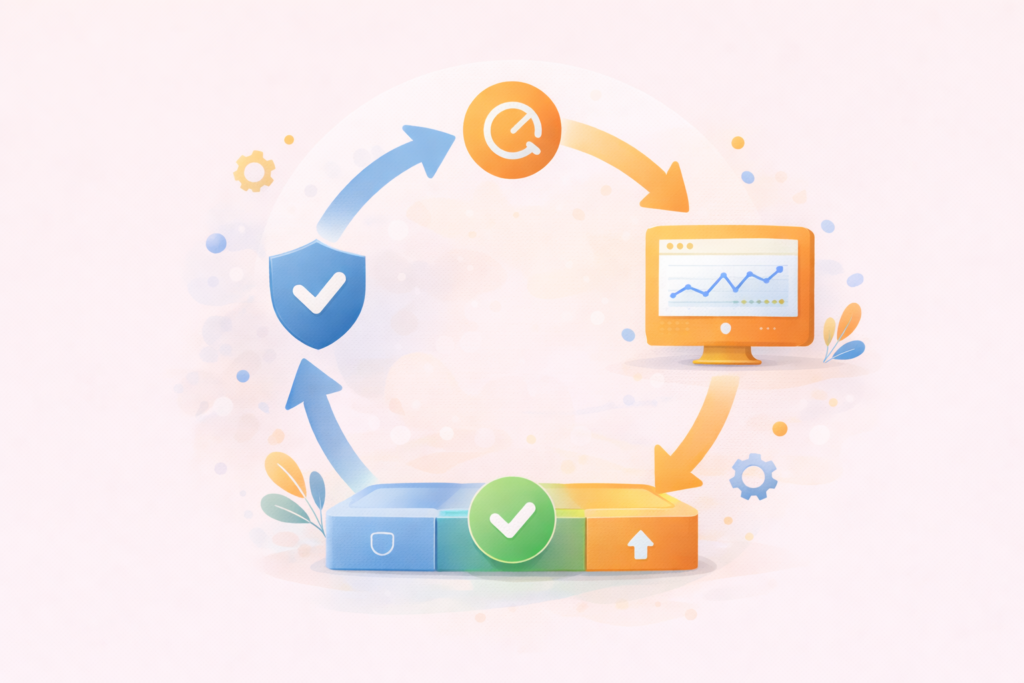
Your WordPress maintenance checklist (monthly baseline)
Use this as your monthly routine. Even if you outsource maintenance, this is a useful “owner’s checklist” to understand what is being done.
Monthly checklist
- Confirm backups ran successfully
- Ensure at least one off-site backup exists
- Update plugins, theme, and core using a safe workflow
- Test forms, bookings, and checkout
- Review admin users and remove old access
- Run a security scan
- Check uptime and critical error logs (or your monitoring tool)
- Spot-check top pages for content accuracy
- Record what changed and any issues found
Weekly quick checks (10 minutes)
- Open the site on mobile and desktop
- Submit the main form and confirm delivery
- Check for obvious broken layouts or missing images
- Review any monitoring alerts
Quarterly deeper checks
- Restore test a backup to staging
- Review plugins for “abandoned” status and remove unused ones
- Review performance basics: heavy images on key pages, unnecessary scripts
- Review SEO tracking health (Analytics, Search Console)
You can review the LLM SEO service from VVRapid Digital.: Search Engine Optimisation (SEO)
What to do when an update breaks your site
If something breaks after an update, stay calm. Most issues are reversible if you prepared correctly.
1) Identify what changed
If you updated in batches, you can pinpoint the plugin or component that triggered the issue.
2) Check the obvious first
- Clear caches (plugin, server, CDN)
- Hard refresh the browser
- Test in a private window
- Check if it is only affecting logged-in users or all visitors
3) Roll back the last change
Options include:
- Restore from backup (fastest for serious breakage)
- Roll back a single plugin version (only if you trust the rollback tool and know what you are doing)
- Revert theme changes if a deployment caused layout issues
4) Use Safe Mode or disable plugins carefully
If you can access wp-admin, try disabling the suspected plugin. If you cannot access wp-admin, you may need file-level access via hosting.
Be cautious: disabling plugins can affect data or features, especially eCommerce.
5) Capture error details for faster fixes
Before you undo everything, capture:
- The page or action that triggers the issue
- Any visible error messages
- The time the issue started
- Relevant logs if available
If you outsource help, this short note can save time and reduce cost.
If you need assistance with this on a regular basis visit Website Maintenance & Care
Plugin hygiene: the fastest way to reduce maintenance risk
Many WordPress sites become fragile due to plugin sprawl. A clean plugin stack makes updates safer.
A simple plugin hygiene rule set
- Delete plugins you do not use (do not just deactivate)
- Avoid overlapping plugins that do the same job
- Prefer well-maintained plugins with regular updates
- Be careful with “all-in-one” plugins that add lots of features you do not need
- Keep custom code in a proper plugin or child theme, not random snippets pasted everywhere
If your site relies on a custom plugin, treat it as a product. It needs maintenance too.: Custom Plugin Development
Security basics for WordPress maintenance (lightweight but effective)
You do not need to become a security expert, but you do need a few non-negotiables:
- Strong passwords and a password manager
- Two-factor authentication for admin accounts
- Minimal admin users, remove old accounts
- Limit login attempts and monitor unusual logins
- Keep WordPress core and plugins updated
- Use reputable security scanning and firewall tools where appropriate
- Ensure SSL is active and renewing correctly
A key point: most WordPress compromises happen on sites with outdated software or poor access control.
Common mistakes in WordPress maintenance
Updating everything at once on live
This makes it hard to identify the cause of issues and increases downtime risk.
No staging site for complex sites
If you run WooCommerce, bookings, memberships, or custom functionality, staging is a safety net you will eventually need.
Assuming backups are working without a restore test
Backups that cannot restore are just files. Restore testing turns backups into recovery.
Leaving unused themes and plugins installed
Old code increases your attack surface and makes troubleshooting slower.
Ignoring the money path
Owners often test the homepage and forget checkout, bookings, and forms.
Putting off updates until it becomes a big jump
Regular maintenance reduces the change size. Big jumps increase breakage risk.
Mini decision guide: DIY or outsource WordPress maintenance?
DIY can work if:
- Your site is simple
- You have staging or a reliable backup workflow
- You can follow a test plan consistently
- You can act quickly if something breaks
Outsource is usually better if:
- Your site is revenue-critical
- You use WooCommerce or complex integrations
- You have custom code
- You want predictable monitoring and reporting
- You want fewer surprises and less context switching
FAQ: WordPress maintenance
How often should WordPress maintenance be done?
Monthly is a practical baseline for updates and checks. Weekly quick checks are helpful if your site is a main lead source or includes bookings or payments. Critical security patches may need to happen sooner than the monthly cycle.
Is WordPress maintenance only about updates?
No. Updates are only one part. WordPress maintenance also includes backups, security checks, monitoring, testing key site functions, and keeping your plugin stack healthy.
Do I need a staging site for WordPress maintenance?
If your site is simple, you can manage without staging, but you must be careful with backups and update batches. If your site is complex, staging is strongly recommended.
What should I test after WordPress updates?
Test the key customer journey: contact forms, booking flows, checkout, logins, and your most important landing pages. Also clear caches and re-check in a private window.
Can a plugin update break WooCommerce checkout?
Yes. Checkout depends on multiple components: WooCommerce, payment gateway plugins, theme templates, caching, and sometimes custom code. This is why staged testing and a rollback plan matter.
How VVRapid can help
If you want WordPress maintenance handled safely and consistently, VVRapid’s Website Maintenance & Care can cover updates, backups, monitoring, and proactive fixes. If you need improvements beyond maintenance, VVRapid can also support development and custom plugin work, so your site stays stable while it evolves.
Next step: review the maintenance service page and use it as a checklist for what your current setup is missing.