If you’re on LiteSpeed WordPress hosting, you’ve already made a smart move for performance. But here’s the part most site owners miss: fast hosting doesn’t automatically mean a fast website. Your theme, plugins, images, and caching rules still decide whether your pages feel instant… or sluggish.
Before we get practical, one quick “Think:” line: speed is a system. Hosting is the foundation — but your WordPress setup is the house you build on it.
Table of Contents
Why LiteSpeed WordPress hosting helps (and what it can’t fix)
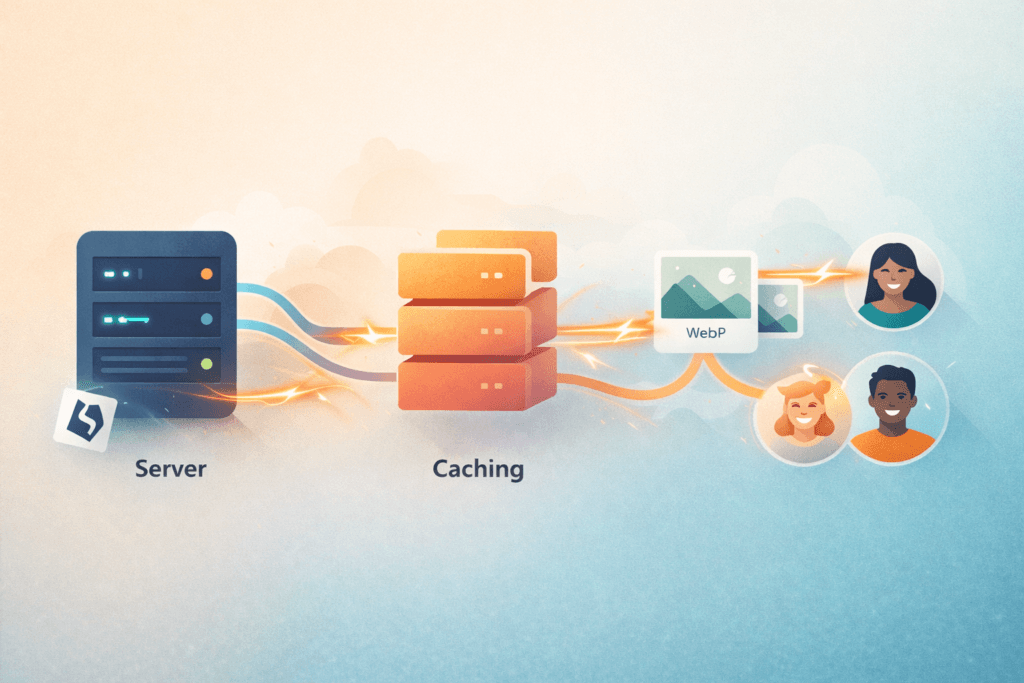
LiteSpeed WordPress hosting typically helps because the server is built for high performance and pairs well with server-level caching (often via the LiteSpeed Cache plugin).
What it can fix quickly:
- Slow server response times (TTFB)
- Poor handling of traffic spikes
- Inefficient PHP processing (when tuned properly)
- Cache delivery (when configured properly)
What it can’t fix by itself:
- Huge, uncompressed images
- Bloated page builders and “everything” themes
- Too many heavy plugins doing overlapping jobs
- Messy databases and lots of autoloaded junk
- Third-party scripts (tracking, chat widgets, embedded maps) slowing down the page
So yes: LiteSpeed WordPress hosting gives you the horsepower — this checklist helps you use it.
Helpful baseline tools: Google’s PageSpeed Insights and Core Web Vitals guidance are great for measuring before/after changes.
LiteSpeed WordPress hosting checklist: 15 quick wins
1) Run a “before” test (so you can prove improvement)
Open PageSpeed Insights, test your home page + one service/product page, and screenshot the results.
Look for:
- LCP (Largest Contentful Paint)
- CLS (Cumulative Layout Shift)
- INP (Interaction to Next Paint)
2) Confirm LiteSpeed Cache is installed (and actually active)
If your stack supports it, LiteSpeed Cache (LSCWP) can do server-level caching plus a pile of optimization features.
If you’re not sure, check:
- Plugin installed + enabled
- Caching is turned on (not just the plugin sitting there)
3) Start with the safe caching defaults (don’t “enable everything”)
The fastest way to break a site is to toggle every optimization option at once. Instead:
- Enable basic page caching
- Turn on browser cache (if available in your stack)
- Leave advanced minification/combining for later steps
4) Cache the right pages — and exclude the risky ones
Good cache targets:
- Home, about, services, blog posts
Pages that often need exclusions:
- Cart/checkout (WooCommerce)
- “My account” pages
- Dynamic quote forms with unusual behavior
- Membership dashboards
5) Make sure your biggest “above the fold” image is optimized
Your LCP element is often a hero image. Quick wins:
- Convert to WebP (or AVIF if your setup supports it well)
- Resize to the maximum display size (not 4000px wide “just because”)
- Compress properly
6) Lazy-load images below the fold (not your hero image)
Lazy loading is great — until it delays the main image. Ensure:
- Below-the-fold images lazy-load
- Critical hero image loads normally (or is preloaded)
7) Remove 1–2 plugins that duplicate functionality
This is the unsexy win that often makes the biggest difference. Common duplicates:
- Multiple caching/optimization plugins at once
- Several form plugins
- Multiple SEO plugins (keep one)
- Multiple security plugins stacking features
If you’re on LiteSpeed WordPress hosting, you usually don’t need three different “speed” plugins fighting each other.
8) Switch off features you don’t use in your theme/page builder
Page builders can be fine — but trim the extras:
- Disable unused modules/widgets
- Avoid loading icon libraries you never use
- Reduce animation-heavy sections
9) Clean up fonts (this alone can cut noticeable load time)
Quick font wins:
- Use 1–2 font families, not 5
- Use fewer weights (e.g., 400 + 600)
- Host fonts locally if practical (reduces third-party requests)
- Ensure
font-display: swap(prevents invisible text during load)
10) Limit third-party scripts (trackers, embeds, chat)
Every extra script is another speed tax:
- Replace embedded maps with a static image + click-to-open
- Delay non-critical scripts until interaction
- Remove abandoned pixels and old marketing tags
11) Use a CDN when you have a broad audience
If your visitors are in multiple regions (or you serve customers outside South Africa), a CDN can reduce latency and improve consistency.
Also: modern protocols like HTTP/3 (running over QUIC) can improve performance, especially on unstable networks.
12) Reduce database bloat (especially on older sites)
Typical culprits:
- Old post revisions
- Expired transients
- WooCommerce sessions
- Spam comments
Do a cleanup monthly/quarterly – and always have backups first.
13) Turn on daily backups (and verify restores)
Backups are not “set and forget.” A good routine:
- Confirm backups run daily
- Test a restore process (even once) so you’re not guessing in a crisis
(If you’re on VVRapid’s LiteSpeed hosting plans, daily backups are included across plans per their hosting detail pages.)
14) Use a staging site for risky changes
A staging site lets you test:
- Plugin updates
- Theme changes
- Caching/minification tweaks
VVRapid includes staging on certain plans (and optional on others), which is useful when your site is revenue-critical.
15) Re-test and lock in your “good” configuration
Run the same PageSpeed tests again:
- Compare LCP/CLS/INP
- Note which change gave the biggest impact
- Keep a simple change log (date + what you changed)
This turns speed from “random tweaks” into a repeatable process.
Quick plan sanity-check (so your hosting matches your site)
Even when you’ve nailed the checklist, your plan should still fit your reality: number of sites, storage, email, support needs, and staging/security.
From your VVRapid LiteSpeed hosting packages, the structure is clear:
- Starter LiteSpeed Hosting (Basic): 1 site, 10GB SSD, daily backups, 5 email users, basic firewall, 1 migration – $19 (R304)/month
- Business LiteSpeed Hosting (Standard): up to 3 sites, 20GB SSD, staging included, WAF, 3 migrations, priority email – $39 (R623)/month
- Premium LiteSpeed Hosting (Premium): up to 5 sites, 40GB SSD, enhanced firewall, 5 migrations, priority support – $69 (R1 103)/month
If you’re uncertain, a simple rule:
- If it’s a brochure site → Basic is often enough.
- If it’s business-critical and you update often → Standard (staging + stronger security).
- If you expect spikes, run multiple sites, or revenue depends on uptime → Premium.
Common mistakes (even on LiteSpeed WordPress hosting)
Mistake 1: Running multiple caching/optimization plugins together
One caching system, configured well, beats three half-configured ones.
Mistake 2: Turning on minify/combine options blindly
Minifying CSS/JS can help, but aggressive combining can break layouts or cause weird “mobile only” bugs. Make changes one at a time.
Mistake 3: Ignoring the biggest images on your site
One oversized hero image can ruin your LCP.
Mistake 4: Treating “speed score” as the goal
Your goal is real user experience: pages feel instant, forms work, checkout doesn’t break.
Mistake 5: Skipping staging for major changes
If your site makes money, test first – always.
A practical checklist you can copy/paste
Use this as your “monthly speed hygiene” list:
- ✅ Test key pages in PageSpeed Insights (save screenshots)
- ✅ Update WordPress core, theme, and plugins
- ✅ Remove unused plugins
- ✅ Check image sizes + compress new uploads
- ✅ Review third-party scripts (remove old tags)
- ✅ Clean database bloat (with backups)
- ✅ Confirm backups succeeded and are recoverable
- ✅ Test performance after major changes
- ✅ Use staging for caching/minify changes
- ✅ Re-check Core Web Vitals targets
FAQ
Does LiteSpeed WordPress hosting automatically make my site fast?
It helps a lot, but it won’t fix heavy images, bloated plugins, or an overloaded theme on its own. Think of it as a strong engine – you still need to tune the car.
Do I need the LiteSpeed Cache plugin?
If your hosting stack supports it, LiteSpeed Cache is designed to work with server-level caching and includes optimization features.
What should I test to know speed is improving?
Use PageSpeed Insights plus Core Web Vitals (LCP, CLS, INP) as your baseline and re-test after changes.
Will a CDN help South African sites?
If most visitors are in SA and your server is local, benefits can be smaller – but CDNs still help with static assets, resilience, and international visitors. If your audience is global, it’s usually worth it.
What’s the point of a staging site?
If most visitors are in SA and your server is local, benefits can be smaller – but CDNs still help with static assets, resilience, and international visitors. If your audience is global, it’s usually worth it.
How VVRapid can help (without the drama)
If you want someone to handle the technical side, VVRapid can set you up on LiteSpeed WordPress hosting, migrate your site, tune caching rules, and keep an eye on performance and stability.
They also cover the “site side” work – like fixing theme/plugin bottlenecks, improving Core Web Vitals, and ongoing care – so your speed gains don’t disappear after the next update.
Next step: get your speed wins in the right order

Start with the safe wins: testing, images, plugin cleanup, and basic caching. Then move to deeper optimization (fonts, scripts, CDN, staging workflows).
If you’d like help choosing the right plan or getting your configuration right the first time:
External references used in this guide
- Google PageSpeed Insights ↗
- Core Web Vitals – web.dev ↗
- LiteSpeed Cache plugin – WordPress.org ↗
- Cloudflare – What is HTTP/3? ↗