Planning user roles in web apps sounds simple until a project starts growing. What begins as “admin and user” often turns into a messy mix of permissions, exceptions, hidden workarounds, and confused teams. The result is not just a technical problem. It creates friction for staff, weakens security, and makes the product harder to manage over time.
Table of Contents
A better approach is to plan user roles in web apps early, with a clear view of who needs access, what they need to do, and what they should never be able to see or change. When roles are designed well, the product feels cleaner, safer, and easier to scale.
Why user roles in web apps matter from day one
If a web app only has one user type and a handful of actions, access planning can seem minor. But most business apps do not stay that simple for long.
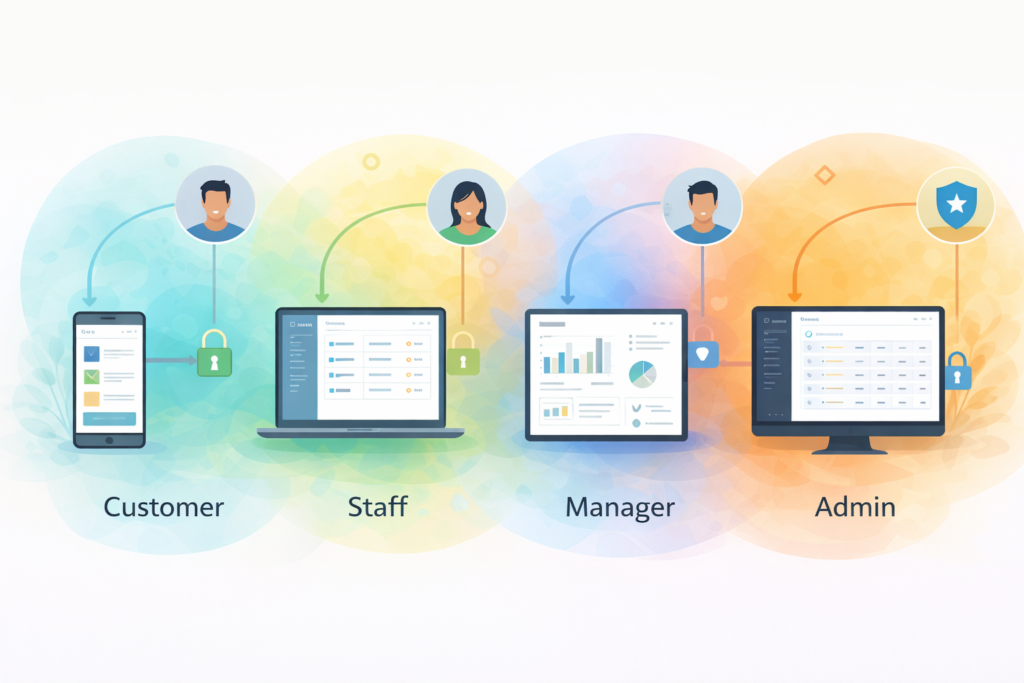
A portal, SaaS tool, internal dashboard, booking system, or customer account area often needs different experiences for different people. Customers may need to view records and submit requests. Staff may need to update statuses. Managers may need reports. Administrators may need full control over settings and users.
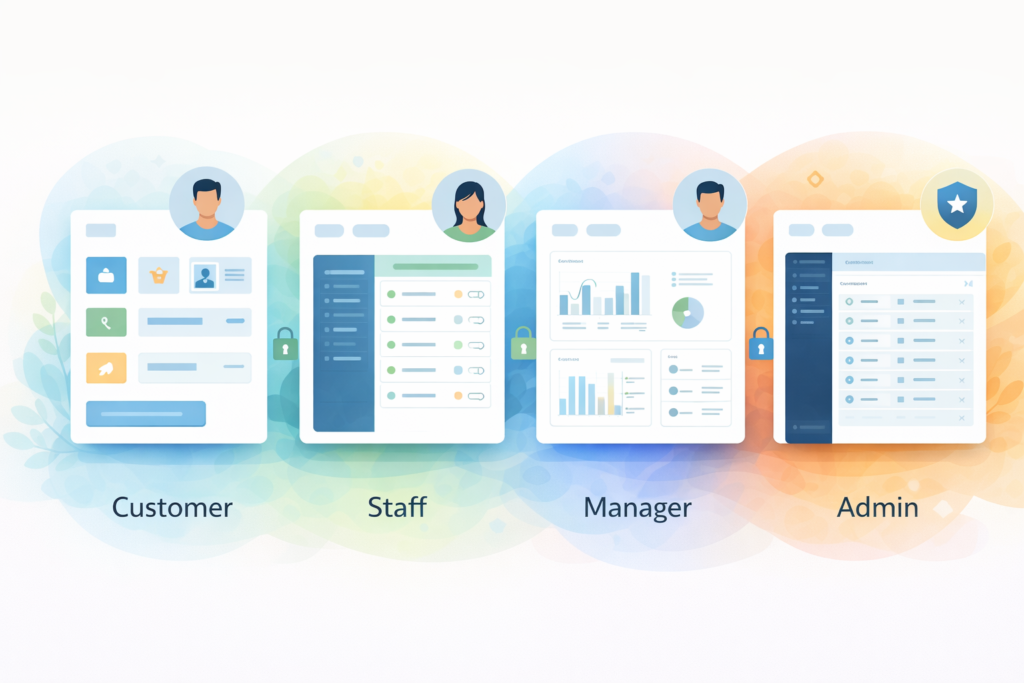
That is where user roles in web apps become essential. They help answer practical questions like:
- who can view data
- who can edit records
- who can approve actions
- who can manage users
- who can access financial or sensitive information
- who can only see their own account
Without clear role planning, the web app becomes harder to test, harder to explain, and harder to trust.
What are user roles in web apps?
User roles in web apps are structured access levels that determine what different users can see and do inside a system. A role groups together permissions so you do not have to manage every action person by person.
For example:
- a customer can view their own records and submit support requests
- a staff user can update records assigned to them
- a manager can view team-wide reports
- an administrator can manage settings, users, and account-level controls
The role is the container. The permissions define the details.
This sounds straightforward, but businesses often confuse roles with job titles, departments, or internal hierarchy. Those things may overlap, but they are not the same. The app should reflect how access actually works, not just how the company describes teams on paper.
Common role types for small business web apps
Most small business apps do not need a huge role system on day one. They usually need a clean structure that covers the most common use cases.
1. End user or customer
This role is often the most restricted. It usually allows users to:
- log in
- view their own account data
- download files or invoices
- make requests
- update basic profile details
This role should not see internal notes, other customer records, or admin controls.
2. Staff user
A staff role is usually operational. These users often need to:
- view assigned items
- update statuses
- respond to requests
- upload files
- manage routine actions
They may need more access than customers, but not full access to the whole system.
3. Manager or supervisor
This role often sits between staff and admin. Managers may need to:
- view broader datasets
- review team performance
- approve certain changes
- access reports
- handle escalations
This is where role design often starts becoming messy if the business has not defined boundaries clearly.
4. Administrator
The admin role usually has the broadest control, including:
- managing users
- changing settings
- assigning roles
- updating system-wide content
- viewing account-level or cross-team data
This role needs the most care. Not everyone who is senior in the business should automatically be an admin in the app.
Permissions vs roles vs workflows
One reason user roles in web apps become confusing is that people mix together three different ideas.
Roles
Roles are broad access groups such as customer, staff, manager, or admin.
Permissions
Permissions are the specific actions allowed within those roles, such as:
- create record
- edit record
- delete record
- approve request
- export report
- manage billing
Workflows
Workflows describe the sequence of actions that happen inside the app. For example:
- customer submits request
- staff reviews request
- manager approves exception
- admin changes system rule
A business may only need four roles but dozens of permissions and several workflows. That is normal.
The mistake is trying to solve workflow problems by creating too many roles. That usually leads to chaos.
A simple method to map user roles in web apps
If you are planning user roles in web apps, do not start with a long list of abstract permission labels. Start with real users and real tasks.
Step 1: List the actual user groups
Write down the types of people who will use the app.
For example:
- customer
- support staff
- operations staff
- team lead
- admin
Keep this grounded in real use, not theoretical future possibilities.
Step 2: List the main actions each group needs
For each user group, identify the top tasks they need to complete.
For example:
Customer
- view own order history
- download invoice
- submit support request
Support staff
- view assigned tickets
- update ticket status
- upload response files
Team lead
- view all team tickets
- reassign tickets
- view performance summary
Admin
- manage users
- change settings
- access system logs
Step 3: Mark what each group must never access
This step is just as important as deciding what users can do.
For example:
- customers must never see another customer’s records
- staff must not change billing settings
- team leads must not delete account-wide data
- admins should be limited in high-risk destructive actions unless needed
This quickly reveals where boundaries matter most.
Step 4: Group permissions into sensible roles
Now build the role model around practical similarity. If two roles have nearly identical access, they may not need to be separate.
If ten people need one special exception, that may be a workflow issue, not a role issue.
Step 5: Test edge cases before build
Before development goes too far, review questions like:
- Can a staff user view another team’s records?
- Can a manager edit something they should only approve?
- Can a customer access a file by changing a URL?
- Can an admin accidentally break something too easily?
These tests often expose role problems early.
Businesses planning broader app access around customer portals, dashboards, or internal tools can naturally link to App Design & Development here. If the access model needs to fit into a wider rollout plan, Digital Strategy Roadmaps is a useful supporting link.
How too many roles create friction
A common mistake with user roles in web apps is assuming that more roles create more control. In practice, too many roles often create confusion.
Here is what usually happens:
- nobody remembers what each role includes
- testing takes longer
- exceptions start piling up
- support requests increase
- onboarding becomes harder
- admins make mistakes assigning access
A cleaner structure is usually better.
For many small business apps, a small core set of roles is enough:
- end user
- staff
- manager
- admin
From there, permissions can add the detail where needed.
Think: if you need a spreadsheet to remember what every role does, the model may already be too complex.
Signs your access model is getting messy
Watch for these warning signs:
- every department wants its own separate role
- people ask for role changes instead of workflow fixes
- one user needs five exceptions
- nobody can explain the difference between two roles clearly
- access requests keep breaking existing logic
- testing permissions feels unreliable
- sensitive data boundaries are unclear
These signs usually point to poor structure, not just growth.
Common mistakes when planning user roles in web apps
Designing around the org chart
An org chart is not the same as app access. A senior title does not automatically mean broader system permissions.
Giving admin access too freely
This happens often in small teams. Someone is trusted, so they are given admin rights by default. That may feel practical in the short term, but it increases risk and makes audit trails less meaningful.
Using roles to patch workflow problems
If a manager occasionally approves something unusual, that does not always require a brand new role. It may just need an approval rule.
Ignoring ownership rules
A user may have permission to view a type of record, but not every record in that category. Ownership and scope matter.
Leaving access design until late
By the time design and development are far along, changing the access model becomes more expensive. It affects screens, data queries, testing, admin tools, and business rules.
Planning only for visibility, not actions
It is not enough to decide who can see a page. You also need to define who can create, edit, approve, export, delete, and manage.
A practical checklist for user roles in web apps
Use this checklist before development starts or before a growing app becomes harder to manage:
- □ each user group is clearly defined
- □ each role has a simple purpose
- □ permissions are mapped to real tasks
- □ ownership rules are clearly documented
- □ sensitive data access is restricted properly
- □ admin access is limited to what is necessary
- □ workflows are not being replaced by extra roles
- □ duplicate or overlapping roles have been reduced
- □ testing scenarios are defined
- □ audit and support needs are considered
- □ mobile and desktop experiences reflect the same access logic
- □ role assignment is manageable for admins
If the access model feels hard to explain, it will probably feel hard to use.
Role-based access in customer-facing apps vs internal apps
The way you plan user roles in web apps may shift depending on the app type.
Customer-facing apps
Examples include:
- client portals
- booking systems
- account areas
- SaaS dashboards
These usually require strong ownership rules. A user should generally only see their own account, records, files, or transactions unless account sharing is deliberately supported.
Internal apps
Examples include:
- operations dashboards
- admin tools
- reporting platforms
- team workflow systems
These often need layered access across departments, teams, and approval levels. Internal apps can become messy faster because more exceptions get introduced over time.
If the web app needs to sit alongside a broader website experience, Website Design & Development is a relevant next link. If a lighter integration with existing systems is a better fit, Custom Plugin Development may be the more relevant step.
How to plan for growth without overbuilding
A smart role model should be simple now but flexible later.
That does not mean creating ten future roles just in case. It means building a structure that can expand without breaking.
A practical approach is:
- start with a small set of clear roles
- define permissions carefully underneath them
- separate workflow approvals from role design where possible
- keep account ownership logic strong
- review role usage after launch
This helps the app stay usable as the business grows.
For example, a version one app may only need:
- customer
- staff
- admin
Later, it may add:
- manager
- finance reviewer
- partner access
That is easier than starting with every possible scenario and overwhelming the system from day one.
FAQ: User Roles in Web Apps
What is the difference between a role and a permission in a web app?
A role is a group such as customer, staff, manager, or admin. A permission is a specific action that role can perform, such as edit records or export reports.
How many user roles should a small business web app have?
Usually fewer than teams expect. Many apps can begin with three or four clear roles and expand only when real usage justifies it.
Should managers always have admin access?
No. Manager access and admin access are not the same. Managers may need broader visibility, but not full system control.
What causes role-based access to become chaotic?
Too many overlapping roles, unclear boundaries, exception-heavy planning, and trying to fix workflow problems with new roles are common causes.
Can a customer portal and an internal dashboard share the same access model?
Sometimes parts of the logic overlap, but customer-facing and internal access often need different boundaries, ownership rules, and admin controls.
How VVRapid can help
VVRapid builds web apps around clear UX, practical workflows, and scalable business logic. If access planning is already starting to feel messy, the useful next step is usually to simplify the role model before the product grows around weak assumptions.
Relevant service pages include App Design & Development , Maintenance & Care → https://vvrapid.com/website-maintenance-care/], Fractional Digital Team.
If you are planning a new portal, dashboard, or internal tool, view the relevant service page or contact VVRapid for a practical discussion around access, workflows, and rollout priorities.