A website migration checklist helps you move your site to better hosting without losing files, breaking email, damaging SEO, or creating unnecessary downtime.
Table of Contents
For starter businesses, a hosting move can feel risky because the website is often tied to enquiries, trust, email, local search, and day-to-day operations. The aim is simple: move carefully, test properly, and avoid surprises.
This guide gives you a plain-English website migration checklist you can use before, during, and after the move. It is written for small business owners, not server engineers.
Think: migration is not just “copy the website.” It is files, database, DNS, SSL, email, forms, redirects, tracking, backups, and testing.
Why a Website Migration Checklist Matters
A website hosting migration can go smoothly when each step is planned. It can also become messy when small details are missed.
Common problems include:
- The website goes offline
- Contact forms stop sending
- Email records are changed incorrectly
- Images or downloads are missing
- SSL does not load properly
- Old URLs break
- Search engines find errors
- The business does not know who to contact for support
For starter businesses, even a short disruption can feel stressful. A good website migration checklist gives you control before anything is changed.
It also helps you decide whether to handle the move yourself or use managed hosting support.
VVRapid’s LiteSpeed WebServer Hosting includes hosting features that matter during a migration, such as SSL, daily backups, cPanel, email accounts, LiteSpeed Cache, and at least one free migration depending on the plan.
Website Migration Checklist Before You Move
Before touching DNS or moving files, prepare properly.
This is where most successful migrations are won.
1. Confirm what is moving
Start by listing what your website includes.
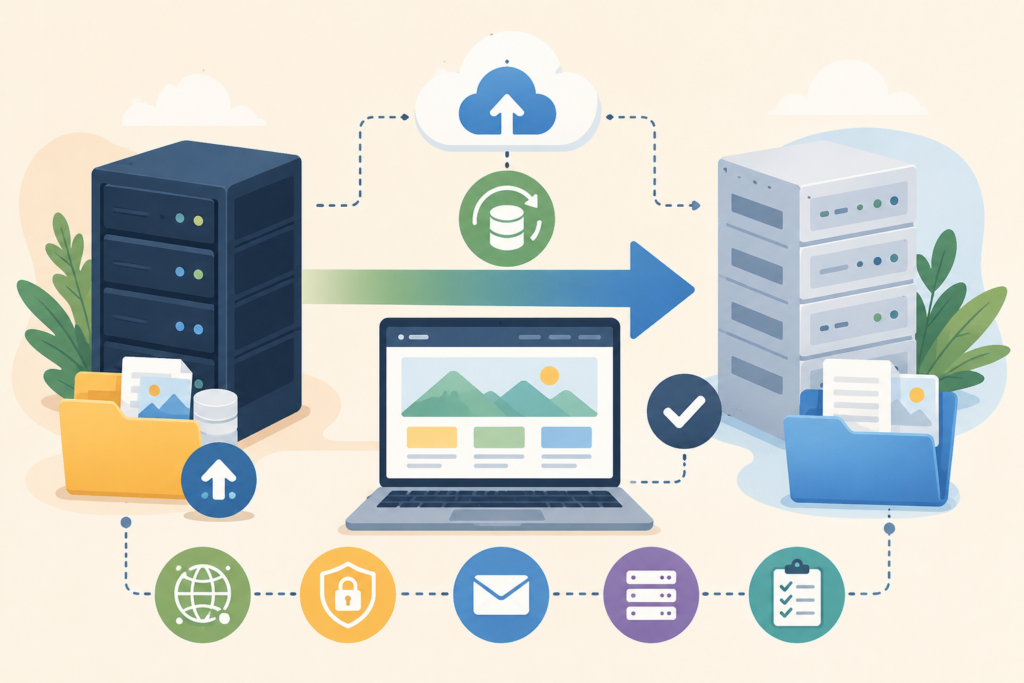
For many small business websites, this may include:
- WordPress files
- Website database
- Uploads and images
- Themes and plugins
- Contact forms
- Ecommerce data
- Booking tools
- PDFs and downloads
- Tracking scripts
- Redirects
- Email accounts
- DNS records
- SSL certificate
- Staging site or test copy
Do not assume your old hosting provider keeps everything in one obvious place. A WordPress migration usually includes both files and a database.
If you only move the files, the site may not work.
2. Take a full website backup
A website backup is your safety net.
Before migration, create a full backup that includes:
- Website files
- Database
- Uploads folder
- Configuration files
- Email data if hosted on the same server
- DNS zone records
- Plugin and theme settings
Store the backup somewhere separate from the old hosting account if possible. That might be cloud storage, a local machine, or your new hosting provider’s migration system.
Do not rely only on “we probably have backups.”
For a business website, probably is not good enough.
3. Record your current DNS records
DNS changes are one of the biggest migration stress points.
DNS tells the internet where your website, email, and related services live. Before changing anything, export or screenshot your current DNS records.
Record:
- A records
- CNAME records
- MX records
- TXT records
- SPF, DKIM, and DMARC email records
- Any subdomains
- Any records used by Google Workspace, Microsoft 365, Mailchimp, Meta, payment tools, or verification services
This step is especially important if your email is connected to your domain.
A website hosting migration should not break business email.
4. Check your domain login access
Before migration day, confirm you can access your domain registrar.
Your registrar is where your domain is managed. Your hosting account is where the website lives. They may be with the same provider, but not always.
Make sure you know:
- Where the domain is registered
- Who has login access
- Whether two-factor authentication is enabled
- Whether the domain is locked
- Where nameservers are managed
- Who can approve changes
Do this early. Do not discover a missing login during launch.
5. Audit the current website
Check the current website before moving it.
Look at:
- Main pages
- Contact forms
- Menus
- Footer links
- Blog posts
- Product pages
- Booking pages
- Payment pages
- Thank-you pages
- Tracking scripts
- Page speed
- Mobile layout
This gives you a baseline. After the move, you can compare the new version to the old one.
For larger SEO-sensitive moves, Google recommends preparing and testing the new site thoroughly, mapping URLs where needed, and monitoring traffic after the move.
How to Plan the Hosting Move
A website migration checklist is not only technical. Timing matters too.
Choose a quiet migration window
Move the website when fewer people are likely to use it.
For many small businesses, this may be after hours, over a weekend, or during a quieter sales period. Google also recommends timing site moves during lower-traffic periods where possible.
For South African businesses serving local customers, think about when people usually submit enquiries, bookings, or quote requests.
Avoid moving the site during a campaign, sale, event launch, or important seasonal period.
Lower DNS TTL before migration
TTL stands for “time to live.” It tells DNS systems how long to cache records.
Lowering TTL before a migration can help DNS changes update faster once you switch to the new host. This does not make propagation instant, but it can reduce waiting time.
Ask your hosting provider or developer to handle this if you are unsure.
Create a staging site
A staging site is a test version of your website.
It allows you to check the migrated website before the public sees it. This is helpful for WordPress migration, ecommerce sites, booking systems, and any site with forms or custom features.
Use the staging site to test:
- Layout
- Navigation
- Forms
- Login areas
- Checkout
- Search
- Mobile display
- Speed
- Plugin behaviour
- SSL setup
- Broken links
A staging site helps reduce downtime because more issues can be fixed before launch.
The Core Website Migration Checklist
Use this checklist as your working migration plan.
Before migration
- □ Confirm what is moving
- □ Create a full website backup
- □ Save database backup separately
- □ Export DNS records
- □ Confirm domain registrar access
- □ Check email hosting setup
- □ List important pages and URLs
- □ Audit current forms and tracking
- □ Lower DNS TTL
- □ Set up the new hosting account
- □ Create the staging site
- □ Install SSL on the new hosting
- □ Confirm PHP and database compatibility
- □ Confirm cPanel migration details if relevant
- □ Check storage, backups, and support on the new plan
During migration
- □ Copy website files
- □ Import the database
- □ Update configuration files
- □ Test the staging site
- □ Fix missing images or files
- □ Check internal links
- □ Check contact forms
- □ Check SSL setup
- □ Check caching settings
- □ Check email routing
- □ Update DNS records
- □ Monitor propagation
- □ Keep old hosting active temporarily
After migration
- □ Test the live website
- □ Check forms again
- □ Confirm email is sending and receiving
- □ Check SSL padlock
- □ Review key pages on mobile
- □ Crawl for broken links
- □ Submit sitemap if needed
- □ Monitor analytics and Search Console
- □ Watch for 404 errors
- □ Confirm backups are running
- □ Keep the old hosting account until everything is stable
This website migration checklist is intentionally practical. You can hand it to a developer, hosting provider, or internal admin and use it to keep the move organised.
DNS, SSL, and Email: The Three Areas to Treat Carefully
Most migration issues come from three places: DNS, SSL, and email.
DNS changes
DNS changes connect the domain to the new hosting server.
The key is not to guess. Use the correct records from the new hosting provider and keep a copy of the old records.
A typical website move might involve updating an A record or changing nameservers. Email may use separate MX and TXT records that should not be removed unless you know exactly what they do.
SSL setup
SSL allows your website to load securely over HTTPS.
Before going live, make sure the SSL certificate is installed and active on the new hosting. Then test the live site after DNS has updated.
Watch for:
- Browser warnings
- Mixed content errors
- Old HTTP links
- Images loading from insecure URLs
- Redirect loops
Google’s site move documentation also notes TLS certificate setup when moving to HTTPS.
Email setup
Email can break if MX, SPF, DKIM, or DMARC records are changed incorrectly.
Before migration, confirm whether your email is hosted:
- With your current web host
- In cPanel
- With Google Workspace
- With Microsoft 365
- With another email provider
If email is business-critical, test it immediately after the DNS changes.
Send and receive test messages. Check contact forms too, because forms often rely on domain email settings.
SEO Checks During a Website Hosting Migration
If the domain and URLs are staying the same, a hosting migration is usually simpler from an SEO perspective than a redesign or domain change.
Still, you should check the basics.
Keep URLs the same where possible
If you are only changing hosting, keep the website structure and URLs unchanged.
Changing hosting, redesigning the website, rewriting content, and changing URLs at the same time creates more risk. Google recommends changing one thing at a time where possible during site moves.
Check redirects if URLs change
If any URLs change, set up proper redirects.
Google recommends server-side permanent redirects, such as 301 or 308, where technically possible.
For starter businesses, this matters because old links may exist in Google, social profiles, email signatures, WhatsApp messages, supplier websites, and local directories.
Check Search Console
After migration, check Google Search Console for:
- Indexing errors
- Sitemap status
- Crawl errors
- Traffic changes
- Page experience issues
- Mobile usability warnings
Expect some temporary movement if the migration includes bigger changes. If it is only a hosting change with the same URLs, the impact should usually be smaller.
SEO is not only a migration issue. If your site is slow, messy, or hard to crawl, the move is a good time to improve the foundation.: Search Engine Optimisation
Common Website Migration Mistakes
Cancelling old hosting too soon
Do not cancel the old hosting account immediately after launch.
Keep it active until the new website, email, DNS, SSL, backups, forms, and analytics have been checked.
Moving without a backup
Never start a website hosting migration without a full backup.
A migration should be reversible if something goes wrong.
Forgetting email records
Email issues are common because people focus only on the website.
Before changing nameservers, confirm how email is routed. If you are using cPanel email, Microsoft 365, or Google Workspace, protect those records.
Not testing forms
A website can look perfect while contact forms quietly fail.
Test every important form after migration:
- Contact forms
- Quote forms
- Booking forms
- Newsletter forms
- Checkout forms
- Account forms
Ignoring mobile
Many customers will check your site from a phone.
After migration, test mobile menus, forms, buttons, images, and load speed.
Combining migration with too many other changes
A hosting move is already enough work.
Avoid combining it with a redesign, domain change, content rewrite, plugin overhaul, and SEO restructure unless you have a clear project plan.
When to Use Managed Migration Support
You can move a simple website yourself if you are confident with hosting, DNS, SSL, backups, and WordPress.
But managed hosting support is often worth it when:
- Your website brings in leads
- You use business email on the same domain
- You have ecommerce or booking tools
- You are unsure about DNS changes
- You need a cPanel migration
- You want to reduce downtime
- You do not have a recent website backup
- You want someone to test the move properly
VVRapid’s LiteSpeed hosting includes free migrations depending on the plan, with Basic including one free migration, Standard including up to three, and Premium including up to five.: LiteSpeed WebServer Hosting
If your website is outdated, the migration may also be a good time to review design, performance, or technical structure.: Website Design & Development
After the Migration: What to Monitor
A migration is not finished the moment the homepage loads.
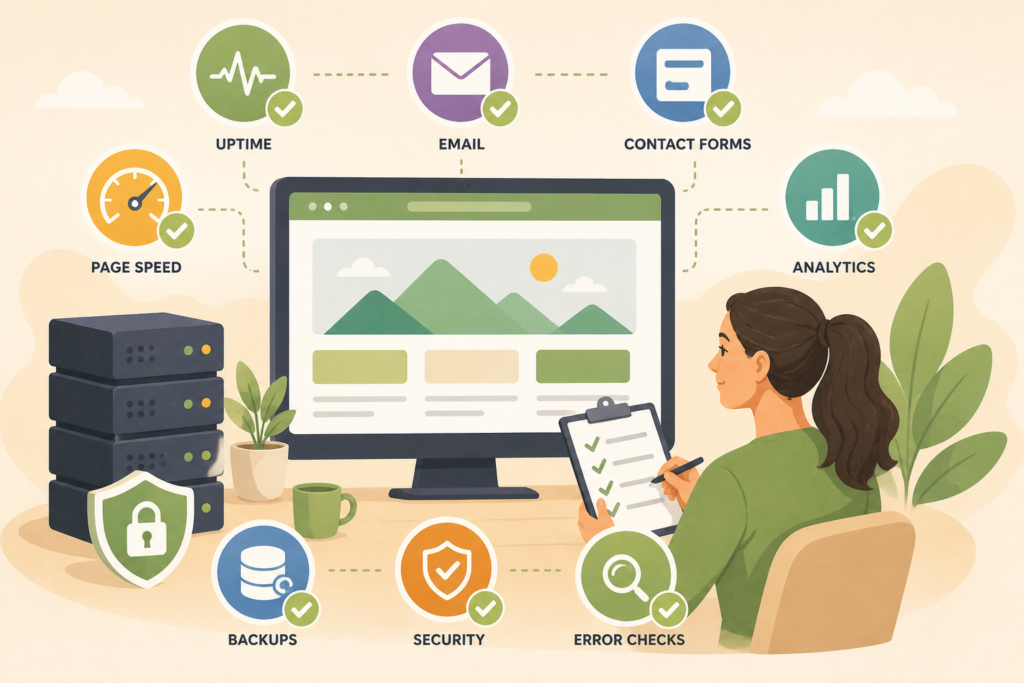
For the next few days, monitor:
- Website uptime
- Contact form submissions
- Email delivery
- SSL warnings
- 404 errors
- Analytics traffic
- Search Console alerts
- Server error logs
- Page speed
- Backup schedule
- Plugin behaviour
Also check your most important customer paths. For example, if your website’s goal is quote requests, test the quote form from a real phone and a real email address.
Starter businesses should keep the process simple. The goal is not a perfect technical report. The goal is a working website, stable email, and a safer hosting foundation.
Website maintenance also matters after migration. WordPress core, themes, plugins, forms, backups, and security checks still need regular attention.: Website Maintenance & Care
How VVRapid Can Help
VVRapid can help starter businesses move to LiteSpeed WebServer Hosting with less stress.
The hosting service includes practical migration support, SSL, daily backups, cPanel, LiteSpeed Cache, email account options, and setup help depending on the selected plan. The focus is not just moving files. It is helping the site stay fast, stable, and easier to manage.
VVRapid can also connect hosting with maintenance, SEO, and website design when the site needs a broader clean-up.
Start with the migration. Then keep the website healthy.
View VVRapid’s LiteSpeed WebServer Hosting service or contact VVRapid to discuss a safer move.
FAQ: Website Migration Checklist
What is a website migration checklist?
A website migration checklist is a step-by-step plan for moving a website from one hosting environment to another. It covers backups, files, databases, DNS, SSL, email, testing, redirects, analytics, and post-launch checks.
How long does a website hosting migration take?
A simple website hosting migration can often be completed within a short planned window, but timing varies by website size, DNS changes, email setup, and testing needs. Complex WordPress, ecommerce, or membership sites need more preparation.
Will my website go down during migration?
A well planned migration can reduce downtime, but no provider should promise zero risk without checking your setup. Good backups, staging, DNS planning, and careful testing help reduce downtime.
Can migration affect SEO?
Yes, especially if URLs, content, redirects, or site structure change. If only the hosting changes and the URLs remain the same, the SEO risk is usually lower. Still, monitor Search Console after the move.
Do I need a staging site?
A staging site is strongly recommended if your website has forms, ecommerce, bookings, custom features, or important traffic. It lets you test the moved site before switching the live domain.
Should I cancel my old hosting after migration?
Not immediately. Keep the old hosting active until the live site, email, SSL, backups, forms, analytics, and DNS are confirmed stable.