WordPress plugin maintenance helps small businesses keep useful website features working without letting outdated, bloated, or abandoned plugins become security and performance risks.
Table of Contents
Plugins are one of the reasons WordPress is so flexible. You can add forms, bookings, ecommerce, SEO tools, analytics, popups, memberships, galleries, page builders, security tools, caching, and almost anything else.
That flexibility is useful. It can also become messy.
A website might start with five carefully chosen plugins and end up with twenty-five. Some are essential. Some were added for one campaign and forgotten. Some overlap. Some have not been updated in years. Some slow the website down. Some create security exposure.
Why WordPress Plugin Maintenance Matters
WordPress plugins are pieces of software. Like any software, they need updates, compatibility checks, and occasional replacement.
A plugin can be perfectly safe today and risky later if it stops receiving updates, conflicts with your theme, becomes unsupported, or is replaced by a better built-in feature. WordPress allows administrators to manage plugin and theme updates from the dashboard, and plugin auto-updates can be enabled plugin by plugin. That makes updates easier, but it does not remove the need for judgement.

For a small business, the risk is practical:
- A contact form stops sending leads
- A booking plugin breaks after an update
- A slow plugin hurts mobile performance
- An abandoned plugin becomes a security risk
- Two plugins conflict and break a page layout
- A checkout plugin fails during a sale
- A plugin adds scripts that make the site feel heavy
WordPress plugin maintenance is not about updating everything blindly. It is about keeping the website lean, secure, compatible, and fit for purpose.
For ongoing help with updates, backups, monitoring, and care, VVRapid’s Website Maintenance & Care service supports small businesses that do not want to manage plugin risk alone.
What Counts as WordPress Plugin Maintenance?
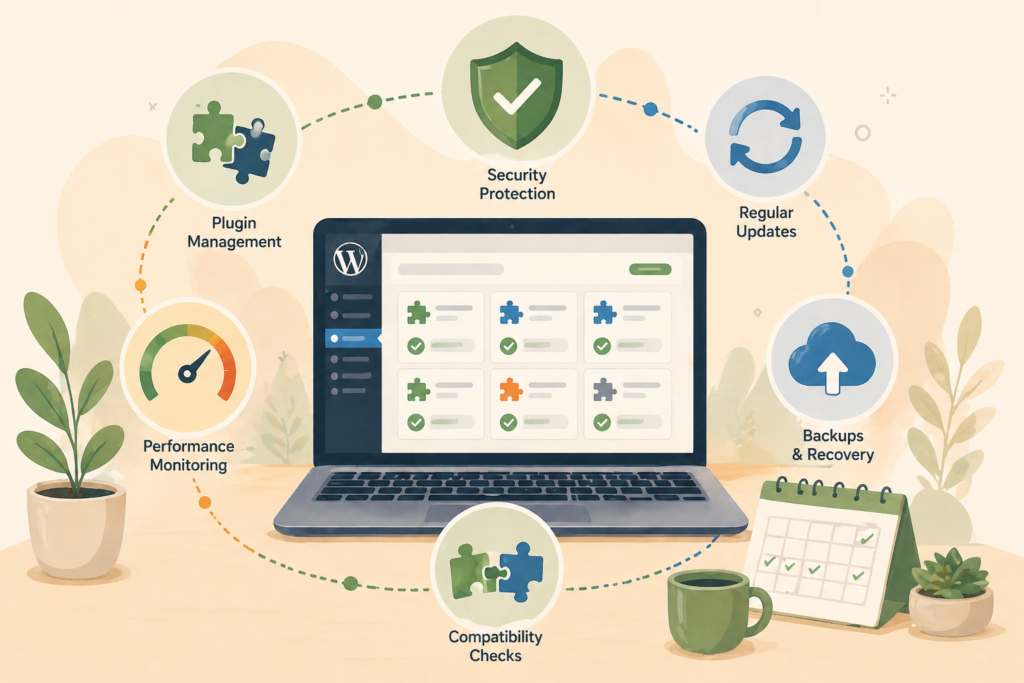
WordPress plugin maintenance is the process of reviewing, updating, testing, replacing, and removing plugins so your website stays stable.
A practical plugin maintenance routine includes:
- Checking which plugins are installed
- Confirming which plugins are actually used
- Reviewing update availability
- Checking compatibility with WordPress and PHP
- Looking for abandoned WordPress plugins
- Testing important features after updates
- Removing inactive plugins
- Replacing risky or bloated tools
- Watching for plugin conflict issues
- Keeping backups before changes
- Reviewing security alerts
- Documenting what each plugin does
The goal is not to have the fewest plugins possible. The goal is to have the right plugins, maintained properly.
A website with twelve well-supported plugins can be healthier than a website with five outdated ones.
How Plugins Become Website Risks
Most plugin problems do not happen overnight. They build slowly.
A plugin might be installed to solve a quick problem. Months later, nobody remembers why it is there. A new plugin is added for a similar purpose. Then a page builder extension is installed. Then a marketing popup tool. Then a tracking script manager. Then a security plugin. Then a backup plugin. Then another performance plugin.
Eventually, the site becomes harder to manage.
Plugin risk usually comes from five areas:
1. Outdated Code
Old code may not work well with the latest WordPress, PHP, or browser standards. It may also include known vulnerabilities.
CISA explains that software patches help address security vulnerabilities, which is why updates are an important part of basic cyber hygiene.
2. Abandoned WordPress Plugins
An abandoned plugin is one that appears unsupported, rarely updated, or no longer actively maintained.
This does not always mean it is unsafe immediately. But it does mean you should review it carefully.
Check the plugin’s last update date, support activity, compatibility notes, changelog, active installations, reviews, and whether the developer still responds to issues.
3. Plugin Bloat
Plugin bloat happens when too many plugins add unnecessary scripts, styles, database tables, settings, or features.
This can affect page speed, admin speed, and overall site reliability.
4. Plugin Conflict
A plugin conflict happens when two plugins, a plugin and theme, or a plugin and WordPress core do not work well together.
Common signs include broken layouts, missing buttons, failed form submissions, checkout errors, admin errors, or white screens.
5. Poor Security Practices
Plugins and themes are key points of weakness in the WordPress ecosystem because they extend the core platform and add more code to the website. WordPress developer documentation highlights that plugins and themes can introduce vulnerabilities outside WordPress core.
That does not mean plugins are bad. It means they need proper care.
The Difference Between Plugin Updates and Plugin Maintenance
Plugin updates are only one part of WordPress plugin maintenance.
An update means installing the latest version of a plugin.
Maintenance means asking better questions:
- Is this plugin still needed?
- Is it still actively maintained?
- Does it still support the current WordPress version?
- Does it work with the current PHP version?
- Does it affect performance?
- Does it duplicate another plugin?
- Does it introduce security or privacy concerns?
- Can this feature be handled in a simpler way?
- Should this be replaced with custom plugin development?
Updating is a task. Maintenance is a decision-making process.
Think: not every plugin deserves to stay just because it still works.
When to Be Careful With Plugin Updates
Many plugin updates are routine. Some need extra care.
Be careful when updating plugins that control:
- Contact forms
- Ecommerce checkout
- Bookings
- Memberships
- Payments
- SEO metadata
- Caching
- Security
- Page layouts
- Translations
- Custom fields
- Learning management systems
- Integrations with CRMs or email tools
Before updating important plugins, back up the website. Then update during a low-risk time, test key pages, and confirm lead paths still work.
For critical sites, use a staging environment. This lets you test updates before applying them to the live site.
A simple update can become expensive if it breaks a revenue-critical page.
What to Include in a WordPress Plugin Audit
A WordPress plugin audit is a structured review of every plugin installed on the website.
For each plugin, record:
- Plugin name
- Main purpose
- Whether it is active or inactive
- Whether the site still needs it
- Latest version installed
- Date of last developer update
- Compatibility with current WordPress version
- Known security concerns
- Performance impact
- Whether it overlaps with another plugin
- Replacement options
- Decision: keep, update, replace, remove, or monitor
This is where many small businesses discover clutter.
You may find three analytics tools, two form plugins, old popup tools, unused slider plugins, a discontinued page builder add-on, or an SEO plugin that was never configured properly.
A plugin audit helps turn that clutter into a clear plan.
How to Spot Abandoned WordPress Plugins
An abandoned plugin is not always obvious, especially if the site still appears to work.
Look for warning signs:
- No updates for a long period
- No support replies from the developer
- Compatibility not tested with recent WordPress versions
- Repeated unresolved support issues
- Poor recent reviews
- Broken documentation links
- Developer website no longer active
- Security warnings from trusted sources
- The plugin has been removed from the official directory
The official WordPress Plugin Directory is a useful starting point because it shows plugin details such as active installations, update history, and compatibility notes.
If a plugin is abandoned but still powers an important feature, do not delete it instantly. First understand what it does, test replacement options, and create a backup.
Plugin Bloat and Website Speed
Not every slow website has a plugin problem. But plugins are often part of the story.
A plugin can slow a site by adding:
- Extra JavaScript
- Extra CSS
- Database queries
- Tracking scripts
- Large admin processes
- Unused frontend features
- External calls to third-party services
- Heavy page builder elements
- Duplicate optimisation tools
A website performance check should look at plugins carefully, especially if speed has declined over time.
Two common examples:
First, a business installs several marketing tools that each add tracking scripts. The site becomes heavier, especially on mobile.
Second, a site uses multiple optimisation plugins. Instead of improving speed, they conflict or duplicate functions.
Plugin maintenance should support performance, not fight it.
VVRapid’s LiteSpeed WebServer Hosting can support faster delivery, caching, and performance-focused hosting for WordPress sites.
When a Plugin Should Be Replaced
Sometimes the best plugin maintenance decision is replacement.
Consider replacing a plugin when:
- It is abandoned
- It has repeated vulnerabilities
- It slows important pages
- It creates conflicts after updates
- It duplicates another plugin
- It is difficult for your team to use
- It does much more than you need
- It is no longer supported by the developer
- It blocks future website improvements
- The business has outgrown the feature
Replacement does not always mean choosing another plugin. Sometimes the better option is simplifying the feature, using a native WordPress function, changing the workflow, or building a custom solution.
For features that are important to operations, VVRapid’s Custom Plugin Development can help create purpose-built functionality instead of stacking multiple plugins together.
Security Risk and Vulnerable Components
Plugin maintenance is also a security habit.
OWASP lists vulnerable and outdated components as a major web application security risk. Its guidance includes monitoring for unmaintained components and applying patches where possible.
For WordPress websites, plugins are often those components.
A small business does not need to become a security expert, but it should have a simple process:
- Keep an inventory of plugins
- Remove what is unused
- Update supported plugins
- Watch for vulnerability alerts
- Replace unsupported tools
- Keep backups
- Use strong admin access controls
- Test important features after changes
CISA’s small business cyber guidance also encourages basic protections that build a stronger security foundation, even though no single checklist can guarantee no incident will happen.
The aim is resilience. Fewer surprises. Faster recovery.
Monthly WordPress Plugin Maintenance Checklist
Use this checklist once a month, or more often for busy sites.
- □ Review all installed plugins
- □ Remove inactive plugins you no longer need
- □ Check for available plugin updates
- □ Back up the website before updates
- □ Update low-risk plugins first
- □ Test contact forms after updates
- □ Test checkout, booking, or payment flows
- □ Review plugin compatibility notes
- □ Check for abandoned WordPress plugins
- □ Look for duplicate plugin functions
- □ Review website speed after major updates
- □ Check for plugin conflict warnings
- □ Confirm security plugin alerts
- □ Review admin notices
- □ Document what changed
- □ Add risky plugins to a watchlist
- □ Plan replacements where needed
For ecommerce, membership, booking, or lead-heavy websites, do not treat this as a casual admin task. Plugin changes can affect revenue.
Common Mistakes With WordPress Plugin Maintenance
Installing a Plugin for Every Small Request
Plugins are useful, but every plugin adds code, settings, updates, and possible risk.
Before installing a new plugin, ask whether the feature is truly needed. Also check whether the same feature already exists in your theme, page builder, hosting tools, or current plugins.
Keeping Inactive Plugins Installed
Inactive plugins can be forgotten. If a plugin is not needed, remove it after confirming it is safe to delete.
Do not keep old tools “just in case” without a reason.
Updating Without a Backup
A backup gives you a recovery path. Always back up before important plugin updates, especially for ecommerce, booking, membership, or form-related plugins.
Ignoring Plugin Conflicts
Small glitches can be early warnings. If a layout breaks, forms fail, or admin errors appear after an update, document the timing and investigate.
Trusting Popularity Alone
A popular plugin can still be the wrong fit for your website. Review support quality, update history, performance impact, and whether the plugin matches your actual need.
Forgetting About Performance
A plugin can be secure and still slow down the website. WordPress plugin maintenance should include performance checks, not only update checks.
Replacing Strategy With Tools
A plugin is not a strategy. An SEO plugin does not create an SEO plan. A security plugin does not replace access control. A caching plugin does not fix poor hosting or bloated pages.
Tools help. They do not think for the business.
How Often Should You Review Plugins?
For most small business websites, monthly WordPress plugin maintenance is sensible.
A deeper WordPress plugin audit can happen quarterly or twice a year, depending on how important the website is to the business.
Use this rhythm:
- Weekly: check urgent alerts on high-risk websites
- Monthly: update plugins, test key functions, review obvious issues
- Quarterly: audit plugin purpose, bloat, conflicts, and replacements
- Annually: review whether the website stack still supports the business
If your website handles sales, bookings, payments, memberships, or high-value enquiries, review plugins more often.
A brochure site and an online store do not carry the same risk.
How VVRapid Can Help
VVRapid helps small businesses keep WordPress websites more stable through structured maintenance, updates, backups, security checks, and performance awareness.
Website Maintenance & Care can support safer plugin updates, basic plugin review, issue monitoring, and small fixes depending on the plan.
If your website has a complex plugin stack, VVRapid can also help assess whether features should stay as plugins, be simplified, or be rebuilt as custom functionality.
The goal is not more plugins. The goal is a cleaner, safer website that keeps working.
Review the Website Maintenance & Care service page to choose a support level that matches your website risk.
FAQ: WordPress Plugin Maintenance
What is WordPress plugin maintenance?
WordPress plugin maintenance is the process of reviewing, updating, testing, removing, and replacing plugins so your website stays secure, stable, and useful.
How many plugins are too many?
There is no perfect number. A website with many well-maintained plugins can work well, while a site with a few outdated plugins can be risky. Quality, purpose, and maintenance matter more than the count.
Should I enable automatic plugin updates?
Automatic updates can be useful for low-risk plugins. For plugins that control forms, checkout, bookings, security, caching, or layouts, it is often safer to update with backups and testing.
What is a WordPress plugin audit?
A WordPress plugin audit is a structured review of all installed plugins. It checks purpose, usage, update history, compatibility, performance impact, security risk, and whether each plugin should be kept, replaced, or removed.
Are abandoned WordPress plugins dangerous?
They can be. An abandoned plugin may still work, but if it no longer receives patches or compatibility updates, it may become a security or performance risk over time.
Can VVRapid remove unnecessary plugins?
Yes. VVRapid can help review your plugin stack, identify unnecessary or risky plugins, and support safer maintenance decisions through Website Maintenance & Care or related development services.
Final Thought
WordPress plugin maintenance is not glamorous, but it protects the parts of your website that customers depend on.
Good plugins can add value. Neglected plugins can add risk.
Keep the useful tools. Remove the clutter. Replace what no longer serves the business.
For ongoing support, view VVRapid’s Website Maintenance & Care service and choose a practical plan for keeping your WordPress site maintained.