A WordPress user access audit checklist helps you reduce avoidable risk without turning your website into a constant security project. On a live site, not every security issue starts with malware or a dramatic hack. Sometimes the risk is much quieter: an old admin account still active, a freelancer with more access than they need, shared credentials, or a plugin integration using credentials nobody reviews anymore.
WordPress itself treats user roles and capabilities as a core part of its security model, and OWASP’s least-privilege guidance supports the same principle: give people only the access they need, for only as long as they need it.
Table of Contents
If your website is live, taking leads, publishing content, or being updated by more than one person, access control is not admin housekeeping. It is part of website maintenance. A clean WordPress user access audit checklist can help you catch unnecessary risk before it turns into a real problem.
What a WordPress user access audit checklist actually covers
A WordPress user access audit checklist is a repeatable review of who can access your website, what each person can do, whether those permissions are still appropriate, and whether any login or integration credentials should be removed, reduced, or rotated. WordPress provides a role and capability system for exactly this reason. Core roles such as Administrator, Editor, Author, Contributor, and Subscriber are built around different levels of access.
For a small business, that usually means reviewing:
- active user accounts
- role assignments
- administrator count
- former staff and agency access
- shared logins
- application passwords and integrations
- login protections such as strong passwords and MFA
- access to themes, plugins, and settings
- documentation around who owns what
This is not about making the site difficult to use. It is about making access intentional.
Why access control is often the overlooked security gap
Most business owners think of WordPress security in terms of updates, malware scans, backups, and login protection. Those matter. WordPress’s own security guidance emphasizes keeping WordPress core, plugins, and themes up to date as one of the most important security basics.
But access control is where many avoidable risks stay hidden:
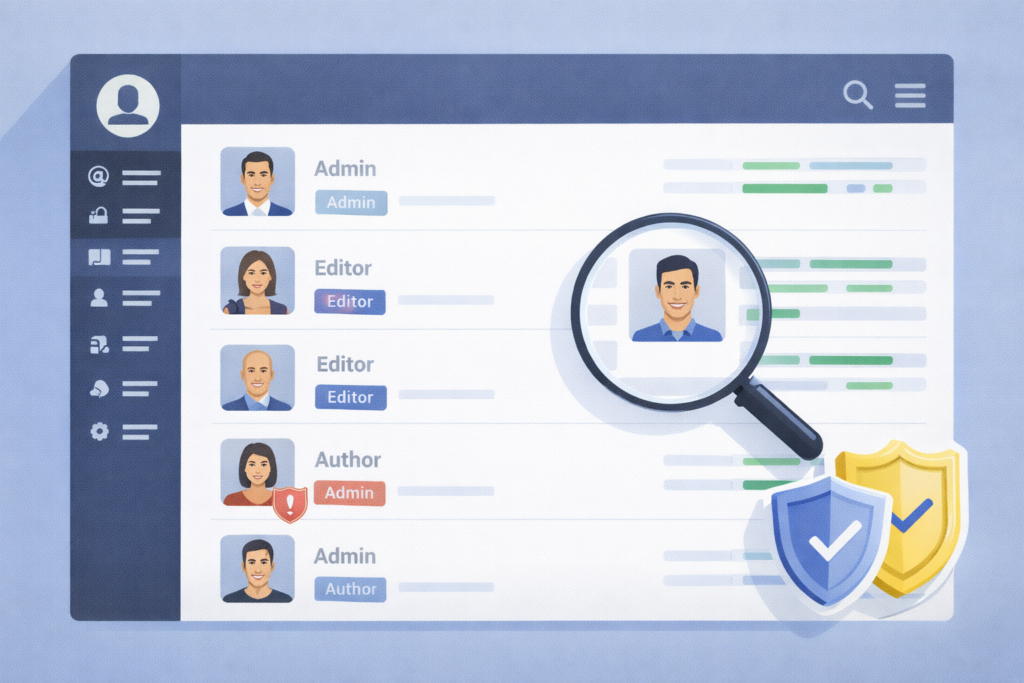
- a past developer still has administrator access
- a content editor has permissions far beyond publishing posts
- a shared admin login is used by multiple people
- an old integration still has active credentials
- nobody knows which accounts are safe to remove
- a default or legacy admin username is still in use
WordPress’s current brute-force hardening guidance specifically recommends avoiding the username admin, limiting administrator count, using least-privilege roles for day-to-day work, and ensuring HTTPS to protect credentials in transit.
That is why a WordPress user access audit checklist is useful. It turns vague concern into a concrete maintenance routine.
WordPress user access audit checklist for a live site
1. List every active user account
Start with a plain export or review of all current users. You want to know:
- who the user is
- what role they have
- when they last needed access
- whether they are staff, contractor, agency, or former collaborator
If you cannot explain why an account exists, that is a sign to investigate.
2. Remove or disable former staff and old contractor access
This is one of the highest-value checks in the whole article. Staff changes, agency handovers, and one-off support work often leave accounts behind. Those accounts may never be used again, but they still expand your risk surface.
A good rule is simple: if the work relationship ended, access should be reviewed immediately.
3. Reduce administrator accounts
Not everyone needs admin rights. In WordPress, roles are tied to capabilities, and administrators can make broad site-level changes. OWASP’s least-privilege principle is relevant here: users should only have the minimum access needed to do their job.
For most small business sites, keep the number of administrators low and deliberate.
4. Match each role to the real job
Review whether each user’s role matches what they actually do.
Examples:
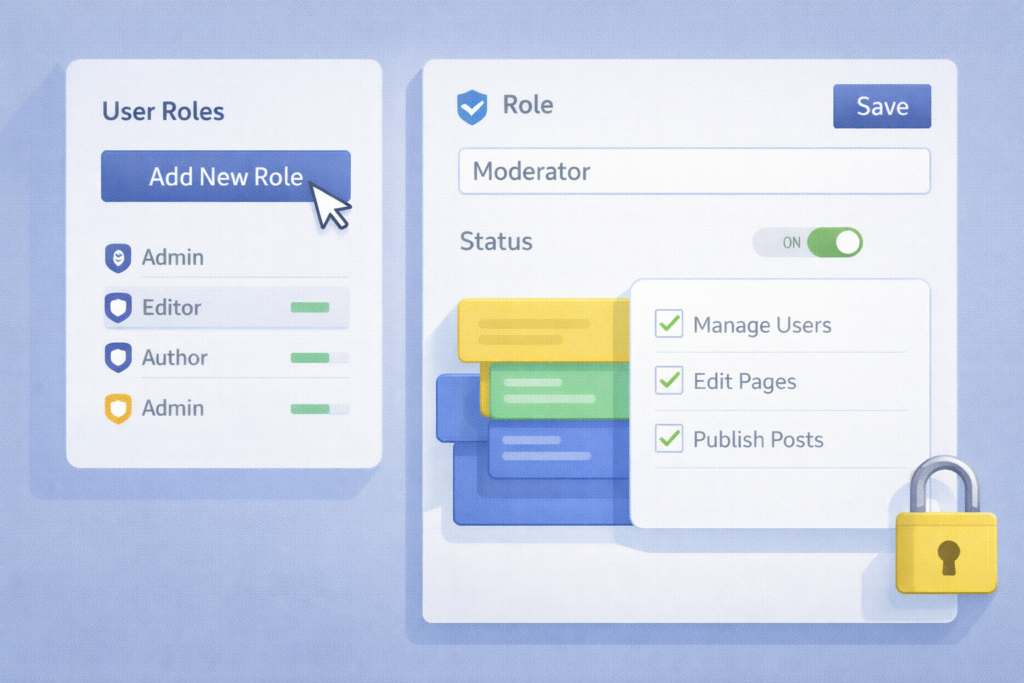
- content writers may only need Author or Contributor access
- marketing staff may need Editor access, not Administrator
- store managers may need role-specific ecommerce access, not full site control
- technical partners may need temporary admin access during specific work windows only
This is one reason to connect this topic naturally with Website Maintenance & Care. Access reviews work best when they are part of an ongoing maintenance routine, not a one-off cleanup.
5. Check for shared logins
Shared admin logins are messy and risky. They make accountability harder, weaken audit trails, and increase the chance that passwords end up reused or passed around casually.
One person, one login, one role is the safer approach.
6. Review application passwords and connected tools
WordPress supports Application Passwords for programmatic access. These are designed to avoid sharing a user’s main password with third-party tools and can be revoked individually. That makes them useful, but only if they are reviewed.
Check for:
- old automation connections
- inactive external apps
- integrations nobody remembers setting up
- credentials tied to the wrong user account
7. Confirm strong login protection
A WordPress user access audit checklist should not stop at role review. It should also include:
- strong unique passwords
- MFA where practical
- HTTPS everywhere for login protection
- login monitoring for suspicious attempts
WordPress’s current brute-force guidance explicitly recommends HTTPS and limiting risky admin practices, while WordPress hardening guidance frames basic security precautions as essential to keeping a site secure.
8. Review who can install plugins, themes, or updates
This matters more than many teams realise. Users who can install, edit, or change site-level functionality can affect security, stability, and uptime. WordPress documents configuration options that can disable plugin and theme installation or modification from the admin area when needed.
That also ties in well with Website Design & Development and Custom Plugin Development, because permission decisions are often shaped by how the site was built and who is expected to manage it.
9. Document ownership for critical access
For each critical system, someone should clearly own it:
- domain access
- hosting access
- WordPress admin ownership
- backup access
- security plugin access
- CDN or DNS access
- form or email delivery access
A lot of avoidable risk starts when a business cannot tell who controls which piece.
10. Repeat the audit on a schedule
A WordPress user access audit checklist works best when repeated. Quarterly is often a practical starting point for small business sites. Sites with staff turnover, agencies, multiple editors, ecommerce, or frequent changes may need monthly review.
Checklist: WordPress user access audit checklist
Use this as the scannable checklist section.
- □ Review all active user accounts
- □ Confirm each user still needs access
- □ Remove or disable former staff accounts
- □ Reduce administrator count where possible
- □ Match each role to the user’s real job
- □ Eliminate shared logins
- □ Review application passwords and integrations
- □ Confirm strong passwords and MFA approach
- □ Ensure HTTPS is active for logins
- □ Check who can install plugins, themes, and updates
- □ Document ownership of critical systems
- □ Schedule the next access review
Simple is good. Consistent is better.
Common mistakes
Leaving old accounts active
This is one of the easiest risks to avoid and one of the most common.
Giving admin access by default
It feels convenient at first. It creates unnecessary exposure later.
Using one shared admin login
This weakens accountability and makes incident response harder.
Forgetting non-WordPress access
A real access audit should also consider hosting, DNS, backup systems, CDN tools, and email or form delivery platforms.
Never reviewing application passwords
These can be helpful, but old credentials should not remain active forever. WordPress designed them to be revocable per application, which only helps if someone actually checks them.
Treating access as a one-time setup task
Teams change. Agencies change. Websites grow. Permissions drift over time.
How this supports security, stability, and trust
A WordPress user access audit checklist is not just about preventing bad actors. It also reduces accidental changes, avoids confusion, and makes support work cleaner.
It helps with:
Security
Least privilege reduces the potential damage from human error, malicious activity, or software misuse. That is exactly why OWASP treats it as a foundational principle.
Stability
Fewer unnecessary high-privilege users means fewer avoidable settings changes, plugin installs, and risky admin actions.
Incident response
If something goes wrong, it is easier to investigate when logins are individual and role assignments make sense.
Search visibility and reputation
If a site is hacked or behaves in ways that could harm users, Google Search Console’s Security Issues report can surface findings such as hacked content, phishing, malware, or unwanted software warnings.
That also creates a natural bridge to Search Engine Optimisation, because security problems can become visibility and trust problems too.
When to handle this in-house
In-house can work well when:
- the site is simple
- the team is small
- user roles are easy to understand
- someone actually owns the review process
- related systems like hosting and DNS are documented clearly
When support is the smarter route
Ongoing support is often the better choice when:
- multiple people touch the site
- staff or supplier access changes often
- there are custom plugins or integrations
- nobody is confident about permissions
- the website is important to leads or sales
- access, updates, backups, and security all need to stay coordinated
This also connects naturally with LiteSpeed WebServer Hosting, because access risk is not only about WordPress logins. Reliable infrastructure, controlled permissions, backups, and maintenance workflows all fit together.
How VVRapid can help
VVRapid can help businesses treat access control as part of the wider Website Maintenance & Care picture rather than as a one-off admin tidy-up. That may include reviewing user roles, reducing unnecessary permissions, supporting safer update workflows, keeping backups and security checks aligned, and making it clearer who has access to what. For websites with more technical moving parts, related services such as Website Design & Development, Custom Plugin Development, LiteSpeed WebServer Hosting, and Search Engine Optimisation can support the wider reliability of the site.
If your live site has changed hands, grown over time, or picked up extra users and integrations along the way, a user access review is one of the simplest places to reduce avoidable risk. View the relevant service page or contact VVRapid if you want help building a cleaner, safer maintenance routine around a live WordPress website.
FAQ
What is a WordPress user access audit checklist?
It is a repeatable review of who can access your WordPress site, what permissions they have, and whether those permissions are still appropriate.
How often should I review WordPress user access?
Quarterly is a practical starting point for many small business sites. More active or complex sites may need monthly review.
Who should have administrator access in WordPress?
Only people who genuinely need broad site-level control. Most users should have lower-privilege roles matched to their work.
Are application passwords safe to use?
They can be useful because WordPress designed them as revocable per-application credentials, but they should still be reviewed and removed when no longer needed.
Can access problems affect SEO?
Indirectly, yes. Security issues can harm trust, disrupt the site, and in some cases surface in Google Search Console’s Security Issues report.
Is this different from a general WordPress security checklist?
Yes. A WordPress user access audit checklist is narrower. It focuses specifically on users, roles, permissions, credentials, and access ownership on a live site.