A WordPress website migration checklist is the difference between a smooth move and a month of “why did enquiries stop?” panic. Migrating a site is not just copying pages. It is URLs, redirects, tracking, forms, SEO signals, and performance all moving at once.
Table of Contents
What “website migration” really means (and why SEO can drop)
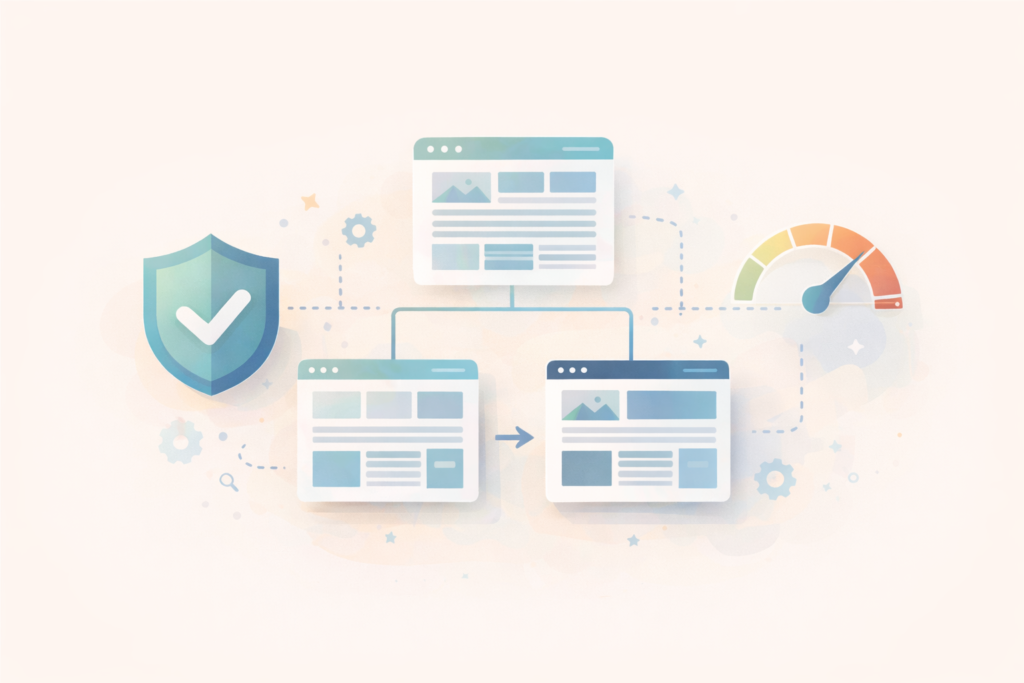
A migration is any meaningful change to how your website is built or served that can affect:
- URLs (page addresses)
- Content structure (menus, internal links, headings)
- Technical setup (hosting, caching, scripts, canonical tags)
- Tracking and conversions (GA4, pixels, events)
- User paths (where people click, where forms submit)
Even if your design looks similar, the behind-the-scenes changes can be enough to confuse search engines or break lead capture.
If you want a migration that protects SEO from day one, it helps to align the build with SEO setup.: Search Engine Optimisation (SEO)
WordPress website migration checklist: decide what type of move you are doing
Start by naming the migration type. Your risk and your checklist change based on this.
Common migration types
- Platform migration
Wix, Squarespace, Joomla, Webflow, Shopify blog, or a custom site moving to WordPress. - Rebuild on WordPress
Your site is already WordPress, but you are changing theme, builder, or structure. - Domain migration
You are changing the domain name (highest risk for SEO). - Hosting migration
Same site, new server. Still risky if caching, SSL, and DNS are not handled carefully.
If you are combining more than one type, treat it as a higher-risk migration and do not skip the redirect plan.
Before you migrate: the pre-work that protects rankings and leads
Most SEO losses happen because the pre-work was skipped. This is the part that feels boring, but saves you later.
1) Inventory your current site (do not rely on memory)
Create a simple list of:
- All indexable pages (especially service pages and high-traffic blog posts)
- Top landing pages from analytics
- Pages with backlinks (if you have SEO tools)
- Current form destinations and conversion points
Practical tip: export your sitemap if you have one. If not, crawl your site with a tool like Screaming Frog SEO Spider ↗ (free version is useful for smaller sites).
2) Record your baseline performance
You want a “before” snapshot so you can spot problems fast after launch.
- GA4: traffic by page, conversions by page
- Search Console: top queries, top pages, indexing status
- Speed: a basic PageSpeed Insights report for the homepage and a key service page
Tip: take screen shots on PageSpeed Insights ↗
3) Identify the pages that must not change
For most small businesses, these are the pages that drive money:
- Top 3 to 8 service pages
- Contact page
- Booking or quote pages
- Any high-ranking blog posts that bring consistent traffic
Your WordPress website migration checklist should protect these first.
Redirects: the single most important migration task
If URLs change and you do not redirect properly, Google sees the old pages disappear. That is when rankings and traffic drop.
Build a redirect map (old URL to new URL)
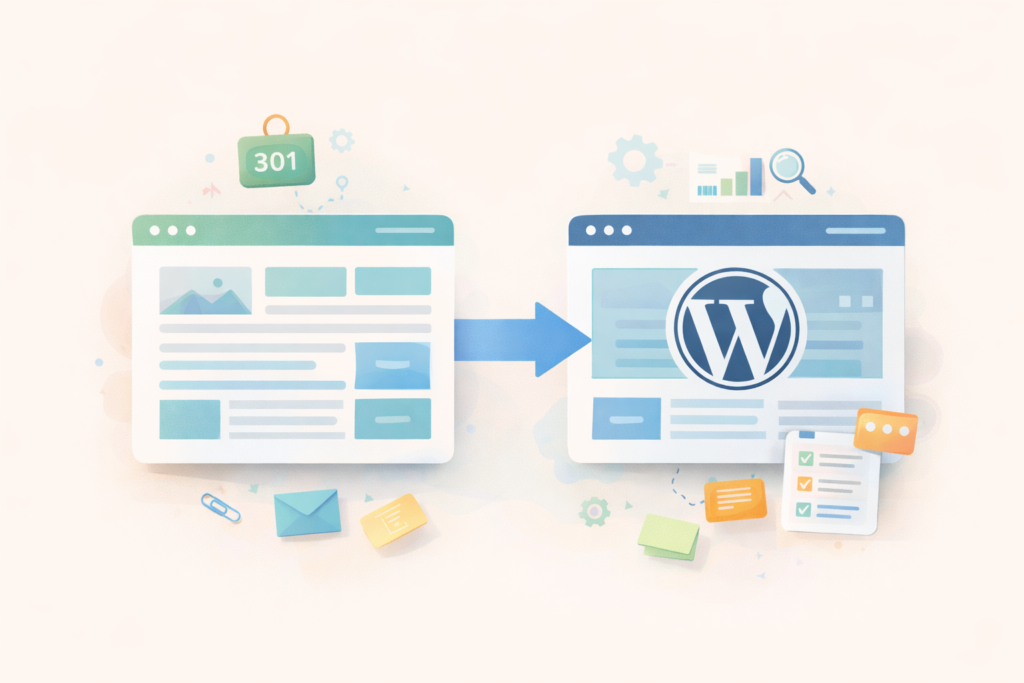
Create a spreadsheet with:
- Old URL
- New URL
- Notes (why it changed, priority level)
Rules of thumb:
- Use one-to-one redirects where possible.
- Avoid redirect chains (A to B to C).
- Redirect deleted pages to the closest relevant alternative, not always the homepage.
Google’s documentation on site moves and URL changes is clear about using redirects to help preserve signals.: Google Search Central on site moves ↗
WordPress website migration checklist for content and on-page SEO
1) Keep your page intent stable
If a page ranked for “plumber in Durban” and you turn it into a generic “services” page, you will likely lose relevance.
Before migrating, note for each key page:
- Primary topic
- Secondary topics
- Main call to action
- Proof elements (reviews, images, FAQs)
2) Preserve headings and internal links
During rebuilds, headings often get “prettified” and internal links get removed.
Checklist items:
- Keep one clear H1 per page.
- Ensure H2 and H3 structure still makes sense.
- Recreate internal links between related services and supporting content.
3) Migrate metadata carefully
If you are using an SEO plugin on WordPress, ensure you migrate:
- Title tags
- Meta descriptions
- Canonical settings (where relevant)
- Noindex rules (for non-public pages)
If you are unsure, this is a good place to get expert support. Fixing metadata after a broken launch is slower than doing it right upfront.: Website Design & Development
WordPress website migration checklist for tracking and lead capture
This is where leads usually break. A “successful” migration that loses form submissions is not successful.
1) Forms and email deliverability
- Rebuild all forms.
- Confirm where submissions go (correct inbox or CRM).
- Test autoresponders if you use them.
- If you use SMTP, confirm it is configured and sending.
Test properly: submit every form at least 3 times with different email addresses and confirm delivery.
2) GA4 and conversion events
At minimum, confirm:
- GA4 is installed and firing.
- Key actions are tracked (form submit, call click, WhatsApp click, booking).
Google’s GA4 help centre covers event tracking concepts and setup.: Google Analytics Help (GA4) ↗
3) Pixels and third-party tools
If you use Meta Pixel, Google Ads, LinkedIn Insight Tag, chat widgets, booking tools, or heatmaps:
- List them before migration.
- Add them back intentionally after migration.
- Do not add ten scripts on day one if speed is already a concern.
WordPress website migration checklist for performance and hosting
A move to WordPress is a chance to improve speed, but it can also get slower if you choose heavy themes and too many plugins.
Performance essentials
- Use optimised images (compress and size correctly).
- Enable caching and compression.
- Minimise unnecessary scripts.
- Choose a hosting stack built for WordPress performance.
If your migration includes hosting, it is worth considering WordPress-focused performance hosting.: LiteSpeed WebServer Hosting
Plugin discipline
A clean WordPress build is often faster and safer than a plugin-heavy one.
- Remove anything you are not using.
- Avoid overlapping plugins (multiple cache plugins, multiple SEO plugins).
- Keep plugin updates part of your operating rhythm after launch.
For ongoing stability, plan maintenance as part of the migration, not as an afterthought.: Website Maintenance & Care
Launch plan: how to go live with minimal risk
A WordPress website migration checklist should include a controlled go-live, not a “flip the switch and hope.”
Step 1: Use a staging site for build and testing
Keep your new WordPress site on staging while you:
- Build pages
- Add redirects
- Configure tracking
- Test forms
- Check mobile layout
Step 2: Pre-launch QA (the day before)
- Crawl staging to find broken links.
- Verify noindex is not accidentally enabled on the live version.
- Confirm SSL works.
- Confirm redirects are ready.
Step 3: Go live during a low-traffic window
For many service businesses, that is often after hours or early morning. The goal is simple: minimise disruption while you verify.
Step 4: Immediate post-launch checks (first 60 minutes)
- Test all forms end-to-end.
- Check GA4 Realtime.
- Check Search Console access and submit sitemap.
- Spot-check redirects from your top 20 old URLs.
Checklist section: WordPress website migration checklist (copy and use)
Use this WordPress website migration checklist as your working list.
Pre-migration planning
- □ Identify migration type (platform, rebuild, domain, hosting)
- □ Export or crawl current URLs
- □ Record baseline traffic and conversions
- □ List key pages that must keep rankings
- □ List all scripts and integrations (pixels, booking tools, chat)
Redirects and SEO protection
- □ Build old URL to new URL redirect map
- □ Implement 301 redirects
- □ Avoid redirect chains
- □ Preserve high-ranking page intent and structure
- □ Migrate title tags and meta descriptions
- □ Confirm canonical tags make sense
- □ Ensure robots.txt and noindex settings are correct
- □ Set up Search Console and submit sitemap
Tracking and leads
- □ Rebuild forms and test delivery
- □ Confirm GA4 installed and collecting data
- □ Set conversion events for key actions
- □ Reinstall pixels and verify they fire
- □ Test on mobile (menu, CTAs, tap-to-call)
Performance and security
- □ Optimise images and media
- □ Configure caching
- □ Keep plugins minimal and updated
- □ Enable backups and verify restore plan
- □ Use strong admin security (2FA, unique logins)
Post-launch monitoring
- □ Check Search Console for coverage and errors
- □ Monitor rankings and key landing pages
- □ Fix 404s quickly (update redirects if needed)
- □ Review speed and Core Web Vitals
- □ Confirm steady conversion flow after 7 days
Common mistakes during a WordPress migration
1) Skipping the redirect map
This is the biggest SEO risk. Without redirects, old URLs die and you lose accumulated signals.
2) Changing URL structure “because it looks nicer”
Sometimes you should change URLs, but do it with a plan. Unnecessary changes create unnecessary risk.
3) Forgetting form delivery and inbox routing
A form that submits but never arrives is a silent business killer. Test delivery, not just the button.
4) Launching without tracking
If GA4 and conversion events are missing, you will not know what broke.
5) Moving everything at once
Domain change plus platform change plus major content rewrite is high risk. If you can stage it, stage it.
6) Letting staging noindex settings leak to production
This one is common. Make “indexing allowed” a specific launch step.
After launch: what to monitor in the first 30 days
A WordPress website migration checklist is not complete without a monitoring plan.
Week 1
- Daily: form submissions, GA4 conversions, obvious traffic drops
- Every 2 to 3 days: Search Console coverage and errors
- Fix any 404s immediately
Weeks 2 to 4
- Review top landing pages and their engagement
- Compare search queries and impressions to baseline
- Identify any pages that lost visibility and check redirects, content, internal links
A small dip can happen temporarily, but a sharp drop usually points to redirects, indexing, or content mismatches.
When it makes sense to get help (and what to hand over)
If you have an established site with existing traffic, a migration is not the place to guess.
Bring in help if:
- You are changing domain names
- You have many pages or years of blog content
- Your site drives leads daily and downtime is expensive
- You need tracking, SEO, and performance done correctly together
What to hand over:
- URL inventory
- Redirect spreadsheet
- Baseline reports (GA4 and Search Console)
- List of key conversion actions
- List of integrations
If your migration needs custom functionality, a small plugin may be safer than stacking multiple plugins.: Custom Plugin Development
How VVRapid can help
VVRapid can plan and execute a WordPress migration with the high-risk pieces handled properly: redirect mapping, technical SEO, performance setup, and reliable lead capture. If you want the migration to improve speed and maintainability, hosting and caching can be aligned with the build from the start. After launch, maintenance support keeps updates, backups, and security consistent so the site stays stable.
Next step: view the Website Design & Development service page, or contact VVRapid if you want your migration checklist reviewed before you switch.
FAQ
How long does a WordPress migration take?
It depends on page count, complexity, and whether content needs rewriting. A simple small site can be moved quickly, but larger sites need more time for redirects, QA, and monitoring.
Will I lose SEO if I migrate to WordPress?
Not if you follow a WordPress website migration checklist with proper redirects, stable content intent, and correct indexing settings. Most SEO losses come from missing redirects or blocked indexing.
Do I need to keep the same URLs?
Keeping URLs reduces risk, but sometimes changes are beneficial. If you change them, use a thorough 301 redirect plan and avoid chains.
What should I test first after going live?
Forms end-to-end, GA4 Realtime, and your top redirects. If leads are not flowing, fix that first.
Should I migrate my blog content too?
Usually yes, if it brings traffic or supports services. Preserve the best-performing posts and keep internal links working.