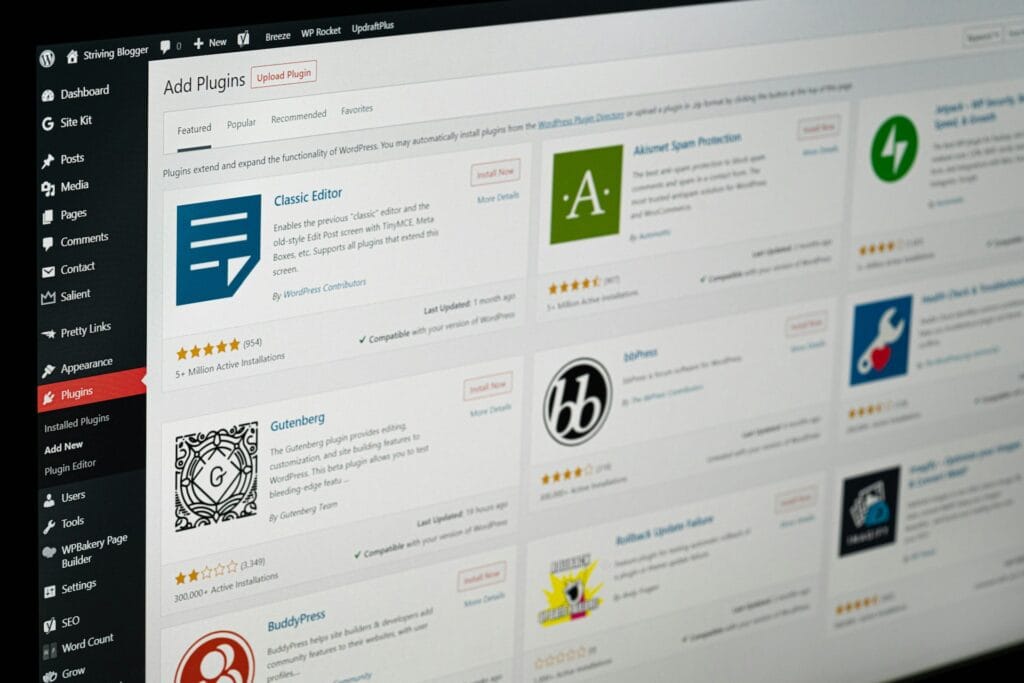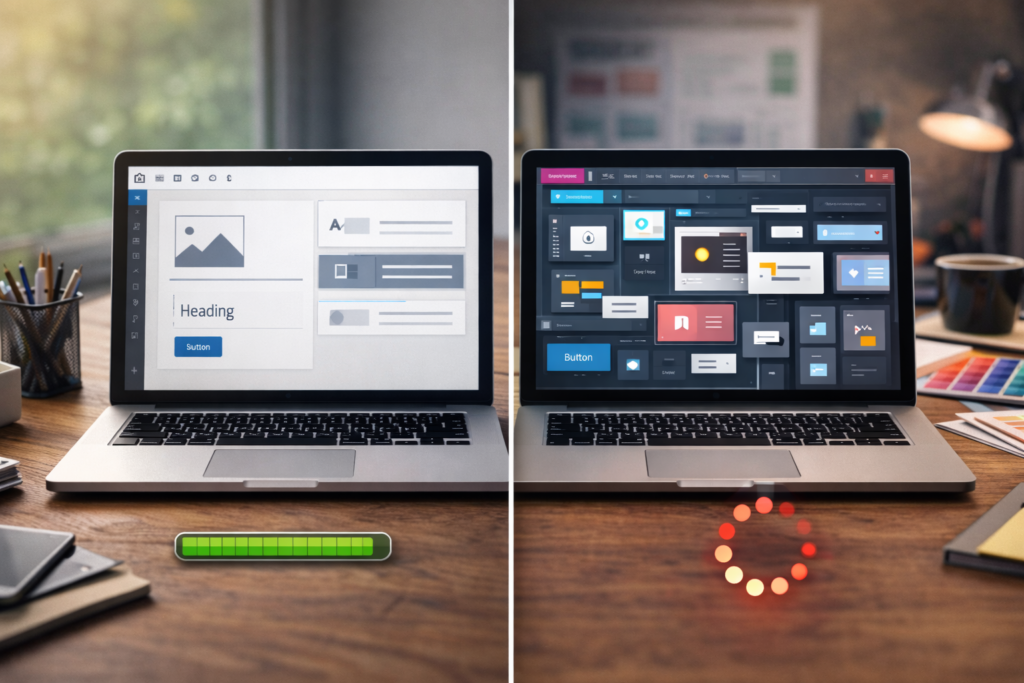
WordPress workflow automation can reduce repetitive admin, speed up customer service, and help information move between your website and business systems without constant copying and pasting.
Table of Contents
The goal is not to automate every task. It is to identify predictable work, remove avoidable handovers, and create a process that remains easy to understand when something goes wrong.
For a growing business, this might mean sending website enquiries into a CRM, assigning orders to staff, creating follow-up tasks, updating customer records, or notifying the right person when an important event occurs.
Done well, WordPress workflow automation makes the website a useful part of daily operations. Done poorly, it can produce plugin bloat, duplicated data, missed notifications, and workflows nobody fully understands.
This guide explains how to automate carefully, where custom plugin development fits, and how to keep the system lean.
What WordPress Workflow Automation Actually Means
WordPress workflow automation uses rules to trigger actions when something happens on your website.
A simple rule might be:
“When a customer submits this form, create a CRM contact and notify the sales team.”
A more advanced workflow might be:
“When a wholesale customer places an order, check the account type, send the order to the fulfilment system, create an internal task, update the CRM, and alert finance if a purchase-order reference is missing.”
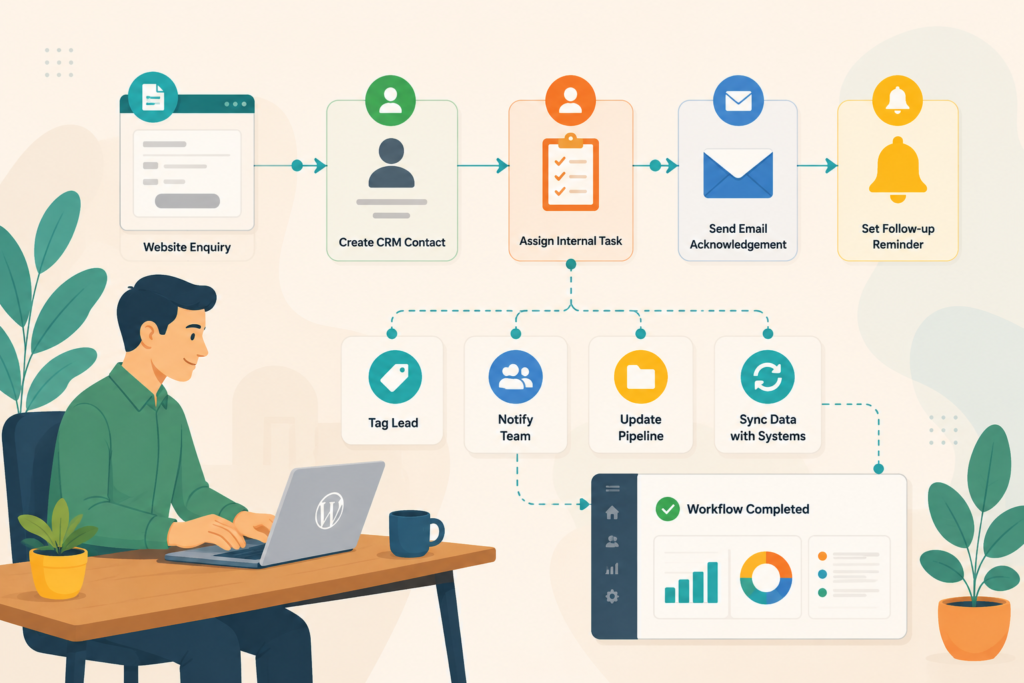
Every workflow has three basic parts:
- A trigger
- One or more conditions
- One or more actions
The trigger starts the process. Conditions decide whether the process should continue. Actions perform the work.
WordPress provides hooks that allow plugins and WordPress itself to react at defined points. These hooks are the foundation of many integrations and automated processes.
The challenge is not usually whether automation is technically possible.
The challenge is designing it so that it remains reliable, secure, and supportable.
Manual Tasks Worth Automating First
The best candidates for WordPress workflow automation are repetitive tasks that follow clear rules.
Start with work that:
- Happens frequently
- Uses the same steps each time
- Involves copying data between systems
- Creates delays when a person is unavailable
- Is easy to check for success or failure
- Does not require complex human judgement
Enquiry and lead handling
A website enquiry often starts a chain of manual work.
Someone may need to:
- Read the form submission
- Copy the details into a CRM
- Assign the lead
- Send an acknowledgement
- Create a reminder
- Update a spreadsheet
- Notify a regional or service-specific team
A CRM integration can complete several of these actions immediately.
For example, an enquiry for web development could be assigned to one pipeline, while a hosting enquiry goes to another. The workflow could record the original source, service requested, region, and campaign details.
This reduces admin and gives the team more consistent information.
Order and fulfilment tasks
Ecommerce orders often require several handovers.
Useful automation may include:
- Sending paid orders to a warehouse
- Creating courier shipments
- Flagging high-value orders
- Notifying staff about custom products
- Updating stock in another system
- Sending invoices to accounting software
- Creating follow-up tasks after delivery
The aim is not only speed. Consistency matters too.
When staff manually move order information, small errors can affect customer communication, delivery, stock, and reporting.
Membership and account administration
A membership, course, directory, or client portal may need automation when a user:
- Registers
- Completes payment
- Changes membership level
- Submits a document
- Reaches an expiry date
- Cancels a subscription
- Requests access to restricted content
A WordPress automation plugin may handle a standard process. A custom WordPress plugin may be better when access rules depend on business-specific data or several systems must stay synchronised.
Internal content workflows
Automation is not only for customers.
It can help with internal workflows such as:
- Assigning draft articles to editors
- Notifying reviewers when content changes
- Creating approval stages
- Alerting staff about outdated pages
- Scheduling recurring content checks
- Generating a task after a form or document is submitted
These workflows can be especially useful when several people manage the same website.
Start With the Process, Not the Plugin
A common mistake is searching for a tool before defining the workflow.
Before choosing a WordPress workflow automation solution, write down the current process step by step.
For example:
- A customer submits a quote request.
- An email goes to the general inbox.
- An administrator checks the requested service.
- The lead is copied into the CRM.
- A sales representative is selected.
- A follow-up task is created.
- The customer receives a confirmation.
Then ask:
- Which steps always happen?
- Which steps depend on a condition?
- Which steps need human judgement?
- Where do delays or mistakes occur?
- What should happen if a system is unavailable?
This exercise often reveals that only part of the process should be automated.
A good workflow removes repetitive work while preserving useful human decisions.
For larger operational planning, VVRapid’s Digital Strategy Roadmaps service can help prioritise systems, integrations, website improvements, and workflow changes in a practical order.
Where Custom Plugin Development Fits
You do not need a custom solution for every WordPress workflow automation project.
A trusted plugin may be enough when:
- The trigger and action are common
- The workflow is short
- The connected services are already supported
- The data is not highly sensitive
- Failure does not create serious operational risk
- The plugin provides suitable logs and support
Custom plugin development becomes more useful when the workflow is specific to your business.
Examples include:
- Mapping form data into a specialised CRM
- Applying custom lead-assignment rules
- Connecting WooCommerce to an internal fulfilment system
- Building approval workflows for staff
- Synchronising records in both directions
- Creating custom admin tools for exceptions
- Combining several existing plugins into one focused solution
- Handling unusual pricing, access, or order rules
VVRapid’s Custom Plugin Development service includes business process automation, third-party integrations, REST API integration, and focused admin tools. The service is designed around lean functionality rather than adding unnecessary features.
WordPress API Integration and Data Synchronisation
Many automation projects depend on moving data between WordPress and another platform.
The WordPress REST API provides a structured way to retrieve, create, update, and delete resources through HTTP requests. It is commonly used when WordPress needs to exchange information with external applications.
Source: WordPress REST API Documentation ↗
A WordPress API integration might connect your site to:
- A CRM
- An accounting platform
- A booking system
- An email platform
- A payment provider
- A courier service
- An ERP
- A helpdesk
- A mobile application
- A private internal system
The important question is whether information moves in one direction or both.
One-way synchronisation
One-way data synchronisation sends information from one system to another.
For example:
- WordPress sends a new lead to the CRM
- WooCommerce sends an order to fulfilment
- A form sends a support request to the helpdesk
This is usually easier to manage because one system remains the clear source.
Two-way synchronisation
Two-way synchronisation allows both systems to update shared information.
For example:
- A CRM status updates a WordPress customer dashboard
- Stock changes in an ERP update WooCommerce
- Membership changes in WordPress update another platform, and vice versa
This requires clearer rules.
You need to know:
- Which system owns each field
- What happens when both records change
- How duplicates are detected
- How failed updates are retried
- Whether changes need an audit trail
- How deleted records are handled
Two-way synchronisation can be valuable, but it should not be treated as a simple connection.
How to Avoid Plugin Bloat
Plugin bloat does not only mean having a high plugin count.
It also means carrying overlapping features, unused modules, duplicated triggers, unnecessary scripts, and several tools managing one business process.
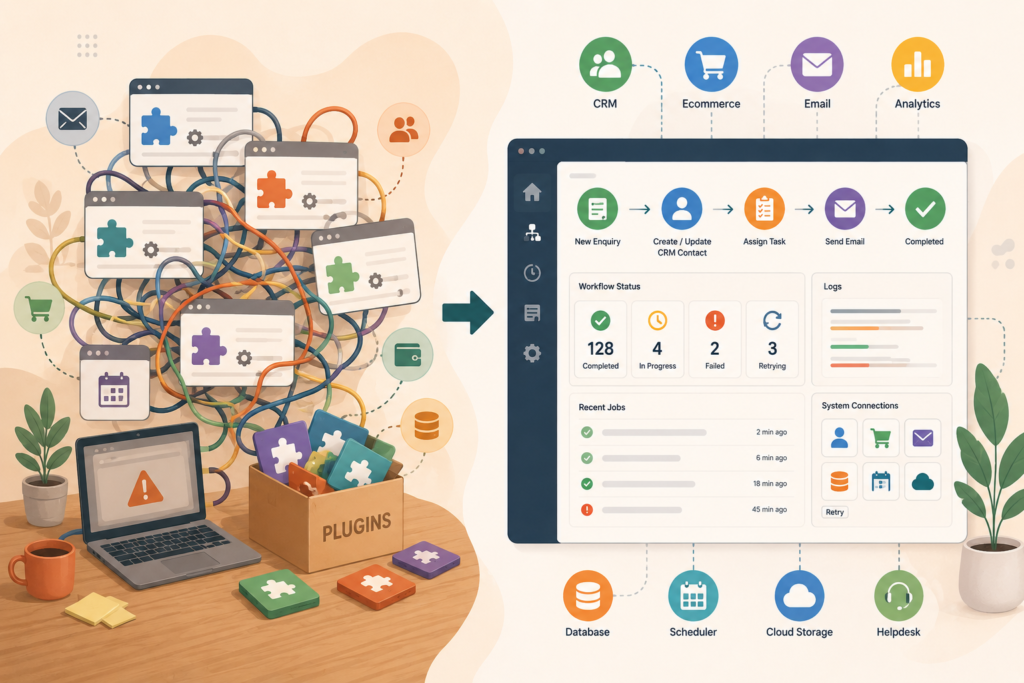
A typical WordPress workflow automation problem might involve:
- One form plugin
- One connector plugin
- One CRM add-on
- One email automation tool
- One notification plugin
- One logging plugin
- One custom code snippet
Each tool may be reasonable on its own. Together, they can create a workflow that is difficult to test.
To reduce plugin bloat:
- Choose one clear owner for each workflow
- Avoid multiple plugins reacting to the same event
- Disable unused modules and integrations
- Document which plugin performs each action
- Remove abandoned automation experiments
- Consolidate related logic where appropriate
- Review licence and support dependencies
- Test performance after adding background actions
Think: fewer moving parts, clearer responsibility.
A custom WordPress plugin may replace several connectors when the workflow is stable and specific. However, custom code should also remain focused. A large custom plugin with poorly separated responsibilities can create its own form of bloat.
Build Failure Handling Into the Workflow
Automation should never assume that every external system will always respond correctly.
An API may time out. A CRM may reject a record. A courier service may be unavailable. Authentication details may expire.
Reliable WordPress workflow automation needs a failure plan.
That plan may include:
- Logging the request and response
- Marking the task as failed
- Retrying after a delay
- Alerting an administrator
- Preventing duplicate submissions
- Giving staff a manual retry button
- Storing enough information to complete the task later
A silent failure is one of the worst outcomes. The business may believe a lead, order, or document reached another system when it did not.
Custom admin tools can make exceptions easier to manage. Instead of asking staff to inspect technical logs, a dashboard can show failed tasks, the reason for failure, and the next action.
Scheduled Automation and WP-Cron
Some workflows happen at a scheduled time rather than after an immediate trigger.
Examples include:
- Checking for expired memberships
- Sending reminder emails
- Synchronising records overnight
- Generating recurring reports
- Reviewing stale leads
- Cleaning temporary data
- Checking an external system for updates
WordPress includes WP-Cron for scheduling time-based tasks. WP-Cron checks for scheduled tasks when the site receives a page load, which means timing may be delayed on a low-traffic site.
Source: WordPress WP-Cron Documentation ↗
For time-sensitive business processes, the hosting environment may need a real server cron job or another queue-based approach.
This is particularly important when the task affects orders, stock, payments, customer access, or reporting deadlines.
Security and Privacy Considerations
Automation can move personal, financial, and operational information between systems.
A secure WordPress workflow automation plan should consider:
- User permissions
- API authentication
- Input validation
- Output escaping
- Secure storage of credentials
- Data minimisation
- Audit logs
- Retention periods
- Staff access
- Error messages
WordPress plugin guidance covers capability checks, data validation, nonces, secure output, and privacy considerations for plugins that handle personal information.
Source: WordPress Plugin Security Guidance ↗
Do not move every available field simply because the API allows it.
Only collect and transfer information needed for the process.
Checklist Before Automating a WordPress Workflow
Use this checklist before installing a WordPress automation plugin or commissioning custom development:
- □ Define the workflow in plain language
- □ Identify the trigger, conditions, and actions
- □ Confirm which steps need human judgement
- □ Choose the source of truth for each data field
- □ List every system involved
- □ Confirm API access and usage limits
- □ Decide how duplicate records will be prevented
- □ Define what counts as a successful action
- □ Plan for timeouts and failed requests
- □ Add logs or an admin status screen
- □ Decide who receives failure alerts
- □ Test with realistic data
- □ Test repeated submissions
- □ Test partial failures
- □ Check user permissions and data access
- □ Document the final workflow
- □ Use a staging environment
- □ Keep a rollback plan
- □ Assign responsibility for maintenance
- □ Review the automation after launch
Good automation is visible enough to manage.
Common Mistakes With WordPress Workflow Automation
Automating a broken process
Automation makes a process faster. It does not automatically make it better.
Simplify the workflow before turning it into code.
Creating too many separate automations
Several small workflows can overlap and trigger duplicate emails, contacts, orders, or tasks.
Map the full customer and staff journey before adding more rules.
Ignoring exceptions
A workflow designed only for the ideal case will eventually fail.
Include cancelled orders, missing fields, duplicate users, expired credentials, unavailable APIs, and unusual customer requests in your testing.
Sending data without clear ownership
If WordPress, a CRM, and a spreadsheet all contain different versions of the same customer record, staff will not know which one to trust.
Define the source of truth.
Using email as the only failure alert
Emails can be missed, filtered, or sent to someone who is unavailable.
For important internal workflows, use logs, dashboards, task queues, or multiple alert methods.
Launching without ongoing maintenance
WordPress, plugins, APIs, authentication methods, and external services change.
VVRapid’s Website Maintenance & Care service can support updates, testing, backups, and ongoing website stability.
Measuring Whether Automation Is Working
A successful WordPress workflow automation project should create a measurable improvement.
Useful measures include:
- Minutes saved per enquiry or order
- Fewer data-entry mistakes
- Faster response times
- Fewer missed follow-ups
- Lower number of duplicate records
- Reduced plugin count
- Fewer manual handovers
- Improved processing consistency
- Lower support volume
- Clearer reporting
Measure the current process before launch where possible.
For example, if staff spend eight minutes processing each enquiry and receive 100 enquiries per month, the workflow consumes more than 13 hours. Reducing that to two minutes creates a visible operational benefit.
Pricing for automation varies by scope and region. The better starting point is often the cost of the current manual process and the business impact of errors or delays.
How VVRapid Can Help
VVRapid can review your current process and identify where WordPress workflow automation is likely to create a practical benefit.
That may involve a WordPress automation plugin, a custom CRM integration, data synchronisation, custom admin tools, or one focused plugin that replaces several overlapping tools.
The approach starts with the workflow, systems, data, and failure cases.
The goal is to reduce repetitive admin without creating a website that is harder to manage.
FAQ About WordPress Workflow Automation
What can WordPress workflow automation handle?
It can handle tasks such as lead routing, CRM updates, order notifications, data synchronisation, customer access, internal approvals, scheduled reminders, and integration with third-party systems.
Do I need a custom plugin for automation?
Not always. A trusted plugin may be suitable for a short, standard workflow. Custom plugin development becomes useful when the rules are business-specific, several systems are involved, or failure handling is important.
Can WordPress connect to a CRM?
Yes. A CRM integration can send leads, customers, orders, and activity data between WordPress and a supported CRM through an existing connector or custom API integration.
Will automation slow down my website?
It can if heavy tasks run during customer requests or several plugins perform overlapping actions. Background processing, efficient API calls, suitable hosting, and careful testing can reduce the impact.
How do I know whether an automation has failed?
The solution should provide logs, status records, notifications, retries, or an admin dashboard. Important failures should never remain silent.
Can automation reduce plugin bloat?
Yes. One focused integration may replace several overlapping plugins. However, the new solution should remain documented, maintainable, and limited to clear responsibilities.
Final Thoughts
WordPress workflow automation works best when it solves a defined operational problem.
Start with repetitive, rule-based tasks. Map the current process, decide which system owns the data, and plan for failures before choosing a tool.
Use an existing WordPress automation plugin when the workflow is standard and well supported. Consider custom plugin development when the process is unique, connected to important systems, or difficult to manage through several separate tools.
The objective is not automation for its own sake.
It is fewer manual steps, clearer internal workflows, more reliable data, and a WordPress website that helps the business operate.
To explore a focused automation or integration, view VVRapid’s Custom Plugin Development service.