Website accessibility for small business means removing unnecessary barriers so more people can read your content, navigate your pages, complete forms and use your website’s important features. It is not only a technical exercise. It is part of creating a clear, dependable customer experience.
Table of Contents
An accessible site can support people with visual, hearing, mobility, cognitive and neurological disabilities. It can also help visitors dealing with temporary injuries, bright sunlight, a noisy environment, a slow connection or an unfamiliar device.
You do not need to become an accessibility specialist overnight. Start with the barriers most likely to stop someone from completing an important task.
What does website accessibility for small business mean?
Website accessibility for small business is the practice of designing, writing, building and maintaining a site so that people with different abilities can use it successfully.
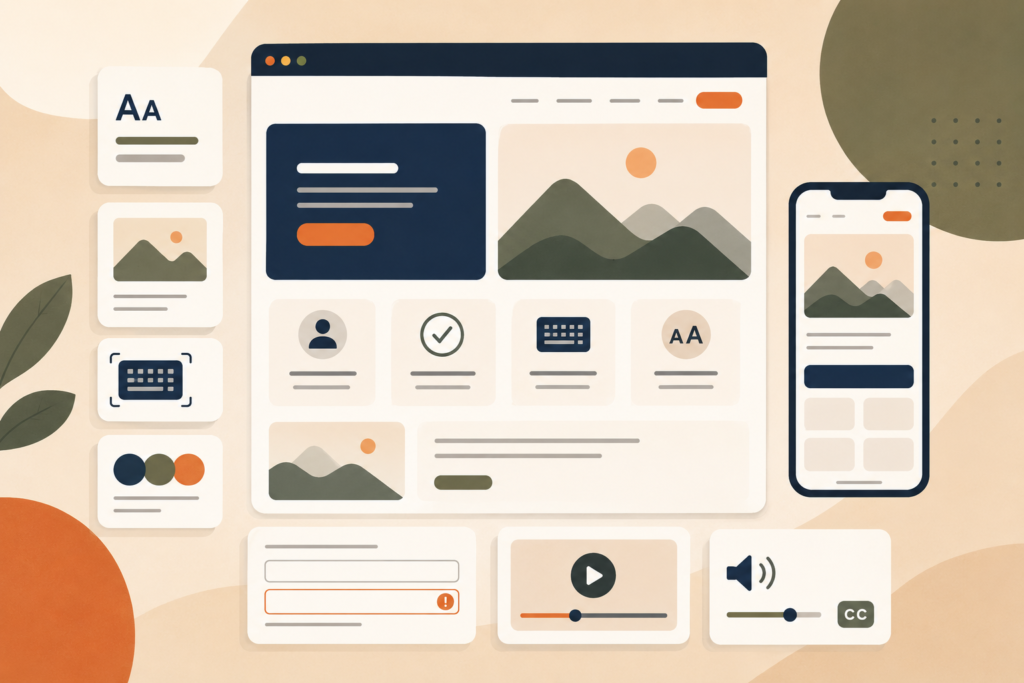
That includes being able to:
- Understand the page structure
- Read text with sufficient contrast
- Navigate without relying on a mouse
- Identify links and buttons
- Understand images that carry meaning
- Watch videos with captions
- Complete forms and correct errors
- Zoom or resize content
- Use assistive technologies such as screen readers
The international reference most commonly used for accessible website design is the Web Content Accessibility Guidelines, or WCAG.
WCAG 2.2 organises accessibility around four broad principles. Website content should be perceivable, operable, understandable and robust. W3C describes WCAG as an international standard for making digital content more accessible to people with disabilities.: Source: W3C WCAG 2 Overview ↗
These principles may sound technical, but they connect directly to everyday website decisions.
Why accessible website design matters to a small business
Accessibility can affect whether a visitor is able to request a quote, buy a product, book an appointment or contact your team.
Consider a few practical situations:
- A visitor using a keyboard cannot reach your menu.
- A customer with low vision cannot read pale grey text.
- A screen reader user cannot understand an image-based button.
- A person with limited hand movement cannot select a tiny mobile control.
- A video explains your service, but has no captions.
- A form reports an error using colour alone.
In each case, the visitor may be interested in the business but blocked by the interface.
Improving website accessibility for small business can also make a site easier for everyone to use. Clear labels, logical headings, readable text and helpful error messages are not specialist extras. They are good user experience.
VVRapid’s Website Design & Development service focuses on clear UX, mobile-friendly layouts and practical website journeys.
Website accessibility for small business starts with clear structure
An accessible page should make sense before visual styling is added.
Headings help people scan content and understand how ideas relate. They also give screen reader users a way to move between sections.
Use headings in a logical order:
- One H1 for the main page title
- H2 headings for major sections
- H3 headings for subsections
- H4 headings only when a deeper level is genuinely needed
Do not choose headings because of their visual size. Choose them according to the content structure, then style them appropriately.
Lists should use real list formatting. Buttons should be built as buttons. Links should be links rather than plain text made clickable through custom scripting.
This is sometimes called semantic structure. It gives browsers and assistive technology more useful information about what each element does.
Use colour contrast that keeps content readable
Colour contrast is the difference between foreground content and its background.
Low-contrast text may look refined in a design mock-up but become difficult to read on a phone, an older screen or in strong daylight. It can be particularly challenging for people with low vision or colour vision deficiencies.
Check contrast for:
- Body text
- Headings
- Button labels
- Menu links
- Form labels
- Error messages
- Text placed over photographs
- Icons that communicate meaning
- Visible keyboard focus indicators
WCAG 2.2 includes measurable contrast requirements for text and other important interface elements. The official standard should be used when checking specific conformance requirements.: Source: W3C Understanding WCAG 2.2 ↗
Colour should not be the only way information is communicated.
For example, do not mark an invalid form field using only a red border. Add an icon or written message explaining what needs attention.
Make the website usable with a keyboard
Some visitors navigate websites without a mouse or touchscreen.
They may use:
- A standard keyboard
- A switch device
- Voice control
- Other assistive input technology
A basic keyboard check is simple:
- Open the page.
- Put the mouse aside.
- Press the Tab key repeatedly.
- Confirm that each interactive element receives focus.
- Check that the focus order follows the visual layout.
- Activate links and buttons using Enter or Space.
- Make sure no section traps the keyboard focus.
A visible focus indicator is essential. Without it, a keyboard user may not know which link, field or button is currently selected.
Menus, cookie notices, pop-ups and sliders are common problem areas. They should be tested carefully rather than assumed to work.
Good keyboard navigation should be included during development, not added as a last-minute patch.
Write useful image alt text
Alternative text, usually called image alt text, describes the purpose of an image for people who cannot see it.
Good alt text depends on context.
A photograph that shows a completed project may need a brief description of the relevant result. An icon used as a button needs an accessible name that explains its action. A decorative flourish usually needs empty alt text so a screen reader can ignore it.
Ask:
What information would be missing if this image did not appear?
Use the answer as the basis for the description.
Avoid:
- Starting every description with “image of”
- Stuffing SEO keywords into alt text
- Describing irrelevant visual details
- Repeating a nearby caption word for word
- Adding alt text to purely decorative imagery
The US Section 508 guide recommends thinking about what text could be used in place of a meaningful image.: Source: Section 508 Accessible Web Design Guide ↗
For Rank Math, the in-post image in this article uses the focus keyword. That should not become a general rule for every image. Accessibility comes first, so alt text must remain accurate and relevant.
Build accessible website forms
Forms are often where accessibility problems become commercial problems.
A visitor may understand your service and be ready to enquire, only to encounter a form they cannot complete.
An accessible website form should include:
- A visible label for every field
- Clear instructions
- Logical keyboard order
- Helpful error messages
- Sufficient colour contrast
- A large enough click or tap area
- Clear required-field indicators
- A confirmation message after submission
Placeholder text is not a good substitute for a field label. It may disappear when someone starts typing and often has weak contrast.
Error messages should explain both the problem and the correction.
Instead of:
Invalid input
Use:
Enter an email address in the format name @example.com
Where possible, display the message close to the relevant field and provide a summary at the top when several errors occur.
Do not require visitors to re-enter every field after one mistake.
Use clear links, buttons and calls to action
A link should make sense from its wording.
Repeated links such as “click here” or “learn more” can become confusing when a screen reader presents them as a list without the surrounding paragraph.
More descriptive options include:
- View website design services
- Download the accessibility checklist
- Read the delivery information
- Request a website review
Buttons should describe an action, such as:
- Send enquiry
- Book an appointment
- Add to basket
- Save changes
Avoid using the same visual style for text that is not interactive. Visitors should be able to recognise what can be clicked.
This is especially important in inclusive web design, where clarity reduces unnecessary cognitive effort.
Make video and audio content accessible
Videos should provide captions for spoken content and important sounds.
Captions help people who are deaf or hard of hearing. They also support visitors watching without sound, people working in shared spaces and people who find written reinforcement useful.
Consider including:
- Accurate captions
- A transcript
- Audio description where important visual information is not spoken
- Player controls that work with a keyboard
- A way to pause movement or autoplay
Automatically generated captions can provide a starting point, but they should be reviewed. Names, technical terms and regional accents are frequently misinterpreted.
Avoid autoplaying audio. Unexpected sound can be disruptive and may interfere with assistive technology.
Design for zoom, mobile use and different screen sizes
Responsive design and accessibility overlap, but they are not identical.
A mobile-friendly layout can still have inaccessible forms, weak contrast or poor focus behaviour. An accessible desktop page can also become difficult to use when components rearrange on a small screen.
Test whether visitors can:
- Zoom the page without losing content
- Read text without horizontal scrolling
- Use buttons without tapping nearby controls accidentally
- Complete forms on a phone
- Rotate the device where appropriate
- Dismiss menus and pop-ups
- Reach important calls to action
Website accessibility for small business should be tested across desktop and mobile layouts because the same component may behave differently at each size.
Use plain language and predictable navigation
Accessible content is not limited to code.
Long sentences, unexplained abbreviations and vague instructions can create barriers. Plain language helps visitors find answers and make decisions faster.
Aim for:
- Short paragraphs
- Descriptive headings
- Familiar words
- Direct instructions
- Consistent menu labels
- Predictable page layouts
- Clear next steps
Navigation should appear in a consistent location across the site. A link should not unexpectedly open a download, start a call or take the visitor to another platform without sufficient context.
Accessible content writing can also support SEO because both users and search engines benefit from clear structure and focused pages.
VVRapid’s Socials, Blog & Article Writing Services can support structured website and blog content.
Website accessibility for small business checklist
Use this web accessibility checklist to review important pages:
- □ The page has one clear H1.
- □ Headings follow a logical order.
- □ Body text is large enough to read comfortably.
- □ Text and controls have sufficient colour contrast.
- □ Information is not communicated through colour alone.
- □ Every important image has useful alt text.
- □ Decorative images are ignored by screen readers.
- □ Links describe their destination.
- □ Buttons describe their action.
- □ Menus work with a keyboard.
- □ Focus indicators are clearly visible.
- □ Focus moves in a logical order.
- □ Forms have permanent, visible labels.
- □ Error messages explain how to fix the problem.
- □ Videos include accurate captions.
- □ Audio content has a transcript where appropriate.
- □ Pages remain usable when zoomed.
- □ Mobile tap targets are large enough to use.
- □ Pop-ups can be closed using a keyboard.
- □ Moving content can be paused.
- □ Page titles identify the page clearly.
- □ The website has been tested using more than one method.
An automated testing tool can identify some issues, but it cannot judge every content or usability problem. Manual testing remains important.
Common website accessibility mistakes
Treating an accessibility plugin as a complete solution
A plugin may improve specific elements or help identify problems, but it cannot automatically correct every issue in the design, content, code and user journey.
Accessibility needs to be considered throughout the website.
Adding alt text to every image
Decorative images do not need descriptive alt text. Excessive descriptions create noise for screen reader users.
Describe meaningful images and correctly hide decorative ones.
Removing visible focus outlines
Designers sometimes remove browser focus outlines because they look inconsistent with the brand.
This leaves keyboard users without a clear position indicator. Replace the default style only when the new focus state is equally or more visible.
Using colour alone
Green and red indicators may be difficult to distinguish. Add labels, icons, patterns or written explanations.
Relying only on automated scans
Automated tools can detect missing attributes, some contrast failures and certain code issues. They cannot fully determine whether alt text is useful, content is understandable or a task is practical to complete.
Waiting until after launch
Retrofitting complex templates and interactive features can require more work than addressing accessibility during planning and development.
Include accessibility expectations in the website brief and testing process.
Forgetting third-party tools
Booking systems, chat widgets, payment forms, cookie banners and embedded media can introduce their own barriers.
Test the complete journey, including tools supplied by another provider.
A practical improvement plan for an existing website
You do not have to fix every page at once.
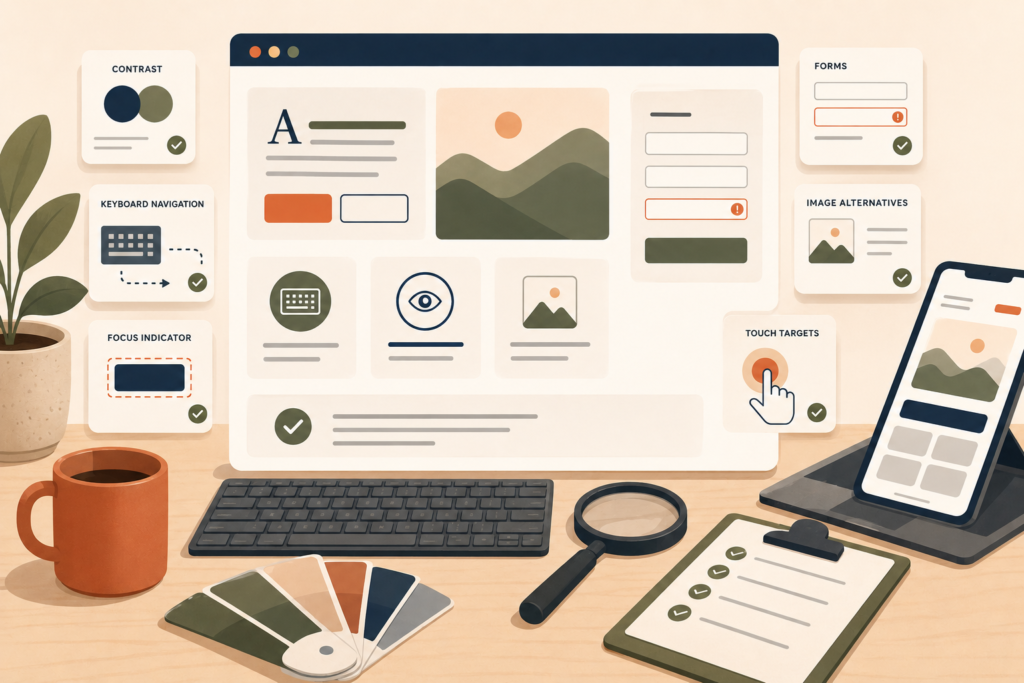
Start with the pages and journeys that matter most:
- Homepage
- Main service or product pages
- Contact page
- Enquiry, booking or checkout forms
- Navigation and mobile menu
- Frequently visited articles
- Account or customer portal areas
Fix severe blockers first. A form that cannot be submitted with a keyboard is more urgent than a minor descriptive improvement on an old blog image.
Then create a repeatable process:
- Add accessibility checks to new page reviews.
- Give content editors alt text guidance.
- Test major plugin and theme updates.
- Review new forms before publishing.
- Check templates after design changes.
- Include accessibility in ongoing website maintenance.
VVRapid’s Website Maintenance & Care service can support ongoing updates, technical checks and website upkeep.
FAQ about website accessibility for small business
Does every small business website need to consider accessibility?
Yes. Any visitor may use assistive technology or encounter a situational barrier. The exact technical and legal requirements vary by country, industry and service type, so seek qualified legal guidance where compliance obligations are unclear.
What is WCAG 2.2?
WCAG 2.2 is a W3C accessibility standard containing testable criteria for making digital content more accessible. W3C encourages the use of the latest WCAG version.
Can an automated tool make a website fully accessible?
No. Automated tools can identify certain technical issues, but manual review is still needed to assess keyboard use, content meaning, error recovery and real task completion.
Is website accessibility expensive?
Cost varies according to the website’s size, age, platform and complexity. Addressing accessibility during a new build is generally more efficient than repairing deeply embedded issues later. Pricing varies by scope and region.
Does accessible website design help SEO?
Some accessibility practices overlap with good SEO and UX, including semantic headings, descriptive links, useful image alternatives and clear page structure. Accessibility and SEO remain separate disciplines, so success in one does not automatically guarantee success in the other.
How often should accessibility be checked?
Check accessibility during design, before launch, after major updates and whenever new templates, forms, plugins or third-party tools are added.
How VVRapid can help
VVRapid can incorporate practical accessibility considerations into website planning, UX, design and development. This may include semantic page structure, responsive layouts, keyboard-friendly components, accessible forms and clearer content presentation. Existing websites can also be reviewed to identify high-priority barriers and realistic improvements. No single tool or quick overlay replaces careful design, development and testing. The most useful approach is to address important customer journeys first, then maintain better standards as the site grows.
Good website accessibility for small business helps more people understand your offer and complete important tasks without avoidable frustration.
View VVRapid’s Website Design & Development service to discuss an accessible new build or structured website improvement.
External sources used in this article (helpful resources)
- Source: W3C WCAG 2 Overview ↗
- Source: W3C Understanding WCAG 2.2 ↗
- Source: Section 508 Accessible Web Design Guide ↗